This week’s cool tool recommendation isan image compressor tool from Website Planet.
Why Image Compression Matters
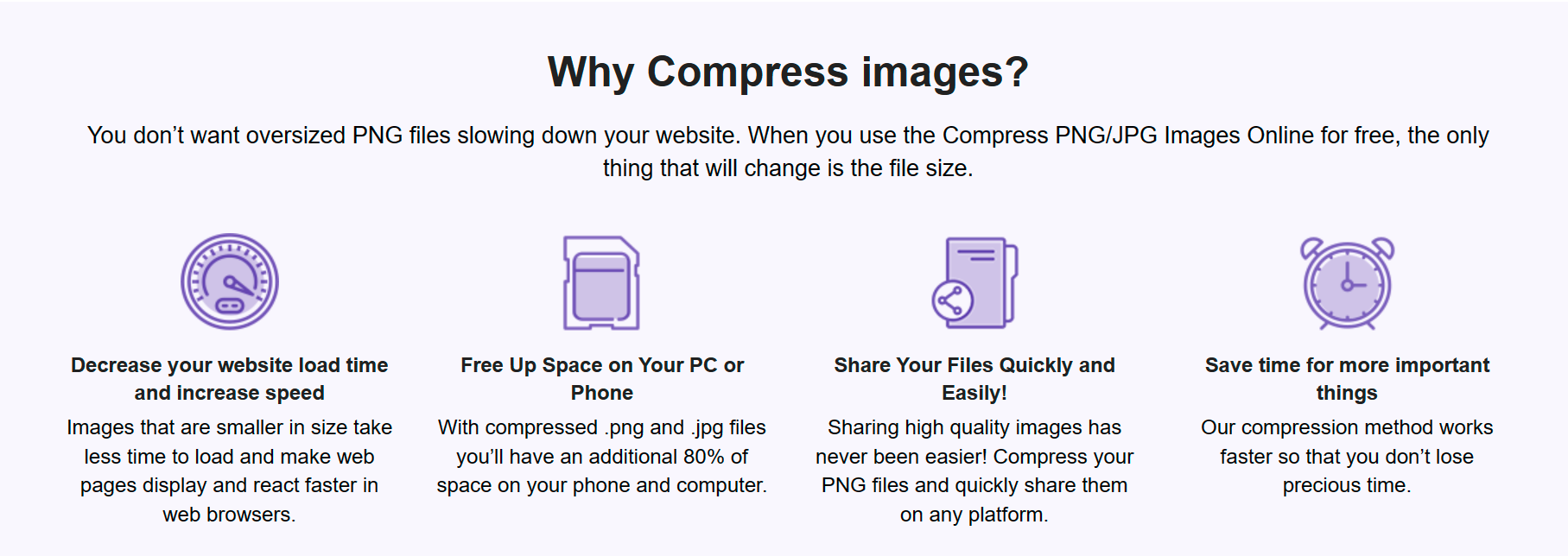
Large image files can significantly slow down page load times, affecting user experience and search engine rankings. That’s where a reliable image compressor becomes essential.
Website Planet’s Image Compressor tool offers a user-friendly interface that simplifies the image compression process. It allows you to compress PNG and JPG files effortlessly while maintaining the quality of your images.
Two other image compression tools worth checking out are: Squoosh, and Picsart.
Improve your headlines quickly and easily with this week’s cool tool recommendation – Headline Studio.
David Ogilvy, the original Mad Man of advertising, once famously said, “On the average, five times as many people read the headline as read the body copy. When you have written your headline, you have spent eighty cents out of your dollar.”
Ogilvy’s remark reminds us never to underestimate the power of the humble headline. Even in this digital age, headlines count.
A good headline can grab the attention of the reader and make them want to read more. A bad headline, on the other hand, can turn people away and cause them to lose interest in your content. This is especially true in the online world, where people have short attention spans and are bombarded with a constant stream of information.
Headlines also serve an important SEO (search engine optimization) purpose. Search engines use the headline to understand what your content is about, and a good headline can help your content rank higher in search results.
Headline Studio will rate your headlines allowing you to identify any weaknesses and address them. Additionally, it contains word banks that can assist you in overcoming writing blocks and creating more compelling headlines.
How it works
Just click the Headline Studio button on any website where you want to analyze a headline, such as your WordPress blog post. Headline Studio will open directly in your browser, allowing you to write and analyze headlines simultaneously.
This week I’m recommendingRunway – an AI-powered tool that offers user-friendly tools to generate and edit images, videos, text, and even audio.
How To Use Runway
Generate Images: Create unique visuals from text prompts or by manipulating existing images.
Edit Videos: Perform complex video editing tasks, such as background removal, style transfer, and motion tracking, with just a few clicks.
Generate Text: Craft compelling copy, generate scripts, or even create entire articles with AI assistance.
Generate and Edit Audio: Produce and modify audio content, from sound effects to music, using AI-driven tools.
Key Features and Benefits:
User-Friendly Interface: Runway is designed to be accessible to users of all skill levels. Its intuitive interface makes it easy to navigate and utilize its powerful features.
AI-Powered Efficiency: Automate tedious tasks and streamline your workflow, freeing up time to focus on the creative aspects of your projects.
Versatility: Runway supports a wide range of media types, making it a versatile tool for various creative endeavors.
Collaboration: Runway allows for seamless collaboration, enabling teams to work together on projects in real-time.
Constant Innovation: The platform is continuously updated with new features and improvements, ensuring that users always have access to the latest AI advancements.
How to Use Runway:
Getting started with Runway is simple:
Collaborate and Share: Share your creations with others and collaborate on projects.
Create an Account: Sign up for a free or paid account on the Runway website.
Explore the Tools: Browse the extensive library of AI tools and select the ones that suit your needs.
Experiment and Create: Start experimenting with different prompts and settings to see what you can create.
This week’s cool tool recommendation is Librestock– a website that provides a free search engine for finding high-quality stock photos from various sources across the internet.
It’s essentially a platform that aggregates and indexes images from multiple stock photo websites, making it easier for users to search for and discover images for their creative projects.
Enter keywords or phrases to search for specific types of images, and Librestock will display results from a range of stock photo providers, allowing you to click through to the source website to download or license the images they need.
I love learning about new tools to make social media marketing more creative and effective, so I am sharing some of my favourite tools with you at the start of each week.
This week’s cool tool recommendation is SnapWidget – a tool that allows you to display your Facebook, Twitter, and Instagram photos in collage format on your website or blog.
When you post photos and videos to Instagram, Twitter, Facebook or YouTube, the widget on your website or blog automatically updates with new content.
Pricing
You can start with a free plan and if you find you need more features, you can try out a paid plan for free for 14 days.
This week I’m recommending Fotor, a free image editing tool and design maker for PC and mobile.
You can use it to create a variety of images, including photo collages for social media, making as many edits as you need from an extensive menu of edits. Fotor even provides an area where you can experiment to the side of your canvas. It includes ready-to-go graphics, icons, and studio-quality video templates. One of my favorite Fotor features is the LinkedIn banner design and the logo maker.
A paid version is available that contains more features and is ad-free.
This week I’m recommending UberSuggest – a free keyword research tool that lets you see which keywords are performing best for your competitors/peers.
This truly is a super helpful tool when it comes to Search Engine Optimisation. It generates a list of keywords for you based on what is working for your competitors and based on what people are typing into Google, allowing you to see volume, competition, and even seasonal trends for each of your chosen keywords.
Let’s see it in action.
Type in your chosen keyword (or a domain of a competitor) to see which keywords are ranking for them). In this example, I’ll use the keyword ‘social media’.
The first thing I get is an overview of keyword search volume (the number of searches this keyword has per month) SEO difficulty (estimated competition in organic search – the higher the number the more competitive) paid difficulty (estimated competition in organic search – the higher the number the more competitive) and cost per click (if you are using paid Google ads).
Keyword Ideas
Now I can start to drill down into keyword ideas based on my head keyword.
As you can see from the screenshot above, you can do a lot more, such as identify how popular the keyword is based on its search volume over the last 12 months.
Content Ideas
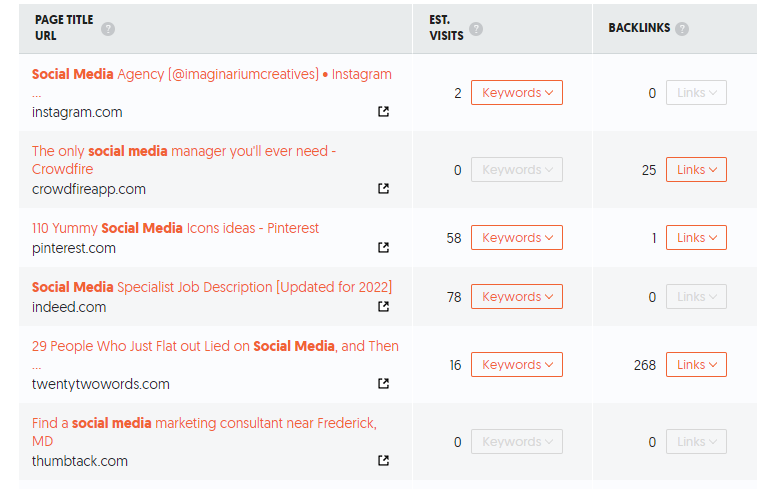
Now let’s look at what we can do with these keywords. Ubersuggest shows you the highest performing content for your chosen keywords.
Backlink Data
Backlinks are one of the most important components of Google’s ranking algorithm. However, there is a problem. They are difficult to build. Ubersuggest lets you see exactly what content people are linking to in your space. You then approach each of these sites and ask them to link to you.
Pricing
You get three free daily searches with the free version. Before you decide to upgrade, you can try out a paid version for free for 7 days.