Posted in #HCSM

The Rise of the Niche: Why Health Conversations Are Moving from Mega Platforms to Micro Communities

For over a decade, health communicators were told that reach was everything. Post widely, engage broadly, and the message would find its audience. But the tides have turned. Today, people are stepping away from crowded public feeds and moving into micro-communities, such as closed groups, condition-specific forums, and peer-led chats, where genuine connections can occur.

For health communicators, this shift changes everything. It’s no longer about broadcasting messages — it’s about belonging, trust, and dialogue.

Social media isn’t dying — it’s reorganising around the timeless human need for connection. The question is: are we ready to meet audiences there?

Read the full piece: The Rise of the Niche: Why Health Conversations Are Moving from Mega Platforms to Micro Communities

Posted in AI, Cool Tool

Monday Morning Cool Tool: getimg.ai

This week’s cool tool recommendation is getimg.ai – an AI image generator.

Features

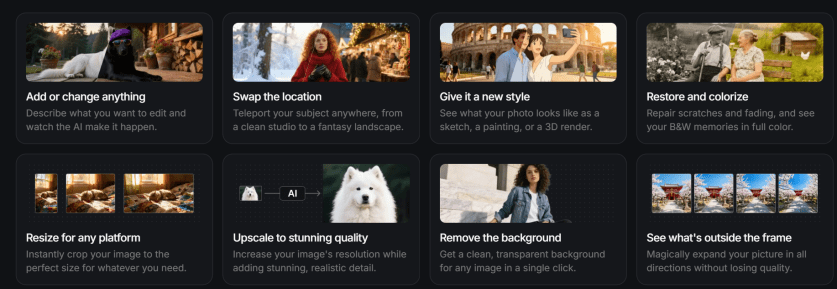
  • Image Generator – Create images from text.
  • Video Generator – Create short videos from images or text prompts.
  • Image Editor – Edit images with AI (great for retouching, background tweaks, or adding new elements).
  • AI Resizer – Resize or upscale images intelligently without losing quality.
  • Uncrop – Expand images beyond their borders (handy for banner or social post layouts).
  • BG Remover – Instantly remove or replace backgrounds.
  • Vector Generator: Convert raster images into crisp, editable vector files.
  • Mockup Creator: Drop your designs into real-world settings instantly.
  • Recolouring & Text Remover: Adjust tones, palettes, or typography with ease.

Pricing

The free plan includes 40 credits per day and access to three image models — more than enough to experiment and explore its capabilities. Paid tiers unlock higher limits and advanced features for power users.

Posted in AI, Cool Tool

Monday Morning Cool Tool: Subtitle

This week’s cool tool recommendation is SubtitleBee- an auto caption generator.

Captions don’t just make your content accessible to people who are deaf or hard of hearing—they help everyone. They keep viewers watching on mute, boost comprehension for non-native speakers, and even improve SEO.

Healthcare is global, and so are its audiences. Captions and subtitles bridge not only hearing differences but also language gaps, literacy levels, and learning styles. Captions don’t just improve accessibility; they improve performance. Most people scroll social media on mute—especially in healthcare spaces where privacy matters. Captioned videos hold attention longer, encourage shares, and boost recall. They also help algorithms index your content for search and translation, extending the life of your message online.

Luckily, a wave of AI-powered caption tools can now generate subtitles for us. SubtitleBee also includes translation in over 100 languages. It also offers editing of timing, styling (fonts, colours, backgrounds) and branding (logos/custom overlays) so your captions look professional.

Key things to look out for

  • Check the free-plan limits (e.g., number of videos, video length) so you don’t hit an unexpected paywall.
  • Make sure your translations are accurate (even with AI support you may need to tweak terminology).
  • When styling captions, ensure readability: font size, background contrast, sufficient on-screen duration.
  • For training/advocacy, make sure captions are not an afterthought: they’re part of the message.
  • Consider exporting both burnt-in captions and separate caption files (SRT/VTT) for different uses.
  • For inclusive accessibility: include captions even when sound is on; helpful for learners with hearing differences, non-native speakers, and those watching without audio.
  • Don’t forget to review/edit to ensure accuracy (especially technical terms, names, medical/advocacy vocabulary).

Posted in AI, Cool Tool

Monday Morning Cool Tool: Recraft

This week’s cool tool recommendation is Recraft – an AI image generator.

Recraft turns your text prompts into high-quality visuals in a consistent, customisable style. You can define your own brand palette, adjust colours and composition, and even refine outputs with built-in editing tools such as background removal and upscaling.

Unlike many AI image generators that only produce raster files (pixel-based images that blur when enlarged), Recraft also creates vector graphics (SVGs) — images built from shapes and lines rather than pixels. That means they stay sharp at any size and can be easily edited or recoloured later in tools like Illustrator, Canva, or Figma.

Features:

  • AI image generator & editor – Create, refine, and enhance visuals from text prompts.
  • AI vector generator & image vectorizer – Turn raster files into clean, editable vector art.
  • Mockup generator – Instantly visualise designs in real-world settings.
  • AI photo editor, upscaler, background remover, eraser, and image combiner – Edit, sharpen, or expand your images with simple, intuitive controls.
  • Recolouring and text remover tools – Quickly adjust tones, palettes, and typography.
  • Image expanding – Extend the boundaries of an existing image without losing composition.

It also supports a full range of format conversions — from JPG to SVG, PNG to SVG, WebP or JPG to Lottie, and JPG to TIFF, with custom DPI and CMYK options for print-quality output.

Pricing

  • Free plan: Get started at no cost. Daily credit allowance; images appear in the public gallery.
  • Pro plan: From around US $10/month (billed annually). Includes full commercial rights, private image generation, and ~1,000 monthly credits.
  • Higher tiers: Up to ~US $48/month for heavier use with larger credit allowances.
    (Free plans have limited rights and credits don’t roll over each month.)

Posted in AI, Cool Tool

Monday Morning Cool Tool: Visla

This week’s tool-cool recommendation is Visla—an AI-powered video creation and editing tool.

Visla helps users create professional videos with features such as screen recording, narration assistance, and text overlays. With Visla’s AI capabilities, narratives can be made from a script, a blog post, or simply a few bullet points.

Key Features

  • Collaboration Tools: Streamline feedback and approval processes.
  • Customization Options: Tailor your videos to your brand and message.
  • Easy-to-Use Interface: Create professional videos even if you’re a beginner.

Visla offers a free subscription plan with 50 minutes of video creation per month.

Visit https://www.visla.us for more information.

Posted in AI, Cool Tool

Monday Morning Cool Tool: Bigjpg

This week’s tool cool recommendation is Bigjpg – a tool that uses AI to upscale images.

Powered by AI, Bigjpg uses advanced neural networks to enlarge images while preserving clarity, detail, and colour accuracy. Unlike basic bicubic interpolation, which often produces blurred edges and pixelation, Bigjpg’s algorithms are explicitly trained to enhance lines and maintain colour fidelity. The result is remarkably crisp images, especially for artwork and illustrations where precision matters.

Why It Stands Out

  • Enhanced Detail Preservation: Reconstructs fine details and prevents the “fuzzy” look typical of conventional upscaling.
  • Superior Colour Accuracy: Retains the vibrancy and tonal balance of the original image.
  • Noise Reduction: Smooths out visual noise, delivering cleaner, more polished results.

Pricing
Bigjpg offers both free and paid plans. The premium tiers allow for larger image sizes, faster processing, and access to advanced enhancement options.

Posted in Cool Tool

Monday Morning Cool Tool: YouTubeToWav

This week’s cool tool recommendation is YouTubeToWav, a free, browser-based converter that lets you paste a YouTube link and download the audio in WAV format (or other formats like MP3, FLAC, OGG, and M4A).

What are WAV files?

If you’ve ever worked with audio, you’ve probably come across WAV files. They’re one of the oldest digital audio formats around. WAV remains a gold standard when you need sound that’s crystal-clear and uncompressed.

WAV (short for Waveform Audio File Format) was created by Microsoft and IBM back in the 1990s. Unlike MP3 or AAC, which shrink audio down by compressing it, WAV keeps every detail intact, making it ideal for recording, mixing, or mastering. This makes it perfect for preserving original sound files without worrying about future degradation.

Common Uses

  • Podcasters grabbing background clips (with permission).
  • Educators saving lecture snippets for offline use.
  • Anyone wanting a higher-quality copy of audio to work with.

Why Use

  • Quick and simple: No registration, no software download.
  • High quality: Offers up to 1536 kbps for clarity.
  • Flexible: Works on desktop or mobile with all major browsers.

⚠️ Copyright Compliance: Downloading audio from YouTube may infringe on copyrights—ensure you have the right to do so.


Bottom line: WAV isn’t the format you’ll use for everyday playlists (unless you have unlimited storage), but when quality matters, it’s the format you want in your toolbox. And if you need an easy way to get started, YouTubeToWav is a lightweight, no-fuss option.

Posted in Cool Tool

Monday Morning Cool Tool: ReadyScriptPro

This week’s cool tool recommendation is ReadyScriptPro — an AI-powered script generator designed to help content creators develop polished scripts for short films, TikToks, YouTube videos, and more.

If you’ve ever struggled with writer’s block, inconsistent dialogue, or finding the right pacing for a short-form video, ReadyScriptPro is like having a creative partner on demand.

The platform streamlines the creative process by:

  • Generating complete scripts from simple prompts.
  • Offering a “script doctor” feature to improve pacing, tone, or clarity.
  • Suggesting scene directions and dialogue flow.
  • Helping creators produce professional-sounding content faster.

The tool works in a browser, with a clean dashboard that makes drafting, editing, and exporting scripts straightforward.

Tool Snapshot

FeatureWhat It Does
Script GeneratorCreates full scripts from simple text prompts
Script DoctorImproves pacing, tone, and dialogue
Creative suggestionsOffers alternative lines, plot turns, or dialogue choices
Freemium modelFree to start, with advanced features possibly in premium plans

Pricing

ReadyScriptPro follows a freemium model. You can get started for free with basic script generation, making it easy to experiment without upfront cost. A paid tier with premium features (such as longer scripts, advanced editing, and expanded creative suggestions) is expected, though official pricing details have not yet been fully published.

Posted in Cool Tool

Monday Morning Cool Tool: Glasp AI YouTube Summarizer

This week’s cool tool recommendation is Glasp AI YouTube Summarizer a free Chrome extension to generate summaries and give you the full transcript of any YouTube video.

Key Features

  • Pulls up transcripts of YouTube videos in multiple languages and summarizes them.
  • Summary can be generated via ChatGPT, Claude, Mistral AI, Gemini.
  • You can set how long or detailed the summary should be.
  • Summaries can include timestamps so you can navigate to specific parts of video.
  • You can highlight parts of the transcript, add notes, and export highlights/notes to tools like Obsidian, Notion, etc., in formats like Markdown, HTML, CSV, JSON.
  • Get the transcript of the video in multiple languages. Watch the video with the transcript on the side and get the content quickly or simply copy the transcript.

How it works:

  1. Install the extension.
  2. Open a YouTube video.
  3. Click the Glasp “Transcript & Summary” bar on the top right.
  4. Copy the transcript with one click.
  5. Paste it into your doc.

Limitations / Considerations

  • You’ll need an internet-connected browser that supports the extension.
  • Accuracy depends on the quality of the video’s transcript and AI summarization.
  • Complex or nuance-heavy videos may lose depth if the summary is too short.

Posted in Cool Tool

Monday Morning Cool Tool: Adobe Podcast

This week’s cool tool recommendation is Adobe Podcast — a browser-based audio recording, editing, and enhancement tool.

What It Does

Adobe Podcast packs in several features designed to simplify audio workflows:

  • Record & Edit in Browser – No need for complex local DAWs. You can record directly in the browser, edit your audio, manage speaker tracks, and even convert to video if needed.
  • Enhance Speech & Clean-up – Tools for removing background noise, reducing echo, improving clarity. If you don’t have a perfect setup (mic, acoustics, etc.), this helps a lot.
  • Mic Check – A diagnostic tool to test your mic and environment, giving feedback so you can optimise your setup before recording.
  • Transcription & Captions – Automatically generate transcripts or captions from your audio/video. Great for accessibility or social media snippets.
  • Royalty-Free Music & Sound Effects – Built-in library so you can add intros, backgrounds, and effects without hunting down licensing issues.

Best Use Cases

  • Recording remote interviews, podcasts, or voiceovers without a full studio setup.
  • Repurposing audio into social media content (videos, captions, audiograms) quickly.
  • Educators or health professionals who want to share audio content but need accessible tools.
  • Anyone looking for high-quality voice recordings without incurring significant expenses on hardware or software.

Pricing

The free plan includes:

  • Enhance Speech (audio only) — remove background noise & echo
  • Mic Check — evaluate your mic & setup using AI to detect issues.
  • Studio (browser-record/edit/enhance) with some limits: you can download projects up to 30 minutes, but with limits on how many per day. Files over a certain size/duration / original recordings may not be downloadable.

The free plan is sufficient for small projects, short podcast episodes, or testing out new ideas. Upgrading to the paid plan unlocks additional features.


Note: If you’re interested in exploring similar tools, consider comparing Descript, Audacity (a free, desktop-based option), or Riverside.fm (for remote interviews/video and audio).