The cool tool recommendation this week is a search modifier that can be used in Google or other search engines to restrict the results to a specific website or domain.
The “site:” operator is a powerful tool that can help you find relevant information on a specific website or domain. It works by narrowing down the search results to only those pages that belong to a specified website or domain. This can be useful in many situations, such as when you’re trying to find information about a company, researching a topic, or locating a specific piece of information on a large website.
For example, if you’re trying to find information about a company’s products, you can search for “site:example.com products”. This will show you all the pages on the example.com website that contain the word “products”. This can be a quick and easy way to find the information you’re looking for, without having to search through multiple pages or websites.
The cool tool recommendation this week is Google Drive Research Tool – a feature within Google Drive that simplifies the search and access to academic papers, articles, and other research materials.
With this tool, you can search for research papers, articles, and other academic materials and preview them without leaving Google Drive. You can access and organize research materials using the tool’s simple interface, and save documents directly to your Google Drive accounts for easy sharing and access.
In addition to keyword searches, the Google Drive Research tool integrates with Google Scholar – a search engine for academic and scholarly literature. It allows users to search for research materials based on author, title, publication, and other criteria, making it a powerful tool for students, researchers, and academics who need to access and organize large amounts of research materials.
How to access the tool
To access the Google Drive Research tool, you need to have a Google account and access to Google Drive.
Log in to your Google Drive account.
In the Google Drive main menu, click on the “New” button and select “Google Docs”.
In the Google Docs editor, click on the “Tools” menu and select “Explore”.
The Google Drive Research tool will open in the side panel of your screen. You can start searching for research materials by entering keywords or phrases in the search bar.
Note: The Google Drive Research tool may not be available in all regions or languages. Additionally, it is a feature within Google Docs, so you need to start a new Google Docs document in order to access it.
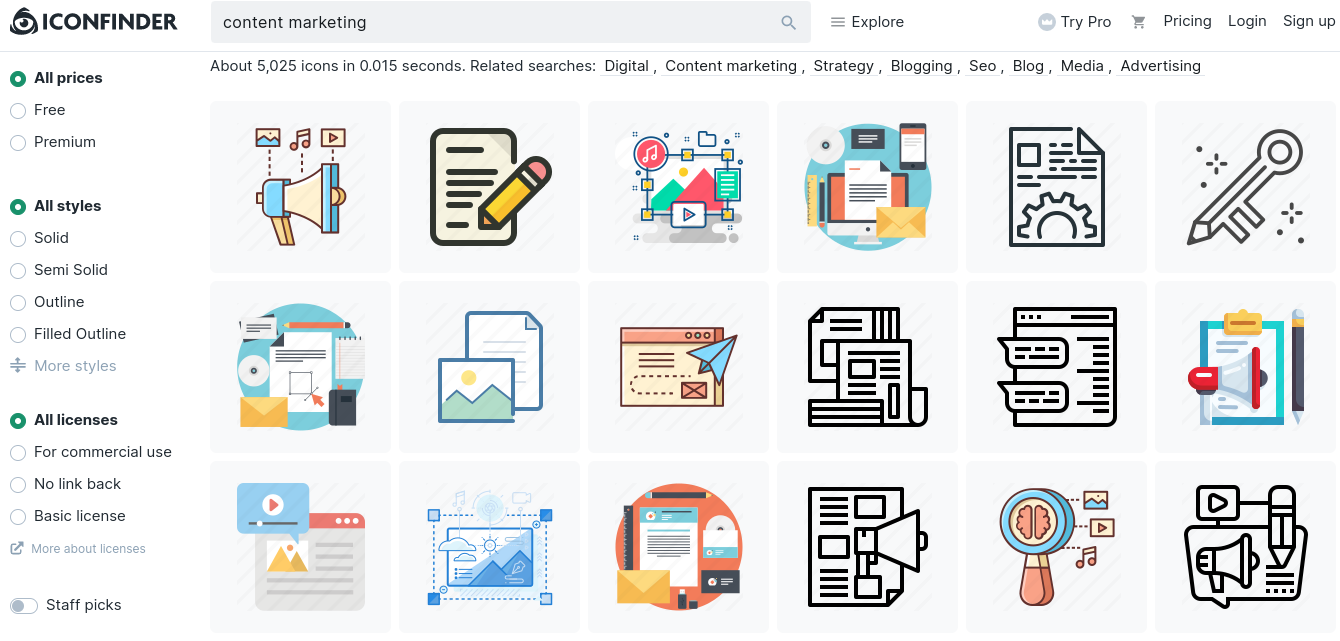
This week’s cool tool recommendation is Iconfinder – a website and search engine for icons and vector graphics.
Icons are used to make information and ideas more digestible and accessible to a wider audience. They can add visual interest and break up text content, while also conveying information, such as links to social media profiles.
Iconfinder features a large library of icons from various designers and categories, which can be searched and downloaded for various purposes, including website design, graphic design, and software development. It offers both free and premium icons, with the option to purchase individual icons or subscribe to a monthly plan for unlimited access.
Take notes with voice commands and punctuation shortcuts with this week’s cool tool – Speechnotes.
Speechnotes is a powerful and easy-to-use note-taking app that allows users to take notes, record thoughts, and capture ideas using voice commands and punctuation shortcuts. This innovative app is designed for individuals who are too busy or lazy to type and offers a fast and efficient way to take notes on-the-go.
With Speechnotes, users can easily insert punctuation marks and special characters using voice commands. This eliminates the need to manually type in punctuation marks, making note-taking faster and more efficient. Users can also click on the desired punctuation mark with the mouse, making it even more convenient. This feature is especially useful for individuals who are recording a voice memo or dictating a note and want to include proper punctuation.
Speechnotes also offers a variety of other features such as voice-to-text transcription, note editing, and cloud-based storage options. This allows users to easily access their notes from multiple devices and collaborate with others on shared notes. It also has an easy-to-use interface with customizable settings, making it perfect for students, professionals, and anyone who wants to take notes quickly and efficiently.
Discover related websites with this week’s cool tool recommendation – Similar Sites.
Similar Sites is a Chrome extension that enables you to discover similar websites to the one you are currently visiting. You can compare information from different sources to find the information you need. In addition, the extension comes with a built-in search function for easy browsing and works with most browsers.
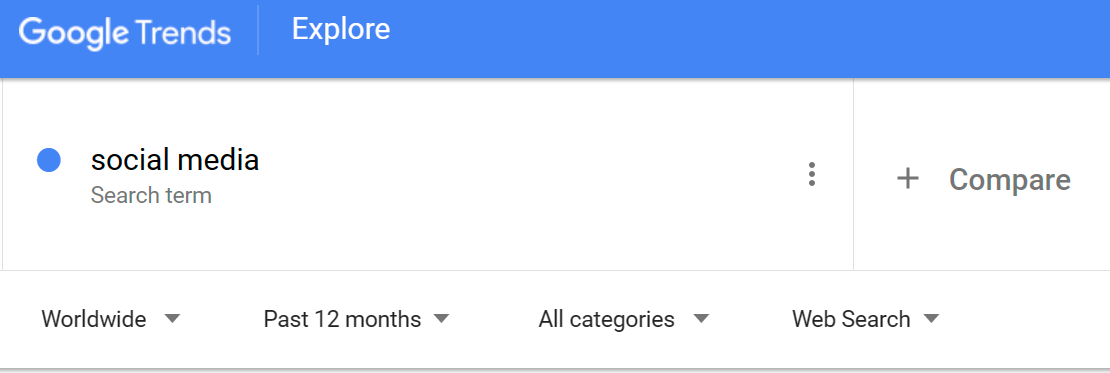
In the “Search” field, enter the term that you want to see trends for. You can enter multiple terms, separated by a comma, to compare their popularity.
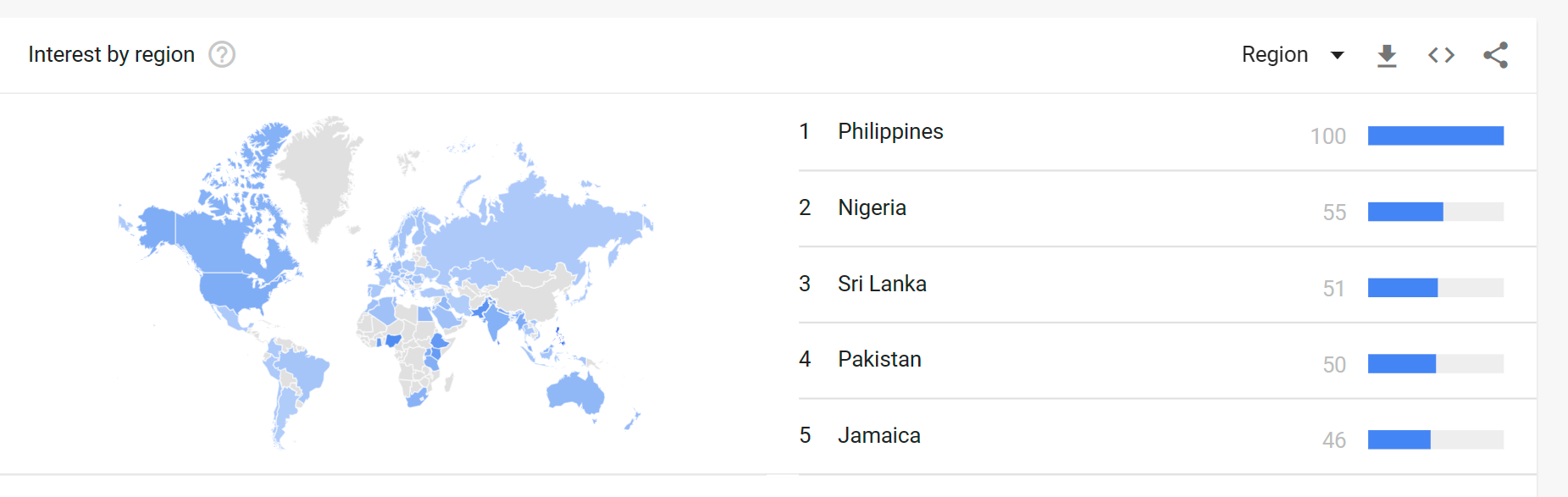
In the “Time Range” menu, select the period of time for which you want to see trends. Select a range of dates or a predefined time period, such as “Past Day,” “Past Week,” or “Past Month.”. You can also choose to search “Worldwide” data, or region specific. And you can specify where you want to pull data from, e.g. “News” “Images” YouTube”.
You can also use Google Trends to compare the popularity of multiple search terms. To do this, enter multiple search terms separated by a comma in the “Search” field.
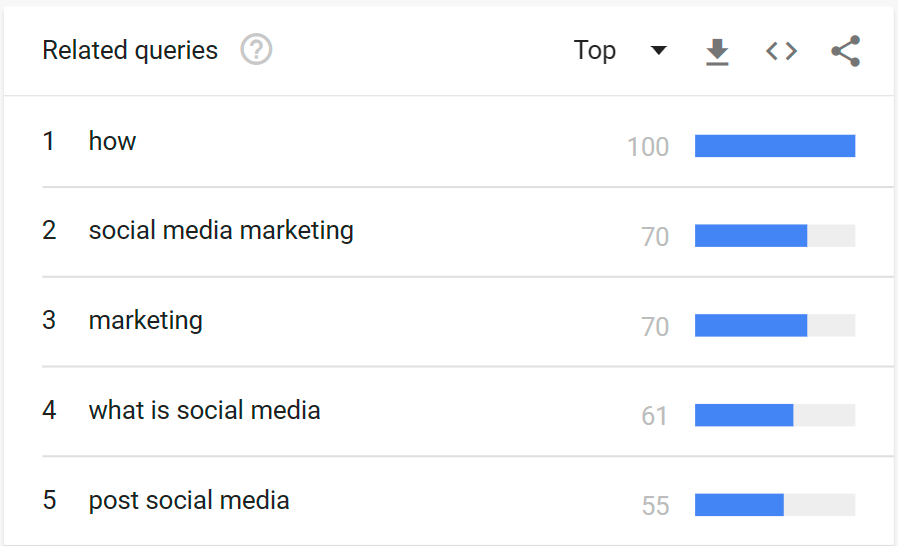
Another useful feature is the ability to see top-related searches, which is very helpful when creating content.
Why you should use Google Trends.
Market research: Google Trends can help you understand how popular certain products or services are, and how their popularity has changed over time. This can be useful for businesses that want to gauge the demand for their products or services.
Content creation: By understanding what people are searching for, you can create content that meets their needs and interests. For example, if you run a blog or website, you can use Google Trends to see what topics are currently trending and create content that covers those topics.
Search engine optimization: Google Trends can help you understand what people are searching for, and how their search habits are changing. This can be useful for businesses that want to optimize their website for search engines, as it can help them identify keywords and phrases to target in their content.
Keeping up with the news: Google Trends can also be used to see what news stories and events are currently generating the most interest. This can help you stay up-to-date on what’s happening in the world.
I hope that gives you a good idea of why Google Trends can be useful and that you are encouraged to try out this tool during the week.
This week’s cool tool recommendation is BrainyQuote – a directory of inspirational quotes.
Despite how long quotes have been doing the rounds of social media, they are still hugely popular and highly shareable. Next time you’re searching for something to fill your social media calendar consider sharing a quote. This site is the perfect place to find just the right quote for any occasion. And if you’re stuck for ideas, check out the quote of the day feature which makes choosing a quote a breeze.
I love learning about new tools to make social media marketing more creative and effective, so I’ve decided to share some of my favourite tools with you at the start of each week. This week’s cool tool recommendation isLumen5 is a desktop tool designed for bloggers to convert their blog posts into video.
I geeked out over this tool last year when I discovered it. Simply input your blog post’s url and Lumen 5 will import the text and images from that post and auto-create your video. You can then edit it, swap out images, upload other images and add music before you hit publish. The video above is one I created with Lumen 5 from an original blog post
The free plan includes unlimited videos, access to 10 million video files, and 480p-quality video with the Lumen5 watermark. You can also upload your own logo. Upgrading to the Pro plan ($49/month) lets you remove the Lumen5 branding, upload your own watermark and outro, and more.
I love learning about new tools to make social media marketing more creative and effective, so I am sharing some of my favourite tools with you at the start of each week.
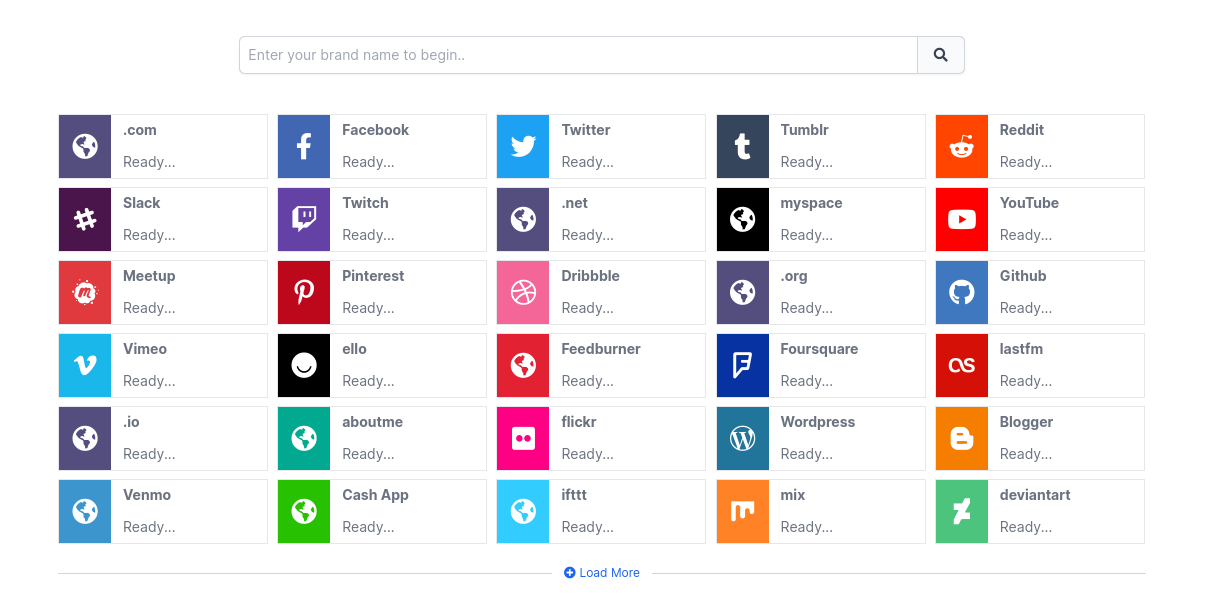
This week’s cool tool recommendation is NameCheckr – a tool to research domain and social username availability.
Picking a unique and available name can be a challenge. This tool aims to simplify that process by helping you find the best name cross the most popular social networks.
This week’s cool tool recommendation is Grammarly an AI writing assistant to analyze and corrects grammatical errors, spelling mistakes, and punctuation errors in written text.
Grammarly works by using AI algorithms that analyze text for grammatical errors, spelling mistakes, and punctuation errors. The software uses natural language processing (NLP) technology to identify and correct errors in real time.
Grammarly has a user-friendly interface that allows users to upload or copy and paste their text into the app. The software then analyzes the text and highlights errors that need to be corrected. Users can then click on the highlighted text to see suggestions for corrections.
Grammarly is available as a web app, a desktop app, and a mobile app, and it can be used with various browsers, including Google Chrome, Mozilla Firefox, and Microsoft Edge.




 Health Care Social Media