Posted in AI, Cool Tool

Monday Morning Cool Tool: insMind

This week I’m recommending insMind – a text-to-image AI tool.

How It Works

The process is very straightforward. Simply enter a short prompt, click ‘Generate,’ and insMind converts your text into an image. The tool offers a variety of artistic styles to choose from, including realistic photos, abstract art, and cartoon illustrations.

You can also enhance your pictures using insMind’s suite of AI image tools. like AI image expansion, AI filters, and object removal.

InsMind is available for free, though the free version includes a watermark and has limited download capabilities. To remove the watermark and gain access to additional styles, templates, and increased downloads, you can try the Pro version with a 7-day free trial.

Posted in AI, Cool Tool

Monday Morning Cool Tool: Descript

This week’s tool cool recommendation is an AI video generator – Descript.

Descript is a text-based editing system, making it easier for those who are not familiar with video editing to create professional videos.

Top Features

Automated Transcription: Manually transcribing audio and video files can be a tedious and time-consuming process. Descript streamlines this by automatically transcribing your recordings in up to 23 languages. The real magic is that you can edit your audio or video simply by editing the transcribed text. Descript’s automatic transcription capabilities are a major time-saver, making it easy to repurpose your content or create subtitles.

Overdub Voice Cloning: Type in the corrected or missing text, and Descript will generate the new audio in your voice or even a cloned voice of a guest, making the process seamless and efficient.

Studio Sound Editing: Studio Sound elevates your audio quality, ensuring your content sounds professional and polished.

Video Green Screen and AI Eye Contact: Descript’s green screen background editor allows you to change the background of your videos, giving you more control over your presentation. The AI eye contact feature subtly adjusts your gaze to maintain eye contact with the camera, adding a touch of realism and engagement to your video.

While there are many great benefits to this tool, it’s worth noting that for novices, the text-based editing approach may take some getting used to, especially for those familiar with traditional timeline-based editors.

Pricing

Descript offers a range of pricing plans to suit different needs:

  • Free Tier
  • Creator Tier: $15 per user per month
  • Pro Tier: $30 per user per month
  • Enterprise Tier: Custom pricing

Posted in Cool Tool

Monday Morning Cool Tool: Bitly

This week, I’m recommending Bitly – a handy URL shortener tool.

How we share information in healthcare is just as important as what we share. The link itself is part of the message, whether it’s an educational resource, a campaign sign-up link, or an event registration page. Here’s where Bitly comes in.

What Is Bitly?

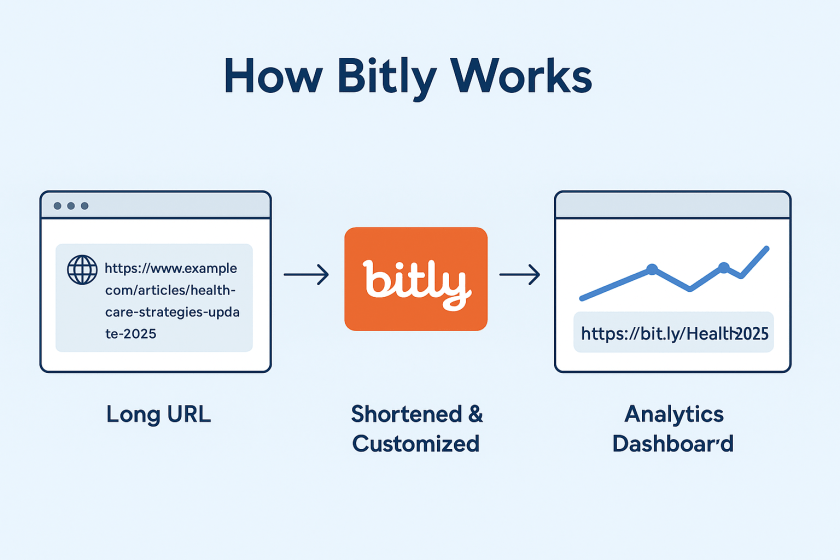
Bitly is a platform that takes long, often unwieldy URLs and shortens them into compact links that are easier to share and track. It’s one of the most widely used URL shorteners in the world and is trusted by organisations ranging from global brands to local nonprofits.

Let’s say you’re running a digital campaign for epilepsy awareness. You’ve created a resource page that lives at: https://yourorg.org/programmes/epilepsy-awareness-week-2025/download-resources
That’s a lot to include in a tweet, an Instagram bio, or a printed flyer. With Bitly, you could shorten it to: https://bit.ly/epilepsyweek2025
Much better, right?

But more importantly, you can track how that link performs. How many people clicked it? Where were they located? Did one social platform drive more traffic than another?

What Else Can You Do with Bitly?

Once you’re inside the platform, you’ll find several additional features that make Bitly especially powerful for healthcare communication and outreach.

🔹 Link Customisation
You can edit the end of a Bitly link to make it more descriptive or branded, like:
bit.ly/CaregiverGuide2025
This improves trust and helps people understand what they’re clicking on.

🔹 Analytics Dashboard
Bitly provides real-time data on link performance, including:

  • Click volume
  • Geographic location of users
  • Referral sources (e.g., Twitter, email, WhatsApp)

🔹 Branded Domains (Paid)
With a paid plan, you can use your own short domain (like yourclinic.org/guide) to create even more trust and continuity in your communications.

🔹 Link Management Tools
You can organise links into folders, label them by campaign, and even set expiration dates for time-sensitive URLs (paid feature)

🔹 QR Codes

Every time you shorten a link with Bitly, you also have the option to create a QR code with a single click. That means you can easily place your link on:

  • Clinic posters
  • Flyers and leaflets
  • Event banners
  • Conference slides
  • Prescription inserts or appointment cards

QR codes make it effortless for patients, staff, or the public to scan and access information using just their phone – no typing required. For example, a hospital running a flu vaccination campaign uses a Bitly link to direct patients to the booking form. They place the QR code version of that link on posters in waiting rooms, allowing patients to scan and schedule right from their seats.

Is Bitly Free?

Yes—and no. Bitly offers a free plan that allows basic link shortening, custom back-halves, and limited analytics. For more advanced features like branded domains, deeper analytics, and team collaboration, they offer tiered paid plans.

For small teams or individual professionals, the free plan is often enough. For hospitals, health systems, or nonprofits running large campaigns, the paid options can be well worth the investment.

Posted in Cool Tool

Monday Morning Cool Tool: CoSchedule’s Subject Line Tester

This week, I’m recommending CoSchedule’s Subject Line Tester.

CoSchedule’s Email Subject Line Tester is a free online tool designed to give you instant feedback on your subject lines. It analyzes your headline against a database of successful emails, providing a score and actionable recommendations to help you boost your open rates and overall email campaign performance.

How to Use the Tester in 5 Simple Steps

  1. Type Your Subject Line: Simply enter the subject line you’re considering into the provided field on the CoSchedule website.
  2. Get Instant Analysis: The tool immediately processes your input and provides an analysis.
  3. Receive a Score & Breakdown: You’ll get a numerical score (typically out of 100) along with a detailed breakdown of its strengths and weaknesses.
  4. Review Suggestions: The tester provides specific suggestions for improvement, such as adding power words, emotional words, or adjusting its length for optimal readability.
  5. Refine and Test Again: Tweak your subject line based on the feedback and re-test until you achieve a score you’re happy with. It’s an iterative process that leads to better results!

The beauty of CoSchedule’s tester lies in its comprehensive analysis. It doesn’t just give you a score; it breaks down your subject line’s effectiveness across several critical factors. You’ll see how your subject line performs based on:

  • Overall Score: A quick check of your subject line’s predicted performance.
  • Word Balance: It assesses the mix of common, uncommon, emotional, and power words, guiding you towards a more impactful blend.
  • Length: Provides recommendations for ideal character and word counts to ensure readability on various devices.
  • Sentiment: Analyzes whether your subject line conveys a positive, negative, or neutral tone.
  • Spam Triggers: Helps you identify and avoid words or phrases that might trigger spam filters.
  • Preview: Shows you how your subject line will likely appear in common inbox displays, so you can catch truncation issues.
  • Keywords: Highlights strong keywords that resonate with your audience and search intent (if applicable).

Best Practices for Writing Effective Email Subject Lines

While the tester is fantastic, remember these timeless best practices that the tool helps you optimize for:

  • Be Clear & Concise: Get straight to the point. Subscribers should know what your email is about at a glance.
  • Create Urgency/Scarcity (where appropriate): Phrases like “Limited Time Offer” or “Don’t Miss Out!” can drive immediate action.
  • Personalization: Using the recipient’s name or other relevant data can significantly boost engagement.
  • Pique Curiosity: Ask a question or hint at valuable information to encourage an open, but always deliver on that promise inside the email.
  • Focus on Benefit: What’s in it for the reader? Highlight the value they’ll gain by opening your email.
  • Use Emojis Sparingly: Emojis can boost open rates, but use them thoughtfully and know your audience. Too many or irrelevant emojis can look unprofessional.
  • A/B Test Relentlessly: The best way to know what works for your audience is to test different subject lines against each other.

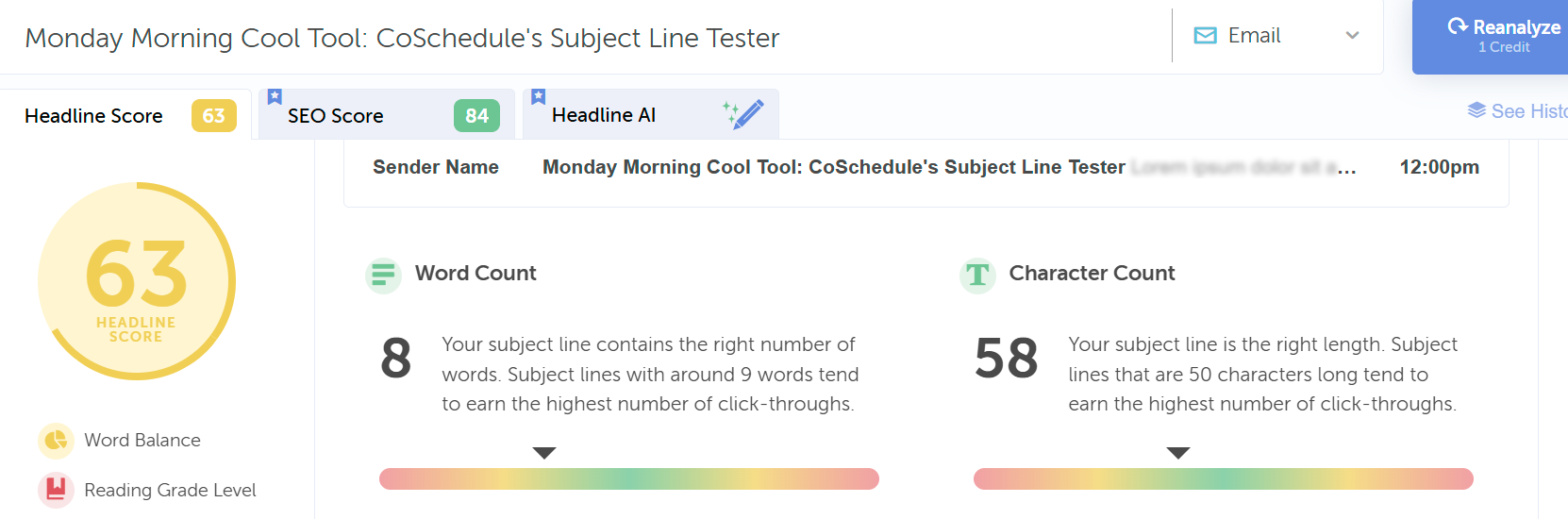
Curious about the effectiveness of this blog post’s title as an email subject line, I entered it into the tool. Take a look at its performance score below:

Here’s an improved score with a different heading; however, it has too many words.

Click Here to Try CoSchedule’s Email Subject Line Tester

Posted in Cool Tool

Monday Morning Cool Tool: Hotjar

This week I’m recommending Hotjar, a website optimization tool.

1_PtZNvuc_ZMJr8aRS0xOe-Q

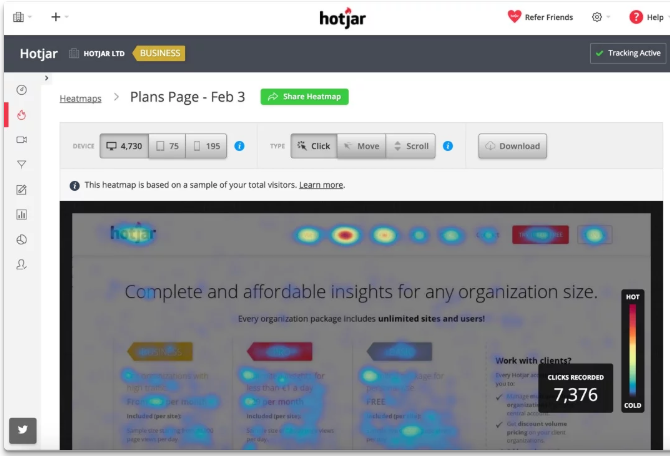
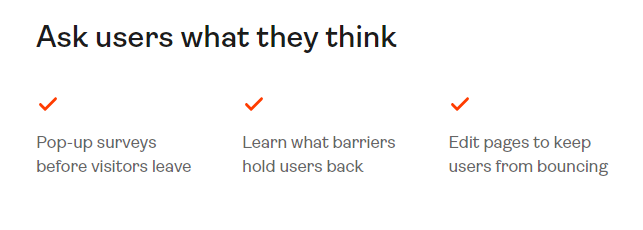
Imagine being able to see your website through your visitors’ eyes. Tools like heatmaps, scroll maps, and click maps make this a reality. Heatmaps highlight the most engaged areas of your pages, showing you where visitors instinctively click or tap. Scroll maps show how far down the page visitors typically venture, indicating if crucial content is being missed. Click maps pinpoint exactly where users are trying (and sometimes failing) to interact. This visual feedback provides an immediate understanding of user attention and potential points of confusion.

Going beyond static snapshots, visitor recordings offer a dynamic view of individual user sessions. By watching recordings of clicks, taps, and mouse movements, you can witness firsthand the user experience. This allows you to identify usability issues that might not be apparent from aggregated data. Perhaps a button is unclear, a form field is causing hesitation, or a navigation element is proving difficult to locate. These real-time journeys can uncover hidden frustrations and highlight areas needing immediate attention.

Platforms like Hotjar cleverly combine these powerful Analysis tools with Feedback tools, offering a holistic view of the user experience. This synergy provides the “big picture” – not just what users are doing, but also their direct opinions and frustrations. By understanding both the “what” and the “why,” you gain the knowledge necessary to make data-driven decisions that enhance your site’s usability, improve performance, and ultimately drive higher conversion rates.

Price: Hotjar offers a tiered pricing structure (including a free tier with limitations) with different plans based on your needs and the volume of website traffic and usage.

Posted in Cool Tool

Monday Morning Cool Tool: DiffusionArt

This week’s cool tool recommendation is DiffusionArt – a user-friendly, AI art generator

DiffusionArt is a browser-based platform that makes it easy to generate AI art from simple text prompts. It houses a curated library of open-source AI art models specializing in creating various types of images, including art pieces, anime characters, and photorealistic images. It also provides tools like a Prompt Generator, Conceptualizer, and even Anime Video Generators.

Pricing

DiffusionArt is free to use with a generous daily limit, making it perfect for casual creators. Paid tiers offer expanded limits, priority processing, and access to premium models for those who want to take their AI art to the next level.

Posted in Cool Tool

Monday Morning Cool Tool: Snappa

This week’s cool tool recommendation is Snappa – a cloud-based graphic design tool.

Snappa is a user-friendly graphic design tool, particularly well-suited for those who need to quickly create visuals without a steep learning curve or expensive software.

Key Features

  • Extensive Library of Templates: Offers thousands of pre-designed templates for various purposes (social media posts, blog graphics, ads, etc.) that are customizable.  
  • Vast Stock Photo & Graphics Library: Provides access to millions of royalty-free, high-definition photos and a wide selection of graphics, icons, and vectors.  
  • Text Editor: Allows users to add and customize text with a variety of fonts, sizes, colors, and effects.  
  • Image Editor: Includes basic image editing tools like cropping, resizing, flipping, rotating, and adjusting brightness/contrast.  
  • Background Remover: A one-click tool to remove backgrounds from images.  
  • Image Resizer: Makes it easy to resize graphics for different social media platforms with pre-set dimensions.  
  • Custom Font Uploads: Paid plans allow users to upload their own brand fonts for consistency.  
  • Social Media Integrations: Offers direct integration with platforms like Buffer for easy scheduling and publishing (on paid plans).  
  • Team Collaboration: Team plans allow multiple users to collaborate on designs.  
  • Brand Kit: Enables users to save brand colors and logos for easy access.  

Pricing:

Snappa offers different pricing tiers, including a free plan with limitations:  

  • Free Plan: Typically includes access to all templates and the stock photo library but limits the number of downloads per month (usually 3) and the number of connected social accounts. It’s generally for single users.  
  • Pro Plan: A paid plan for individuals, usually offered at a monthly or annual fee, that unlocks unlimited downloads, social media integrations, custom font uploads, background removal, and more.  
  • Team Plan: Aimed at teams, offering the same features as the Pro plan but for multiple users (typically up to 5 on the standard team plan), often with collaboration features.  

Posted in Cool Tool

Monday Morning Cool Tool: Tailwind

This week’s cool tool recommendation is social media marketing app – Tailwind.

Originally a popular Pinterest scheduler for automating pin publishing, today the tool also supports Instagram, Facebook, and email marketing.

Noteworthy Capabilities

  • Beyond basic scheduling, Tailwind intelligently recommends optimal posting times based on audience activity, allowing you to schedule a week’s worth of content across platforms.
  • The integrated Ghostwriter AI provides on-demand content generation for Instagram captions, Pinterest descriptions, email subject lines, and full email copy – a valuable asset for overcoming creative blocks.
  • Tailwind’s hashtag tool streamlines discoverability by suggesting relevant hashtags and allowing users to save and apply curated lists.
  • Recent expansion into email marketing offers user-friendly templates, landing page creation, and automated sequences, enhanced by Ghostwriter AI for effortless copy generation within the platform.

Pricing Overview

A Free Forever Plan allows new users to explore basic features, with paid upgrades available for more advanced functionality.

Posted in Cool Tool

Monday Morning Cool Tool: Filmora

This week’s cool tool recommendation is Filmora a user-friendly video editing tool.

Filmora offers a balance of powerful features and an intuitive interface, making it accessible for those new to video editing while still providing tools for more creative projects.

Key Features

Filmora boasts a wide array of features, including:

  • Basic Editing: Trimming, cutting, splitting, merging, rotating, and adjusting video speed.
  • Visual Effects: A large library of filters, transitions, titles, and motion elements.
  • Audio Editing: Tools for adjusting audio levels, adding background music, recording voiceovers, and noise reduction.
  • Colour Correction and Grading: Options for adjusting colour balance, applying LUTs, and enhancing the visual look of videos.
  • Text and Titles: Customisable text and title templates, including animated options.
  • Motion Tracking: The ability to track objects within a video and apply effects or elements that follow their movement.
  • Green Screen (Chroma Key): Tools for removing and replacing backgrounds.
  • Screen Recording: The ability to record your computer screen.
  • AI-Powered Features: Recent versions include AI tools like:
    • AI Text-Based Editing: Editing video by manipulating its transcription.
    • AI Music Generator: Creating royalty-free background music.
    • AI Portrait Cutout: Removing video backgrounds.
    • AI Smart Masking: Automatically creating masks around objects.
    • AI Audio Denoise: Reducing background noise in audio.
    • AI Voice Enhancer: Improving vocal clarity.
    • AI Smart Cut: Identifying and clipping interesting moments.
    • AI Smart Short Clips: Creating short clips for social media.
    • AI Image to Video: Turning still images into moving videos.
    • AI Sound Effect Generator: Creating custom sound effects from text prompts.
    • AI Voice Cloning: Creating an AI voice clone.
    • AI Translation & Lip Sync: Translating speech and syncing it to lip movements.
  • Templates and Assets: Built-in templates, royalty-free music, sound effects, and the ability to access more through the Filmora Effects Store.
  • Social Media Integration: Features designed for creating content for platforms like YouTube, TikTok, and Instagram, including auto-reframe tools.

Pricing

Filmora offers a free version that gives you access to basic editing tasks and access to a selection of built-in filters, transitions, titles, and motion elements. It’s a great way to try out the software, learn its interface; however, the watermark on exported videos makes it unsuitable for projects where a professional, unbranded output is necessary. To remove the watermark and access the full range of features and assets, you would need to purchase a paid subscription or a perpetual license.

Posted in Cool Tool

Monday Morning Cool Tool: Flux AI

This week’s cool tool recommendation is Flux AI, a web-based image and video tool.

Key Features and Capabilities

  • Flux AI Image Generator
    • This tool allows users to generate images from textual descriptions. Users can input a prompt, and the AI will produce corresponding visuals, offering a powerful way to bring creative ideas to life.  
    • It also supports image-to-image generation, enabling users to modify and transform existing images.
  • Flux AI Video Generator
    • Moving beyond static images, Flux AI extends its capabilities to video creation. Users can generate dynamic videos from text prompts or images, opening up new possibilities for video content production.  
  • Free Tools
    • Flux AI provides a suite of free tools that enhance the content creation process:
      • Image-to-Prompt Generator: This tool helps users refine their prompts by analyzing existing images and suggesting relevant keywords.
      • Image Upscaler: Users can improve the resolution and quality of their images with the upscaler tool.
      • Image Converter: The platform facilitates seamless image format conversions.

Free: New users get 40 credits, and daily check-ins provide 20 credits. This plan includes 5 daily prompt generations and 5 daily image-to-prompt conversions.