Posted in #HCSM, Thursday Tip

#ThursdayTip: How to Create Twitter Moments

Welcome to this week’s quick social media tip. This week I want to show you how to create Twitter Moments.

Twitter Moments are curated stories about what’s happening around the world—powered by Tweets. It’s easy to create your own story with Twitter Moments.

There are three ways to begin creating your own Moment via twitter.com.

You can access Moments through the Moments tab, your profile page, or through a Tweet detail.

Note: Moment creation is only available on twitter.com. It is no longer possible to create a Moment from your Twitter for iOS or Android app. 

To get started from the Moments tab follow these instructions:

From the Moments tab, click the Create new Moment button.

index

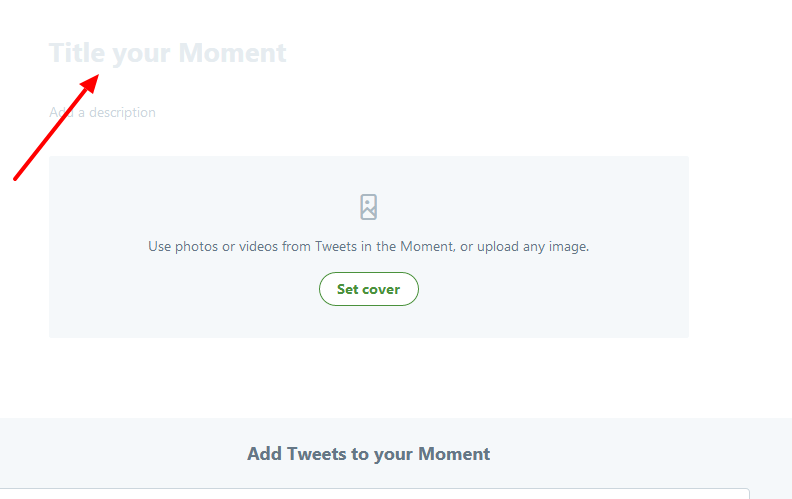
Click the Title your Moment field to give your Moment a name.
index

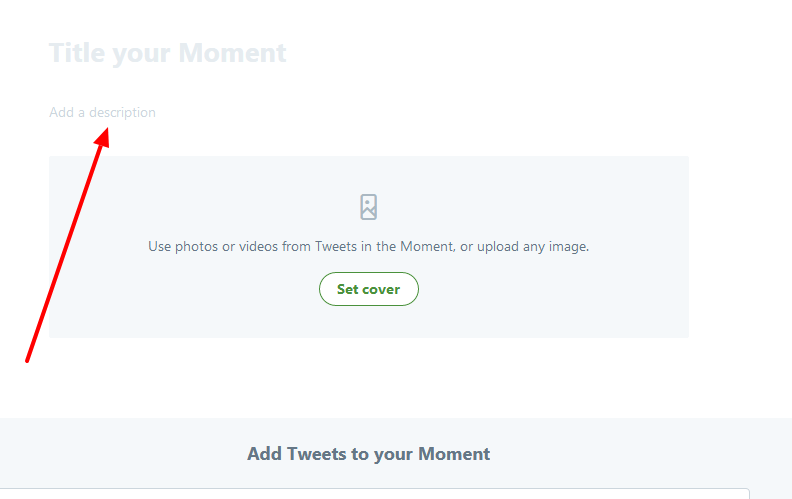
Click the Add a description field to type in a description for your Moment.
index

Choose Tweets to add to your Moment

index

From the Add Tweets to your Moment section at the bottom of the page, quickly access content to select Tweets from Tweets I’ve liked, Tweets by account, Tweet link, and Tweet search prompts. To add a Tweet to your Moment, click on the checkmark.

index


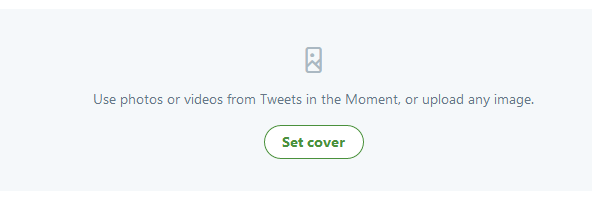
Click Set cover to choose a cover image from one of your selected Tweets, or to upload an image from your computer.

index

index

Drag your selected image to set a Mobile preview, click the Next button, then click the Save button.

index

As you can see this image is cut off in mobile preview, so I might want to change it for something that will show up better on a mobile device.  To change your selected image, hover over the cover image and click on Change cover media.

Once you have Tweets in your collection, click on the up or down arrow buttons to the right of a Tweet to move it up or down.

index

Click on the delete (x) button to remove a Tweet from your Moment.

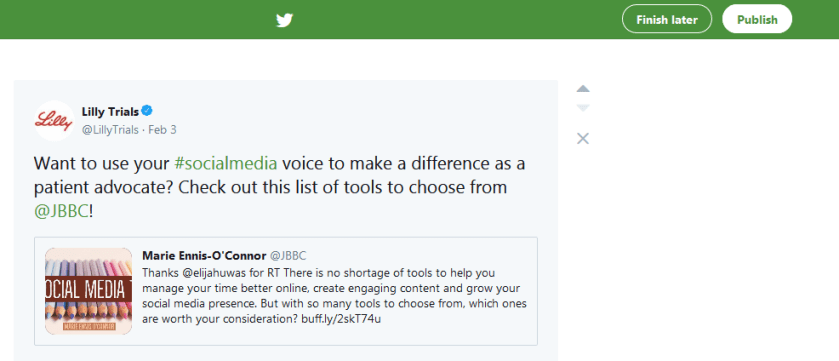
Click the Finish later button at the top of the page to save a draft.When you are ready to make your Moment live, click on the Publish button at the top of the page.
index

You have the option to share Moments privately, making the Moment available to only those whom you share a link with.
Posted in Thursday Tip

How To Add A Search Stream To Twitter

One of the questions I get asked quite frequently is how to keep track on Twitter of a specific hashtag during a conference or Twitter chat.

The answer is to set up a search stream for your term.

Search streams are valuable for finding social activity around specific users, locations, hashtags or keywords. You have several options to monitor a search stream on Twitter but you’ll need to jump on a third-party tool outside Twitter to do it.

Here are 4 tools I use and recommend for the job.

1. Hootsuite

Hootsuite is a very useful application for managing all your social media channels in one place.   The basic Hootsuite plan is free. It enables you to view and monitor multiple streams in a single dashboard and allows you to keep tabs on key phrases, terms, keywords, brand mentions, etc.

Here’s a screenshot of a search stream I set up for a client recently.

download (74)

For a step-by-step guide to setting up your Hootsuite account, read my previous post, How To Better Manage Social Media With Hootsuite.

2. TweetDeck

Similar to Hootsuite, Tweetdeck is a Twitter client that lets you create several ‘columns’ in a single screen, so you can see everything that’s happening in one place. You can choose the type of columns you want to add, such as mentions, lists, messages, and search.

Here’s a screenshot of a column I have set up to monitor mentions of the hashtag #ePatient.

index

3. Tchat.io

Primarily designed around Twitter chats, you can easily use this tool to also keep tabs on tweets from conferences and events happening in real time.  Unlike Hootsuite, you don’t need any set-up. Simply enter a hashtag that you want to follow and the tool will instantly load all the tweets with that hashtag.

download (1)

Tchat will update the stream with new tweets in real-time. What’s really cool about this tool is that you can pause the stream whenever you like, hide retweets, or switch between hashtags if you are following more than one topic.

4. Twubs

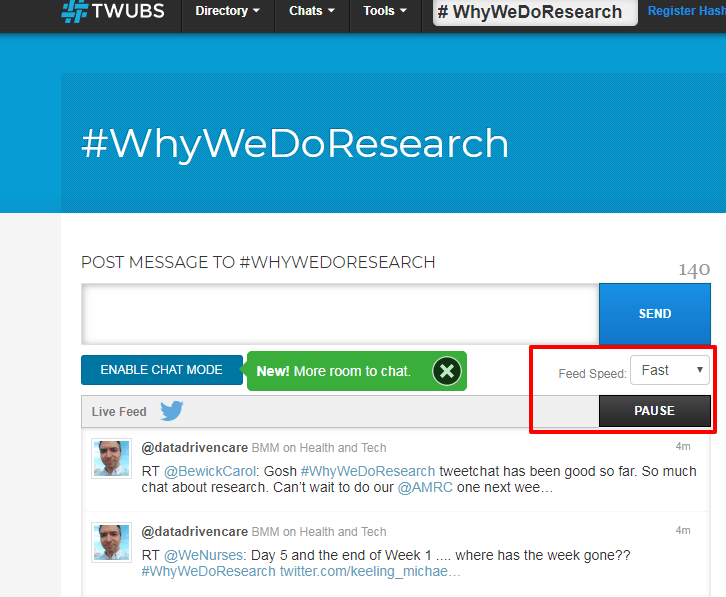
Similar to Tchat’s features, you can use Twubs to monitor tweets in real-time, pause the thread, reply, retweet, favorite, and tweet directly with the hashtag automatically included. Here’s a screenshot of a hashtag I’ve been following this week for the #WhyWeDoResearch Tweetfest. One of the cool features with Twubs is that it gives you the ability to set the feed speed from fastest to slowest.

download - 2019-05-17T090239.099

Do you use any of these tools? Are there other tools you would recommend?


Posted in #HCSM, Thursday Tip

#ThursdayTip: How To Leverage A Cultural Trend

Welcome to this week’s quick social media tip. Today I want you to think about how you can tap into cultural trends to create “in-the-moment” marketing. 

Tapping into cultural trends is all about marketing in the moment. This works because people are most interested in “what’s happening now.”

Ellen DeGeneres’s 2014 Oscar selfie, retweeted by more than 2.9 million Twitter users fits the scenario of leveraging a cultural trend — the word selfie was crowned Oxford Dictionaries’ Word of the Year in 2013.

Similarly, the #nomakeupselfie campaign, in which women posted pictures of themselves without make-up in order to raise money for cancer research, tapped into the selfie trend. The campaign raised (Stg)£8 million for Cancer Research UK in its first week alone. This campaign wasn’t even the charity’s idea. The organization leveraged a cultural trend that was already sweeping the Internet.

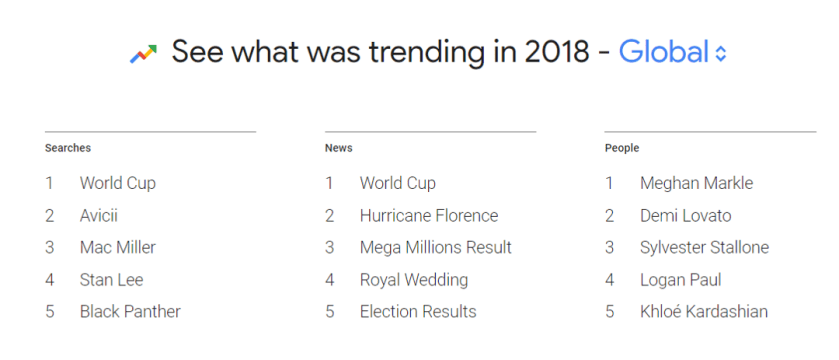
While the Oscar selfie took us by surprise, there are other trends which are more predictable, for example, major sporting events like the Super Bowl in the US, or the World Cup.

1_zboy0jt5_6u3qcg8kh5pgw

Twitter is an obvious place to check what’s trending on a daily basis, but you could also try one of the following tools too:

  • Google Trends — filter your search by country, topic, category, specific topic, content type, and more;
  • Buzzfeed — its trending section is perfect for searching for hot topics;
  • Buzzsumo — search for the most shared web content on a specific topic;
  • Reddit — aggregates trending content from all over the internet and shows the hottest (most upvoted) topics on the main page.

Your homework for today – find one trending topic and think about how you can leverage it to create engaging content relevant to your own audience.

Here’s to your social media success!