Posted in Cool Tool

Monday Morning Cool Tool: Glasp AI YouTube Summarizer

This week’s cool tool recommendation is Glasp AI YouTube Summarizer a free Chrome extension to generate summaries and give you the full transcript of any YouTube video.

Key Features

  • Pulls up transcripts of YouTube videos in multiple languages and summarizes them.
  • Summary can be generated via ChatGPT, Claude, Mistral AI, Gemini.
  • You can set how long or detailed the summary should be.
  • Summaries can include timestamps so you can navigate to specific parts of video.
  • You can highlight parts of the transcript, add notes, and export highlights/notes to tools like Obsidian, Notion, etc., in formats like Markdown, HTML, CSV, JSON.
  • Get the transcript of the video in multiple languages. Watch the video with the transcript on the side and get the content quickly or simply copy the transcript.

How it works:

  1. Install the extension.
  2. Open a YouTube video.
  3. Click the Glasp “Transcript & Summary” bar on the top right.
  4. Copy the transcript with one click.
  5. Paste it into your doc.

Limitations / Considerations

  • You’ll need an internet-connected browser that supports the extension.
  • Accuracy depends on the quality of the video’s transcript and AI summarization.
  • Complex or nuance-heavy videos may lose depth if the summary is too short.

Posted in Cool Tool

Monday Morning Cool Tool: Adobe Podcast

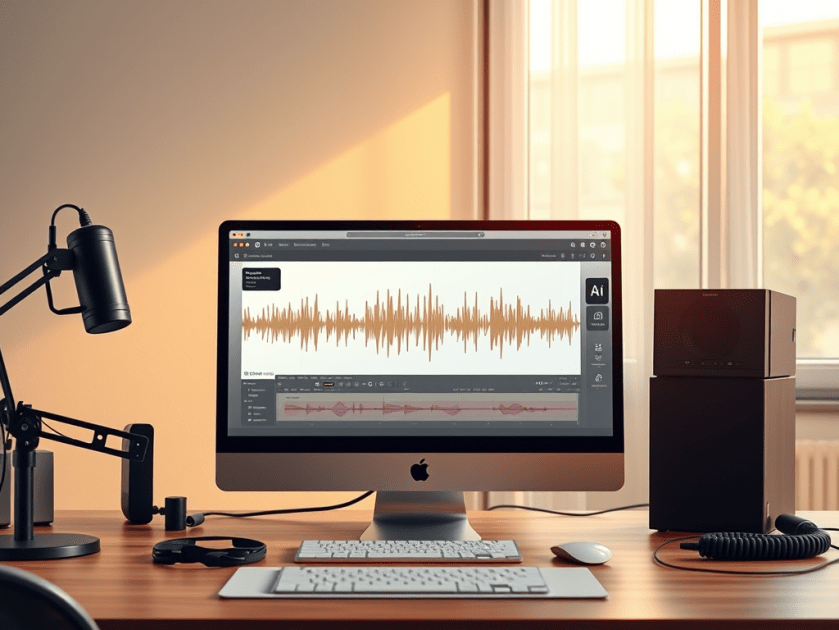
This week’s cool tool recommendation is Adobe Podcast — a browser-based audio recording, editing, and enhancement tool.

What It Does

Adobe Podcast packs in several features designed to simplify audio workflows:

  • Record & Edit in Browser – No need for complex local DAWs. You can record directly in the browser, edit your audio, manage speaker tracks, and even convert to video if needed.
  • Enhance Speech & Clean-up – Tools for removing background noise, reducing echo, improving clarity. If you don’t have a perfect setup (mic, acoustics, etc.), this helps a lot.
  • Mic Check – A diagnostic tool to test your mic and environment, giving feedback so you can optimise your setup before recording.
  • Transcription & Captions – Automatically generate transcripts or captions from your audio/video. Great for accessibility or social media snippets.
  • Royalty-Free Music & Sound Effects – Built-in library so you can add intros, backgrounds, and effects without hunting down licensing issues.

Best Use Cases

  • Recording remote interviews, podcasts, or voiceovers without a full studio setup.
  • Repurposing audio into social media content (videos, captions, audiograms) quickly.
  • Educators or health professionals who want to share audio content but need accessible tools.
  • Anyone looking for high-quality voice recordings without incurring significant expenses on hardware or software.

Pricing

The free plan includes:

  • Enhance Speech (audio only) — remove background noise & echo
  • Mic Check — evaluate your mic & setup using AI to detect issues.
  • Studio (browser-record/edit/enhance) with some limits: you can download projects up to 30 minutes, but with limits on how many per day. Files over a certain size/duration / original recordings may not be downloadable.

The free plan is sufficient for small projects, short podcast episodes, or testing out new ideas. Upgrading to the paid plan unlocks additional features.


Note: If you’re interested in exploring similar tools, consider comparing Descript, Audacity (a free, desktop-based option), or Riverside.fm (for remote interviews/video and audio).

Posted in #HCSM

How to Create a Custom GPT in Under One Hour

Step-by-step instructions to build your own AI assistant for healthcare writing, communication, and education.

If you’ve ever tried ChatGPT and felt frustrated by inconsistent results—or found yourself rewriting prompts over and over—you’re not alone. For healthcare professionals, researchers, and advocates, reliability matters: you need outputs that are accurate, professional, and aligned with ethical standards.

That’s where Custom GPTs come in. These are personalised versions of ChatGPT that you can design for very specific, repeatable healthcare tasks—such as drafting plain-language patient leaflets, summarising journal articles, preparing LinkedIn updates for your department, or turning a webinar transcript into teaching slides.

The benefit? Once you set one up, you no longer waste time tinkering with prompts. Your GPT already knows your requirements—style, structure, disclaimers, and audience—and produces consistent, trustworthy results every time. Best of all, you can build one in under an hour.

Here’s how.

Step 1 — Choose one narrow task (5 minutes)

Custom GPTs are most effective when they do one job well. Instead of trying to make a “digital assistant for everything,” pick a single use case you repeat often.

Healthcare examples:

  • Summarise clinical guidelines into a 1-page plain-language handout for patients.
  • Convert academic abstracts into accessible summaries for social media.
  • Draft CPD or teaching materials from journal articles.
  • Turn a conference session transcript into a structured LinkedIn post.

Step 2 — Gather your “source of truth” (5–10 minutes)

Collect the resources your GPT should follow, such as:

  • Your organisation’s style guide.
  • Examples of plain-language explanations you like.
  • Compliance or privacy guidelines (e.g., including “this information is not medical advice” disclaimers).
  • Evergreen references (like terminology guides or advocacy frameworks).

Step 3 — Create the shell (2 minutes)

In ChatGPT, go to Explore GPTs → Create. Use the Create tab to describe your assistant in plain language (the one-sentence task from Step 1). Then switch to the Configure tab to fine-tune the details.

Step 4 — Write clear instructions (10–15 minutes)

This step makes or breaks your Custom GPT. Spell out exactly what you want it to do, who it’s for, and how the outputs should look.

Include:

  • Role: Define what the GPT is (“You are a health communication assistant who creates plain-language resources from research papers”).
  • Goals: The outcomes you expect (“Summarise in one paragraph, extract three key points, add a disclaimer”).
  • Inputs: What the GPT will usually receive (transcripts, journal articles, policy notes).
  • Process: The steps to follow (extract → summarise → format).
  • Voice & Tone: Audience (patients, clinicians, policymakers) and reading level (plain English, no jargon).
  • Output Format: Be precise (“1-paragraph summary + 3 bullet points + disclaimer”).
  • Boundaries: Clarify what not to do (e.g., “Do not give medical advice or fabricate references”).

Continue reading this article on Substack for free

Posted in AI, Cool Tool

Monday Morning Cool Tool: OpenArt.ai

This week I’m recommending OpenArt.ai – an AI-powered art platform that allows users to create, edit, and enhance images using artificial intelligence.

Key Features

AI Image Generation
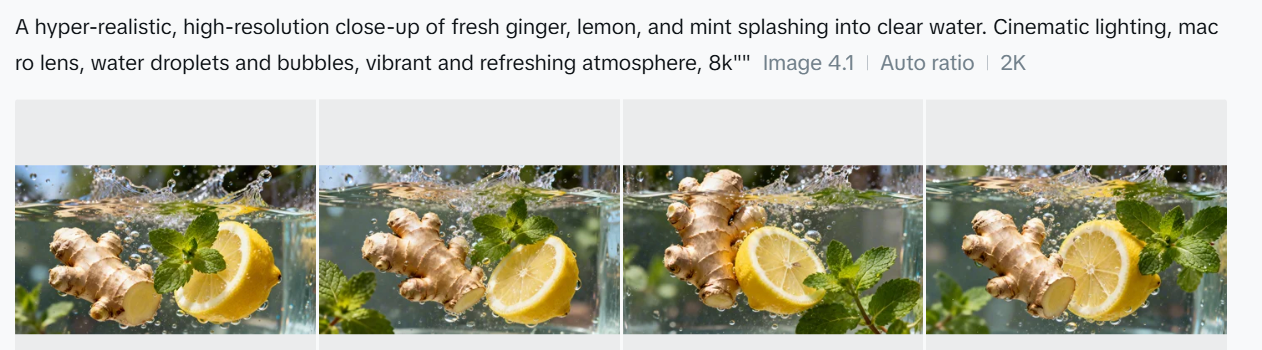
Create images from text prompts using a range of advanced models, including DALL·E 3 and Stable Diffusion. You can also generate visuals without prompts, offering boundary-free creative exploration.

Advanced Image Editing Tools
OpenArt includes a robust suite of AI editing capabilities to refine your work, such as:

  • Inpainting & Outpainting – Add, remove, or expand elements in your image beyond its original frame.
  • Upscaling – Improve image resolution to produce crisp, detailed artwork.
  • Background Removal & Replacement – Effortlessly swap or eliminate image backgrounds.
  • Find & Replace – Replace specific objects using simple text prompts.
  • Consistent Characters – Generate the same character in multiple poses, styles, and scenes—ideal for storytelling or brand consistency.
  • Facial Editing – Adjust expressions, eye color, or hairstyles for fine-tuned control.

Customization & Creative Control
You can train custom models to reflect your unique style and use “Image Guidance” to steer outputs based on reference images (pose, style, composition, etc.).

Community & Learning Resources
Access a vibrant community feed, Discord support, tutorials, and prompt books to help you get the most from the platform.

Image to Video Tool
Transform static images into dynamic videos in just a few clicks.

Pricing

OpenArt offers a free trial with limited credits for new users. For ongoing or professional use, there are several paid plans—Essential, Advanced, Infinite, and Team—each offering increasing credits, features, and simultaneous generations. Costs vary based on the tools and AI models you use.

Posted in AI, Cool Tool

Monday Morning Cool Tool: insMind

This week I’m recommending insMind – a text-to-image AI tool.

How It Works

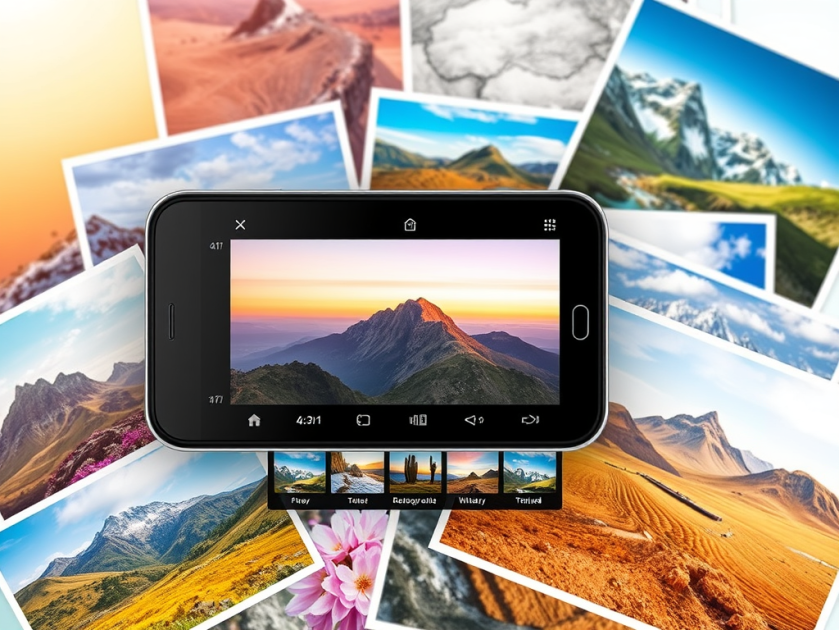
The process is very straightforward. Simply enter a short prompt, click ‘Generate,’ and insMind converts your text into an image. The tool offers a variety of artistic styles to choose from, including realistic photos, abstract art, and cartoon illustrations.

You can also enhance your pictures using insMind’s suite of AI image tools. like AI image expansion, AI filters, and object removal.

InsMind is available for free, though the free version includes a watermark and has limited download capabilities. To remove the watermark and gain access to additional styles, templates, and increased downloads, you can try the Pro version with a 7-day free trial.

Posted in Cool Tool

Monday Morning Cool Tool: DiffusionArt

This week’s cool tool recommendation is DiffusionArt – a user-friendly, AI art generator

DiffusionArt is a browser-based platform that makes it easy to generate AI art from simple text prompts. It houses a curated library of open-source AI art models specializing in creating various types of images, including art pieces, anime characters, and photorealistic images. It also provides tools like a Prompt Generator, Conceptualizer, and even Anime Video Generators.

Pricing

DiffusionArt is free to use with a generous daily limit, making it perfect for casual creators. Paid tiers offer expanded limits, priority processing, and access to premium models for those who want to take their AI art to the next level.

Posted in Cool Tool

Monday Morning Cool Tool: Snappa

This week’s cool tool recommendation is Snappa – a cloud-based graphic design tool.

Snappa is a user-friendly graphic design tool, particularly well-suited for those who need to quickly create visuals without a steep learning curve or expensive software.

Key Features

  • Extensive Library of Templates: Offers thousands of pre-designed templates for various purposes (social media posts, blog graphics, ads, etc.) that are customizable.  
  • Vast Stock Photo & Graphics Library: Provides access to millions of royalty-free, high-definition photos and a wide selection of graphics, icons, and vectors.  
  • Text Editor: Allows users to add and customize text with a variety of fonts, sizes, colors, and effects.  
  • Image Editor: Includes basic image editing tools like cropping, resizing, flipping, rotating, and adjusting brightness/contrast.  
  • Background Remover: A one-click tool to remove backgrounds from images.  
  • Image Resizer: Makes it easy to resize graphics for different social media platforms with pre-set dimensions.  
  • Custom Font Uploads: Paid plans allow users to upload their own brand fonts for consistency.  
  • Social Media Integrations: Offers direct integration with platforms like Buffer for easy scheduling and publishing (on paid plans).  
  • Team Collaboration: Team plans allow multiple users to collaborate on designs.  
  • Brand Kit: Enables users to save brand colors and logos for easy access.  

Pricing:

Snappa offers different pricing tiers, including a free plan with limitations:  

  • Free Plan: Typically includes access to all templates and the stock photo library but limits the number of downloads per month (usually 3) and the number of connected social accounts. It’s generally for single users.  
  • Pro Plan: A paid plan for individuals, usually offered at a monthly or annual fee, that unlocks unlimited downloads, social media integrations, custom font uploads, background removal, and more.  
  • Team Plan: Aimed at teams, offering the same features as the Pro plan but for multiple users (typically up to 5 on the standard team plan), often with collaboration features.  

Posted in Cool Tool

Monday Morning Cool Tool: Tailwind

This week’s cool tool recommendation is social media marketing app – Tailwind.

Originally a popular Pinterest scheduler for automating pin publishing, today the tool also supports Instagram, Facebook, and email marketing.

Noteworthy Capabilities

  • Beyond basic scheduling, Tailwind intelligently recommends optimal posting times based on audience activity, allowing you to schedule a week’s worth of content across platforms.
  • The integrated Ghostwriter AI provides on-demand content generation for Instagram captions, Pinterest descriptions, email subject lines, and full email copy – a valuable asset for overcoming creative blocks.
  • Tailwind’s hashtag tool streamlines discoverability by suggesting relevant hashtags and allowing users to save and apply curated lists.
  • Recent expansion into email marketing offers user-friendly templates, landing page creation, and automated sequences, enhanced by Ghostwriter AI for effortless copy generation within the platform.

Pricing Overview

A Free Forever Plan allows new users to explore basic features, with paid upgrades available for more advanced functionality.

Posted in Cool Tool

Monday Morning Cool Tool: Filmora

This week’s cool tool recommendation is Filmora a user-friendly video editing tool.

Filmora offers a balance of powerful features and an intuitive interface, making it accessible for those new to video editing while still providing tools for more creative projects.

Key Features

Filmora boasts a wide array of features, including:

  • Basic Editing: Trimming, cutting, splitting, merging, rotating, and adjusting video speed.
  • Visual Effects: A large library of filters, transitions, titles, and motion elements.
  • Audio Editing: Tools for adjusting audio levels, adding background music, recording voiceovers, and noise reduction.
  • Colour Correction and Grading: Options for adjusting colour balance, applying LUTs, and enhancing the visual look of videos.
  • Text and Titles: Customisable text and title templates, including animated options.
  • Motion Tracking: The ability to track objects within a video and apply effects or elements that follow their movement.
  • Green Screen (Chroma Key): Tools for removing and replacing backgrounds.
  • Screen Recording: The ability to record your computer screen.
  • AI-Powered Features: Recent versions include AI tools like:
    • AI Text-Based Editing: Editing video by manipulating its transcription.
    • AI Music Generator: Creating royalty-free background music.
    • AI Portrait Cutout: Removing video backgrounds.
    • AI Smart Masking: Automatically creating masks around objects.
    • AI Audio Denoise: Reducing background noise in audio.
    • AI Voice Enhancer: Improving vocal clarity.
    • AI Smart Cut: Identifying and clipping interesting moments.
    • AI Smart Short Clips: Creating short clips for social media.
    • AI Image to Video: Turning still images into moving videos.
    • AI Sound Effect Generator: Creating custom sound effects from text prompts.
    • AI Voice Cloning: Creating an AI voice clone.
    • AI Translation & Lip Sync: Translating speech and syncing it to lip movements.
  • Templates and Assets: Built-in templates, royalty-free music, sound effects, and the ability to access more through the Filmora Effects Store.
  • Social Media Integration: Features designed for creating content for platforms like YouTube, TikTok, and Instagram, including auto-reframe tools.

Pricing

Filmora offers a free version that gives you access to basic editing tasks and access to a selection of built-in filters, transitions, titles, and motion elements. It’s a great way to try out the software, learn its interface; however, the watermark on exported videos makes it unsuitable for projects where a professional, unbranded output is necessary. To remove the watermark and access the full range of features and assets, you would need to purchase a paid subscription or a perpetual license.

Posted in Cool Tool

Monday Morning Cool Tool: Flux AI

This week’s cool tool recommendation is Flux AI, a web-based image and video tool.

Key Features and Capabilities

  • Flux AI Image Generator
    • This tool allows users to generate images from textual descriptions. Users can input a prompt, and the AI will produce corresponding visuals, offering a powerful way to bring creative ideas to life.  
    • It also supports image-to-image generation, enabling users to modify and transform existing images.
  • Flux AI Video Generator
    • Moving beyond static images, Flux AI extends its capabilities to video creation. Users can generate dynamic videos from text prompts or images, opening up new possibilities for video content production.  
  • Free Tools
    • Flux AI provides a suite of free tools that enhance the content creation process:
      • Image-to-Prompt Generator: This tool helps users refine their prompts by analyzing existing images and suggesting relevant keywords.
      • Image Upscaler: Users can improve the resolution and quality of their images with the upscaler tool.
      • Image Converter: The platform facilitates seamless image format conversions.

Free: New users get 40 credits, and daily check-ins provide 20 credits. This plan includes 5 daily prompt generations and 5 daily image-to-prompt conversions.