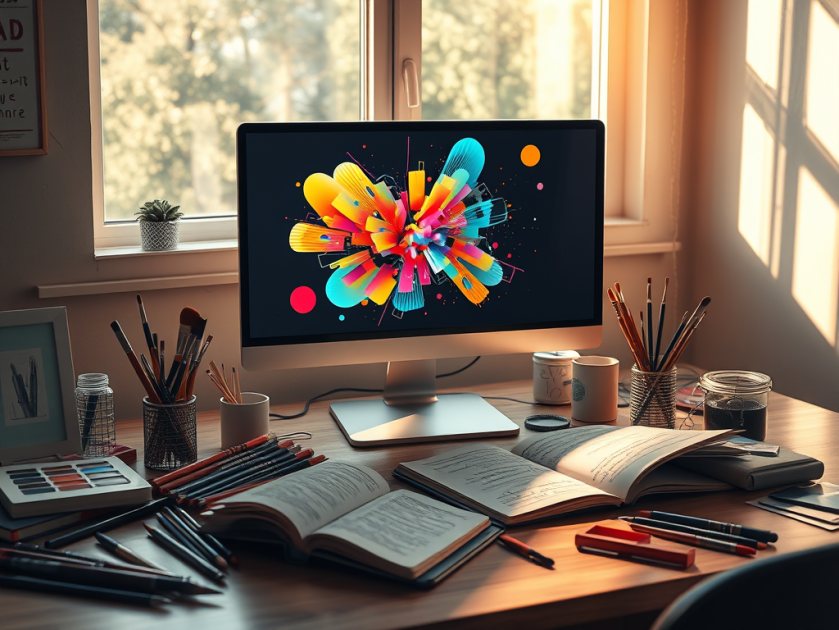
This week I’m recommending OpenArt.ai – an AI-powered art platform that allows users to create, edit, and enhance images using artificial intelligence.
Key Features
AI Image Generation
Create images from text prompts using a range of advanced models, including DALL·E 3 and Stable Diffusion. You can also generate visuals without prompts, offering boundary-free creative exploration.
Advanced Image Editing Tools
OpenArt includes a robust suite of AI editing capabilities to refine your work, such as:
- Inpainting & Outpainting – Add, remove, or expand elements in your image beyond its original frame.
- Upscaling – Improve image resolution to produce crisp, detailed artwork.
- Background Removal & Replacement – Effortlessly swap or eliminate image backgrounds.
- Find & Replace – Replace specific objects using simple text prompts.
- Consistent Characters – Generate the same character in multiple poses, styles, and scenes—ideal for storytelling or brand consistency.
- Facial Editing – Adjust expressions, eye color, or hairstyles for fine-tuned control.
Customization & Creative Control
You can train custom models to reflect your unique style and use “Image Guidance” to steer outputs based on reference images (pose, style, composition, etc.).
Community & Learning Resources
Access a vibrant community feed, Discord support, tutorials, and prompt books to help you get the most from the platform.
Image to Video Tool
Transform static images into dynamic videos in just a few clicks.
Pricing
OpenArt offers a free trial with limited credits for new users. For ongoing or professional use, there are several paid plans—Essential, Advanced, Infinite, and Team—each offering increasing credits, features, and simultaneous generations. Costs vary based on the tools and AI models you use.






 Health Care Social Media