Posted in Cool Tool

Monday Morning Cool Tool: Sharethrough Headline Analyzer

This week I’m recommending the Sharethrough headline analyzer tool.

This tool analyzes headlines to predict their performance and engagement. It uses a combination of natural language processing and machine learning, trained on a massive dataset of real-world headlines and their performance data.

How it works

It evaluates your headline based on several factors, including:

  • Engagement: How likely people are to click, read, and share.
  • Impression: How strong and memorable your headline is.
  • Clarity: How easily people can understand your headline.
  • Relevance: How well your headline aligns with current trends and interests.

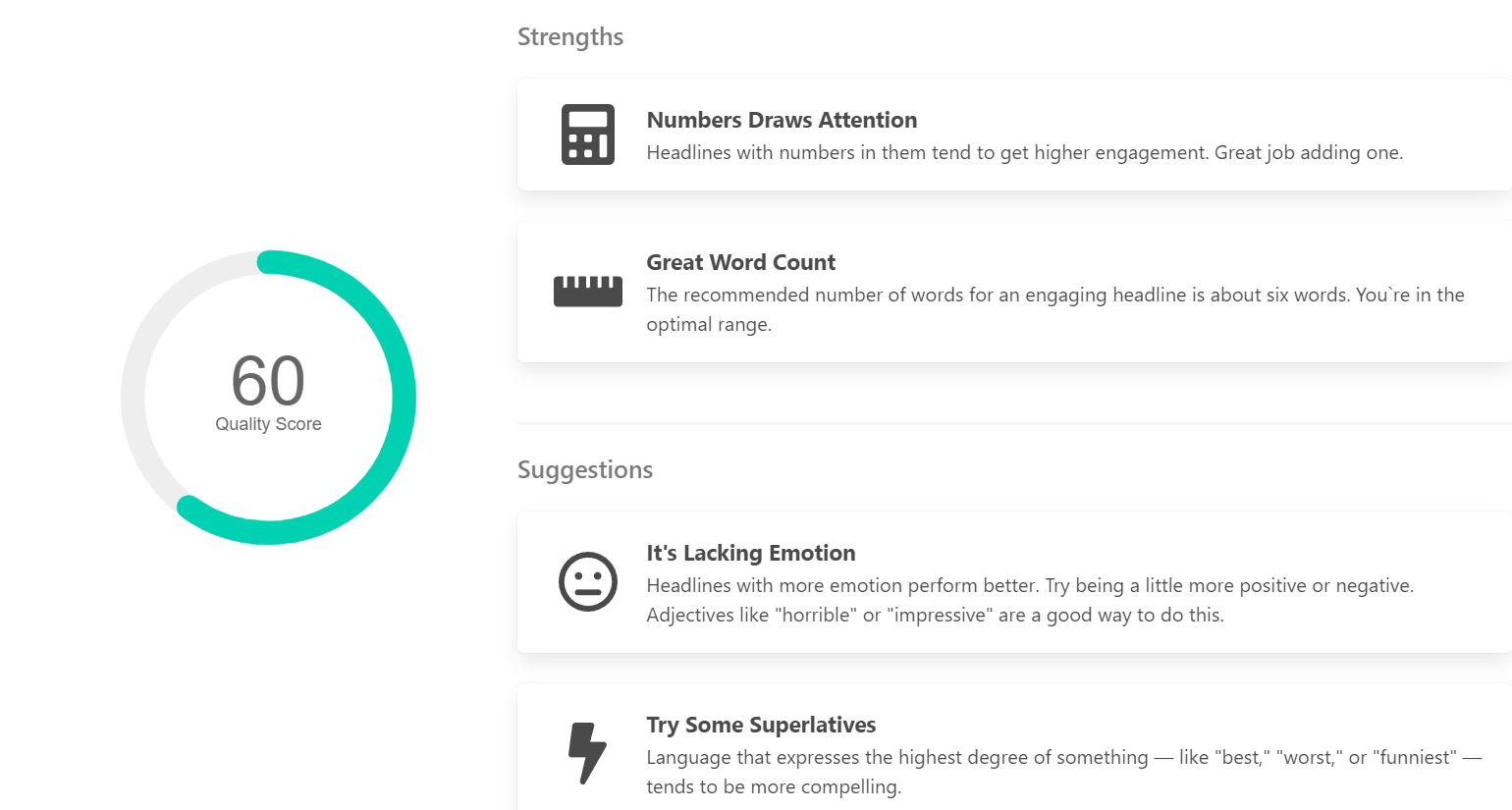
In the example below I typed the following headline and achieved a score of 65% with suggestions on how to improve and gain a higher score. Try it with your own headlines and let me know how you find the tool.

download - 2019-12-23T153308.644.png

While the headline quality score (out of 100) provides a quick snapshot of your headline’s effectiveness, delve deeper into the analysis. The tool identifies strengths and weaknesses, offering specific suggestions for improvement. It also provides insights into how your headline resonates with readers on an emotional level.

1a1922bd-eb4a-45b9-832a-1ab73209b133

Related Reading

Write Better Headlines With These 9 Winning Formulas 

Posted in Cool Tool

Monday Morning Cool Tool: RiteTag

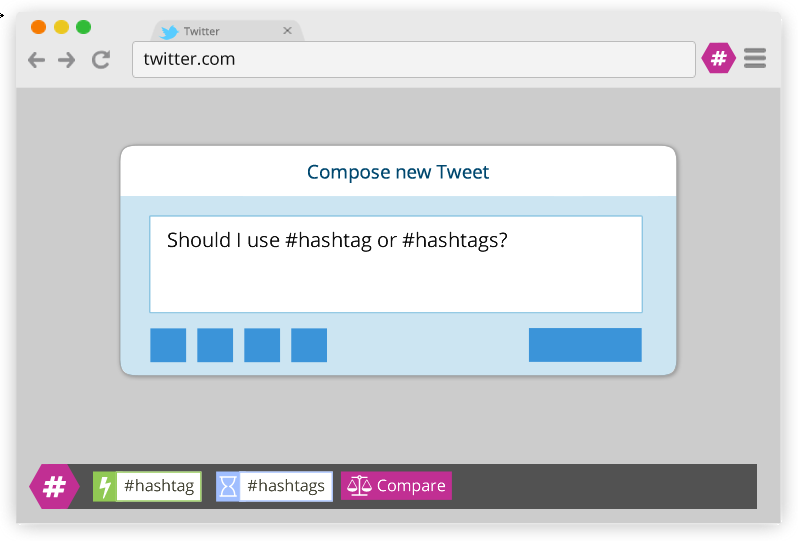
This week’s cool tool recommendation is RiteTag, a useful Chrome extension which gives you instant feedback on your hashtag choices as you type them.

ritetag-instant-feedback.png

How It Works 

RiteTag shows you how hashtags are performing on Twitter and Facebook before you post content. Once you log in to RiteTag using your Twitter or Facebook credentials, it checks the hashtags you begin typing in real time and color codes them:

  • If your hashtag is green, it means the hashtag will help your content be seen now.
  • If your hashtag is blue, it means the hashtag will help your content be seen over time.
  • If your hashtag is gray, you should select a new hashtag because it has low levels of engagement.
  • If your hashtag is red, you should select a new hashtag because it’s so popular, your content will disappear into the crowd.

RiteTag is available as a Chrome Extension. Download it here. 

Posted in Cool Tool

Monday Morning Cool Tool: Keyword Surfer

This week I’m recommending Keyword Surfer –  a free Chrome extension that gives you keyword search volume in Google search results.

This intuitive tool seamlessly integrates with Google Search, providing real-time data without disrupting the user’s workflow. By simply typing a query, users can instantly access estimated monthly search volumes, so you can instantly check if a keyword is a good fit.

Key Features and Benefits

  • Real-time Search Volume Data: Keyword Surfer displays estimated search volumes directly within Google Search results, eliminating the need for separate keyword research tools.
  • Related Keyword Suggestions: The extension provides a list of related keywords with corresponding search volumes, enabling users to discover new content opportunities and expand their keyword portfolio.
  • Traffic Estimates for Top-Ranking Pages: Keyword Surfer offers insights into the estimated organic traffic of high-ranking pages, allowing users to gauge potential content performance and set realistic goals.
  • Content Optimization Guidelines: By analyzing top-ranking content, Keyword Surfer provides data-driven recommendations on optimal word count, keyword density, and related keyword integration, enhancing on-page optimization efforts.
  • Global Data Coverage: With support for 70 countries, Keyword Surfer facilitates international SEO strategies by providing location-specific keyword data.7

Considerations

While Keyword Surfer offers valuable insights, it is essential to acknowledge that the data provided are estimates. For comprehensive analysis and competitive intelligence, utilizing additional keyword research tools is recommended.

Watch the short video below to learn more.


Posted in Cool Tool

Monday Morning Cool Tool: LunaPic

This week’s cool tool recommendation is LunaPic – a free online photo editor.

LunaPic offers a wide variety of tools for editing, adjusting, and creating images. It’s a popular choice for quick and easy image editing without needing to download or install any software.

Additionally, it provides filters and effects, including animating images, that can enhance your creativity.

If you’re looking for a quick and convenient way to edit your photos online, LunaPic is definitely worth checking out.

Posted in Cool Tool

Monday Morning Cool Tool: Adobe Color

This week’s cool tool recommendation is Adobe Color – a free online tool that allows you to create and explore color palettes.

Here are some of the things you can do with Adobe Color:

  • Create color palettes based on color theory: Use the color wheel to create palettes that are harmonious and pleasing to the eye. You can also use different color harmonies, such as complementary, analogous, and triadic.
  • Extract themes from images: Upload an image and Adobe Color will extract a color palette from it. This is a great way to create a palette that matches the colors in an image you like.
  • Explore pre-made themes: Browse thousands of user-created color palettes for inspiration. You can search by keyword, mood, or even specific color.
  • Accessibility tools: Adobe Color helps you create accessible themes that are usable for people with color blindness.
  • Integration with Adobe products: Once you’ve created a palette, you can easily use it in other Adobe products like Photoshop, Illustrator, and InDesign.

Website: https://color.adobe.com/

Posted in Cool Tool

Monday Morning Cool Tool: Content Row Headline Generator

This week’s cool tool recommendation is a headline generator from Content Row.

An effective headline has the power to captivate readers and encourage them to delve deeper into your content. In addition to engaging readers, headlines play a crucial role in search engine optimization (SEO). Search engines rely on headlines to understand the essence of your content, and a well-crafted headline can contribute to increasing your content’s ranking in search results.

How it works

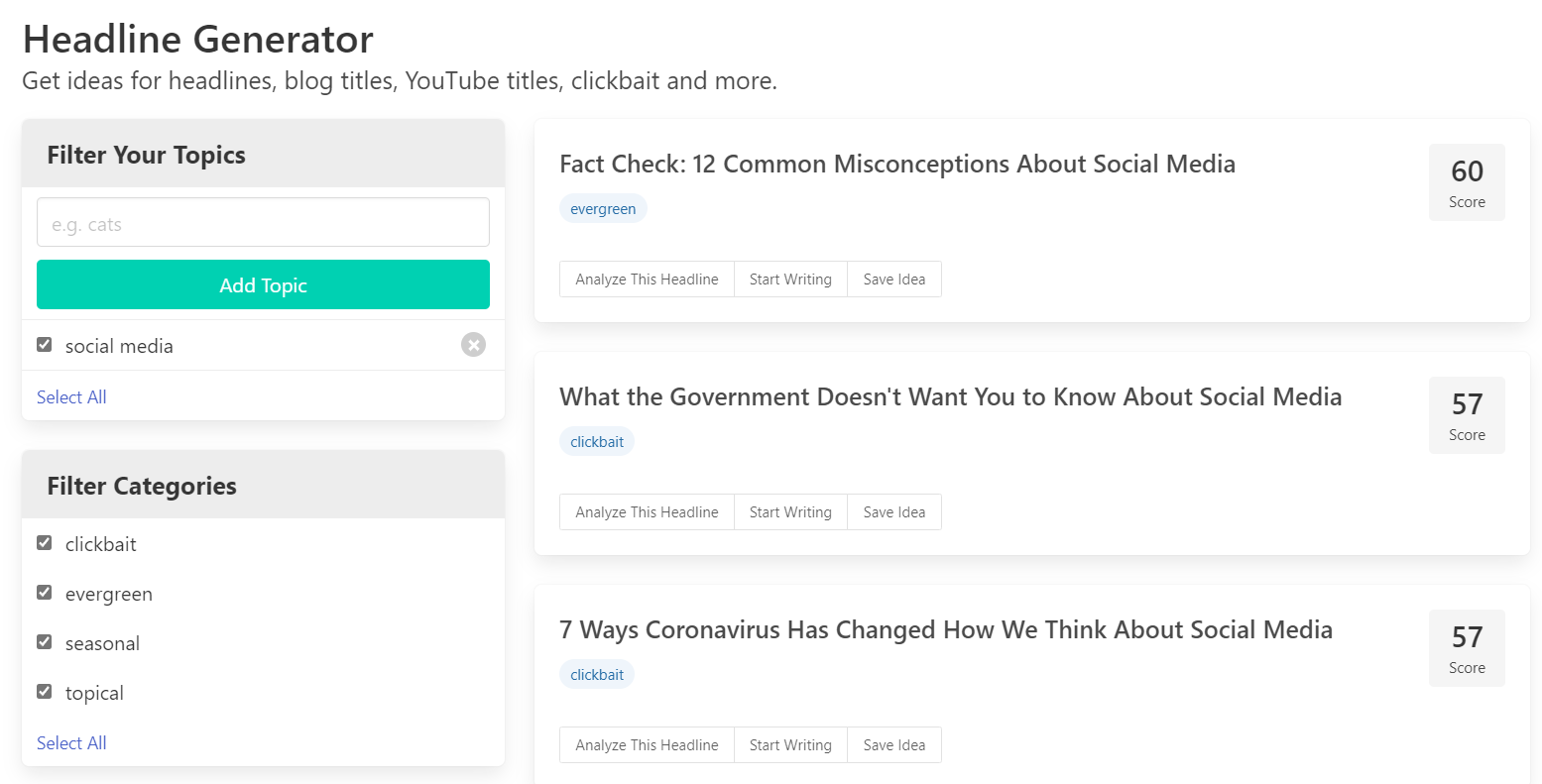
Using the term “social media” the tool provides the following suggested headlines for me. Keep in mind that as it’s an AI tool results are not an exact science, so it’s advisable to disregard clickbait titles. Once you’re logged in as a user, you have the option to filter out clickbait in your search.

Each headline is given a score, and you can click on the option to analyze it, which is a nice feature as it gives you some suggestions on how to improve it.

While these tools aren’t perfect, they can kickstart the creative thinking process when it comes to writing headlines. 

You might also like to read:

Posted in Cool Tool

Monday Morning Cool Tool: Icon Archive

This week’s cool tool recommendation is Icon Archive – a free online platform that hosts an extensive library of over 8,000 icons and symbols.

The platform enables effortless searching, previewing, and downloading of icons. Its intuitive search feature allows for the discovery of icons through keywords, categories, or specific tags and allows for downloading in multiple formats and sizes.

You might also like to try The Noun Project and Icon Hunt for similar.

Posted in Cool Tool

Monday Morning Cool Tool: TinEye

This week’s cool tool recommendation is TinEye – a reverse image search engine primarily used for copyright and plagiarism checks.

Reverse image search is a technique that allows you to find similar images on the web using an existing image as the starting point.

How to Use TinEye

  1. Upload an Image: Click the upload button to select the image from your computer or mobile device that you wish to search for.
  2. Search by URL: Copy and paste an image URL address into the search box.
  3. Drag and Drop: You can also simply drag and drop your images onto the TinEye webpage in your browser.
  4. After you submit your search image (through any method), TinEye will process the image and return any matching results in TinEye’s index. The total number of matches is shown at the top of the page alongside a thumbnail of the search image.
  5. Search Results: The search results are displayed below the search image. Each result includes a thumbnail of the matching image, the URL of the webpage where the image is found, and additional information such as the image resolution and file size.
  6. Sorting and Filtering: You can sort and filter the search results in various ways. For instance, you can sort by best match, most changed, biggest image, newest, and oldest. You can also filter results by domain or collection.
  7. Comparing Images: TinEye allows you to compare your search image with the result images. This can be useful to see how the images match up and to spot any differences.

Additional Features

The TinEye extensions allow you to search for any web image by simply right-clicking on images in a web browser making it convenient to perform reverse image searches directly from your browser.

The TinEye Compare feature lets you quickly switch back and forth between your search and result image. This highlights any differences between the two images. It’s especially useful to see how images have been cropped, resized, skewed, or manipulated.

Note: When you search with TinEye, your image is never saved or indexed. TinEye adds millions of new images from the web every day, but your images belong to you. Searching with TinEye is private, secure, and always improving.

How to use TinEye in Healthcare Marketing

  1. Identify the Original Source: Reverse image search can help you find the original source of an image. This can be useful if you want to credit the original creator or if you want to find the original context in which the image was used.
  2. Check for Misuse: If you are a content creator, you can use reverse image search to check if your images are being used without your permission. By uploading your image to a reverse image search engine, you can find all the places where your image appears online.
  3. Verify Authenticity: If you come across an image online and you suspect that it might be manipulated or taken out of context, you can use reverse image search to find earlier versions of the image. This can help you verify the authenticity of the image.
  4. Fact-Checking: Reverse image search can be a useful tool for fact-checking. For example, if you see an image in a news article, you can use reverse image search to check if the image has been used in other contexts.

    Posted in Cool Tool

    Monday Morning Cool Tool: Unpaywall

    This week’s cool tool recommendation is Unpaywall – an open database of 49,950,472 free scholarly articles.

    Access to research articles in academia can be costly, as many scholarly publications hide behind paywalls, limiting their availability to a select few. Unpaywall, however, is dedicated to breaking down barriers and increasing access to scholarly knowledge.

    Unpaywall locates open-access versions of research articles that would otherwise be locked away using data from multiple sources, including institutional repositories, preprint servers, and partnerships with publishers. By installing the Unpaywall browser extension or visiting the website, users can access an ever-expanding collection of scholarly articles.

    Note: It is important to note that Unpaywall serves as a guide to open access resources, ensuring their accuracy and legitimacy. It strives to make as many scholarly articles available as possible, but some restrictions may still exist