This week’s cool tool recommendation is photo and video editing tool, VSCO.
VSCO is a photo editing and sharing tool that offers both free and paid versions. In the free version, users can access basic editing tools like white balance, exposure, and contrast, along with a selection of preset filters. They can try out different presets themselves or use the “for this photo” feature to get recommended presets for specific pictures. The free version also lets users explore others’ photos and curated portfolios, finding inspiration in themes like “humankind,” “editorial,” and “summer.”
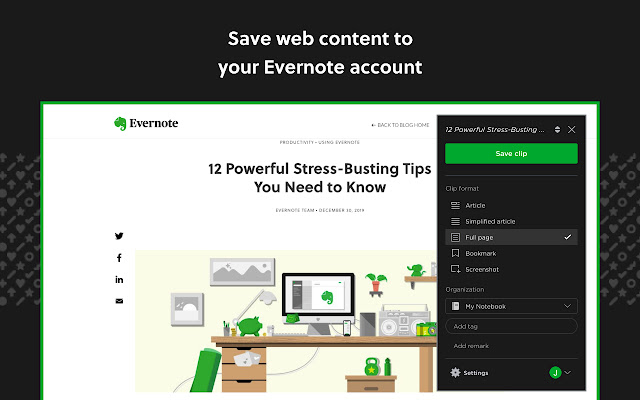
This week’s cool tool recommendation is Evernote Web Clipper – a useful browser extension for saving and organizing web content.
Imagine having a vast library of curated knowledge at your fingertips. With Evernote’s browser extension, you can not only save individual snippets but also capture entire webpages, complete with images and formatting. This is particularly useful when you come across a webpage that you want to reference later, even if its content changes over time. By saving a snapshot of the entire webpage, you can preserve it exactly as you saw it, ensuring that you have a reliable reference point whenever you need it.
If you already use the Evernote tool, this is a handy browser extension to pair with the tool. Once installed, you can click the extension’s icon in your browser to quickly and seamlessly clip the current webpage or select specific text and images to save. With just a few clicks, you can capture and save relevant content from online articles, blog posts, recipes, research papers, and more. Clipped content is automatically saved to your Evernote account, eliminating the need to manually copy and paste information.
This week’s cool tool recommendation isThe Noun Project – an online platform that hosts an expansive library of icons and symbols.
One of the key strengths of The Noun Project lies in its accessibility. The platform allows users to effortlessly search, preview, and download icons. Its intuitive search function enables you to find icons based on keywords, categories, or specific tags.
The site doesn’t limit users to just downloading icons. You can also find a selection of themed photos too.
Free and Paid Subscriptions
The Noun Project offers both free and paid subscription plans. The free plan provides access to a substantial collection of icons; however, for those seeking unlimited access to the full library, a paid subscription is available.
This week’s cool tool recommendation isVisme – a browser-based design tool that allows you to create interactive presentations, infographics, banner ads, animations, and more.
Want to create a quick presentation? Visme makes it easy. Log in and click Presentations. Choose the template that you like and start creating your presentation right away.
Insert text using Visme’s shapes and icons, images as well as widgets to visualize your data into graphs and tables. You can even add video or record audio.
Similarly, you can use Visme to create infographics, reports, social graphics, and even e-books. You can search through hundreds of custom templates and fully customize each of them to fit your specific needs.
Visme offers three types of accounts, one of which is free. You don’t get everything with a free account, but you get more than enough to start creating content. A Basic account is also a great way to test drive the solution before you buy.
This week I’m recommending Infogram, a free infographic and data visualization tool.
Infogram allows users to create interactive charts, maps, infographics, and other types of data visualizations using a simple drag-and-drop interface.
Those who are familiar with Excel can easily create charts with this feature. Infogram’s infographics are also mobile-friendly, making them easier to view and interact with on smaller screens.
Pricing
The Basic plan from Infogram is intended only for non-commercial use, and certain restrictions apply. Basic plan users have access to 37 chart templates and can create up to 10 three-page projects. The Basic plan does not allow users to remove Infogram’s branding.
Infogram’s Business plan is intended for commercial use and includes additional features, such as the ability to remove Infogram’s branding and add your own. Users of the Business plan also have access to a wider range of chart templates and can create unlimited projects.
Nonprofits and educational organizations are offered a discounted price, making Infogram a cost-effective solution for communicating data and messages through visuals.
Are you struggling to meet a word count requirement for an essay or article? Or perhaps you’re trying to optimize your content for specific keywords and phrases?
Whatever your writing needs may be, this week’s cool tool recommendation Wordcounter.net can help.
This web-based tool helps you count the number of words, characters, sentences, paragraphs, and pages in a text. To check word count, simply place your cursor into the text box above and start typing. You’ll see the number of characters and words increase or decrease as you type, delete, and edit them. You can also copy and paste text from another program over into the online editor above. The Auto-Save feature will make sure you won’t lose any changes while editing, even if you leave the site and come back later.
Wordcounter.net also provides additional features such as:
Keyword density analysis
If you’re creating content for SEO purposes, you can use the tool to analyze the keyword density of your writing. This can help you optimize your content for specific keywords and phrases.
Readability
Wordcounter.net also provides a readability score for your writing. This score is based on the average number of syllables per word and the average number of words per sentence. If your score is low, it may indicate that your writing is difficult to read. You can use this information to make your writing more accessible to your audience.
Accuracy
The tool includes a spell-check feature that can help you identify and correct spelling errors in your writing. This can be especially helpful if you’re writing in a language that is not your first language or if you’re prone to making spelling mistakes.
The cool tool recommendation this week wins the prize for the most interesting title!
Lose the Very is a web-based tool designed to help writers find alternative words and phrases to use in place of the word “very.” The tool operates on the premise that using “very” is often seen as lazy or imprecise, and that finding more descriptive words and phrases can help improve writing.
To use the tool, users simply type in the word they want to replace (in this case, “very”) and hit the “Find” button. The tool then generates a list of alternative words and phrases, along with their definitions and example sentences. Users can scroll through the list to find the word or phrase that best fits their needs.
In addition to its main functionality, the tool also features a built-in thesaurus and dictionary, which users can access by clicking on the corresponding tabs. The tool is free to use and does not require any sign-up or login.
It’s a super little tool to improve your writing and I highly recommend you check it out.
The cool tool recommendation this week is Onelook– an online dictionary search tool that allows you to search multiple dictionaries at once.
With Onelook, you can search for definitions, synonyms, and translations of words from a variety of online dictionaries and other reference sources. Onelook also offers a variety of advanced search options, including the ability to search by wildcard, find related words, and search for words that rhyme.









 Health Care Social Media