This week I’m recommending Infogram, a free infographic and data visualization tool.
Infogram allows users to create interactive charts, maps, infographics, and other types of data visualizations using a simple drag-and-drop interface.
Those who are familiar with Excel can easily create charts with this feature. Infogram’s infographics are also mobile-friendly, making them easier to view and interact with on smaller screens.
Pricing
The Basic plan from Infogram is intended only for non-commercial use, and certain restrictions apply. Basic plan users have access to 37 chart templates and can create up to 10 three-page projects. The Basic plan does not allow users to remove Infogram’s branding.
Infogram’s Business plan is intended for commercial use and includes additional features, such as the ability to remove Infogram’s branding and add your own. Users of the Business plan also have access to a wider range of chart templates and can create unlimited projects.
Nonprofits and educational organizations are offered a discounted price, making Infogram a cost-effective solution for communicating data and messages through visuals.
Are you struggling to meet a word count requirement for an essay or article? Or perhaps you’re trying to optimize your content for specific keywords and phrases?
Whatever your writing needs may be, this week’s cool tool recommendation Wordcounter.net can help.
This web-based tool helps you count the number of words, characters, sentences, paragraphs, and pages in a text. To check word count, simply place your cursor into the text box above and start typing. You’ll see the number of characters and words increase or decrease as you type, delete, and edit them. You can also copy and paste text from another program over into the online editor above. The Auto-Save feature will make sure you won’t lose any changes while editing, even if you leave the site and come back later.
Wordcounter.net also provides additional features such as:
Keyword density analysis
If you’re creating content for SEO purposes, you can use the tool to analyze the keyword density of your writing. This can help you optimize your content for specific keywords and phrases.
Readability
Wordcounter.net also provides a readability score for your writing. This score is based on the average number of syllables per word and the average number of words per sentence. If your score is low, it may indicate that your writing is difficult to read. You can use this information to make your writing more accessible to your audience.
Accuracy
The tool includes a spell-check feature that can help you identify and correct spelling errors in your writing. This can be especially helpful if you’re writing in a language that is not your first language or if you’re prone to making spelling mistakes.
The cool tool recommendation this week wins the prize for the most interesting title!
Lose the Very is a web-based tool designed to help writers find alternative words and phrases to use in place of the word “very.” The tool operates on the premise that using “very” is often seen as lazy or imprecise, and that finding more descriptive words and phrases can help improve writing.
To use the tool, users simply type in the word they want to replace (in this case, “very”) and hit the “Find” button. The tool then generates a list of alternative words and phrases, along with their definitions and example sentences. Users can scroll through the list to find the word or phrase that best fits their needs.
In addition to its main functionality, the tool also features a built-in thesaurus and dictionary, which users can access by clicking on the corresponding tabs. The tool is free to use and does not require any sign-up or login.
It’s a super little tool to improve your writing and I highly recommend you check it out.
The cool tool recommendation this week is Onelook– an online dictionary search tool that allows you to search multiple dictionaries at once.
With Onelook, you can search for definitions, synonyms, and translations of words from a variety of online dictionaries and other reference sources. Onelook also offers a variety of advanced search options, including the ability to search by wildcard, find related words, and search for words that rhyme.
This week’s cool tool recommendation is Hemingway Editor, an online writing tool that helps writers improve the clarity and readability of their writing.
The app is named after the famous American writer Ernest Hemingway, who was known for his simple and direct writing style. It works by highlighting common issues in writing such as long and complex sentences, passive voice, adverbs, and excessive use of adjectives.
How to use Hemingway App
To use the tool, either copy and paste your text or write directly into the app. The app then analyzes the text and highlights any issues that need to be addressed. The highlights are color-coded to indicate the type of issue, such as yellow for long and complex sentences and blue for passive voice.
In addition to highlighting issues, Hemingway App also offers suggestions for improvement. For example, if a sentence is too long and complex, the app may suggest breaking it up into smaller sentences. If the writer has used a passive voice, the app may suggest using an active voice instead.
With its user-friendly interface and suggestions for improvement, Hemingway App is a useful tool to enhance your writing quality, efficiency, and professionalism.
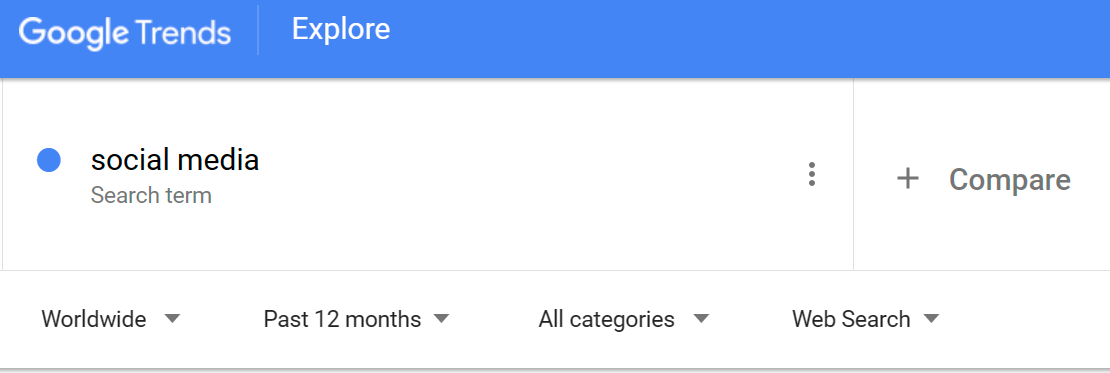
In the “Search” field, enter the term that you want to see trends for. You can enter multiple terms, separated by a comma, to compare their popularity.
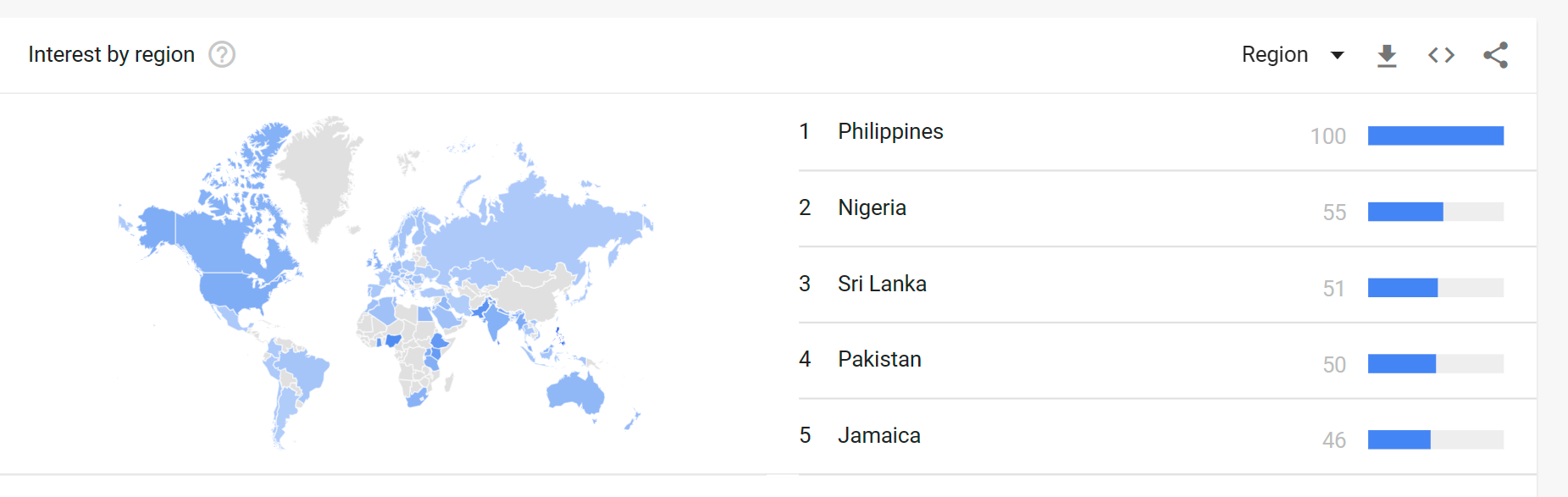
In the “Time Range” menu, select the period of time for which you want to see trends. Select a range of dates or a predefined time period, such as “Past Day,” “Past Week,” or “Past Month.”. You can also choose to search “Worldwide” data, or region specific. And you can specify where you want to pull data from, e.g. “News” “Images” YouTube”.
You can also use Google Trends to compare the popularity of multiple search terms. To do this, enter multiple search terms separated by a comma in the “Search” field.
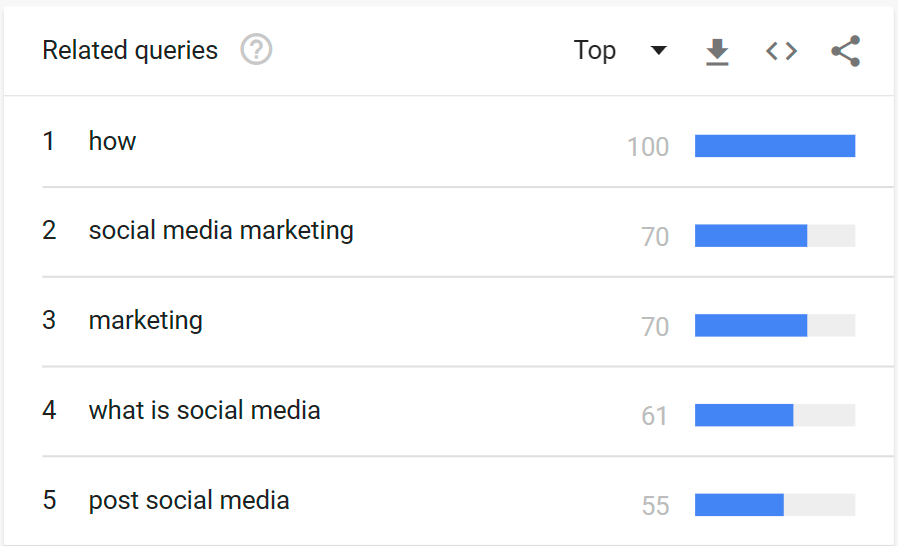
Another useful feature is the ability to see top-related searches, which is very helpful when creating content.
Why you should use Google Trends.
Market research: Google Trends can help you understand how popular certain products or services are, and how their popularity has changed over time. This can be useful for businesses that want to gauge the demand for their products or services.
Content creation: By understanding what people are searching for, you can create content that meets their needs and interests. For example, if you run a blog or website, you can use Google Trends to see what topics are currently trending and create content that covers those topics.
Search engine optimization: Google Trends can help you understand what people are searching for, and how their search habits are changing. This can be useful for businesses that want to optimize their website for search engines, as it can help them identify keywords and phrases to target in their content.
Keeping up with the news: Google Trends can also be used to see what news stories and events are currently generating the most interest. This can help you stay up-to-date on what’s happening in the world.
I hope that gives you a good idea of why Google Trends can be useful and that you are encouraged to try out this tool during the week.
This week’s cool tool recommendation is BrainyQuote – a directory of inspirational quotes.
Despite how long quotes have been doing the rounds of social media, they are still hugely popular and highly shareable. Next time you’re searching for something to fill your social media calendar consider sharing a quote. This site is the perfect place to find just the right quote for any occasion. And if you’re stuck for ideas, check out the quote of the day feature which makes choosing a quote a breeze.
I love learning about new tools to make social media marketing more creative and effective, so I’ve decided to share some of my favourite tools with you at the start of each week. This week’s cool tool recommendation isLumen5 is a desktop tool designed for bloggers to convert their blog posts into video.
I geeked out over this tool last year when I discovered it. Simply input your blog post’s url and Lumen 5 will import the text and images from that post and auto-create your video. You can then edit it, swap out images, upload other images and add music before you hit publish. The video above is one I created with Lumen 5 from an original blog post
The free plan includes unlimited videos, access to 10 million video files, and 480p-quality video with the Lumen5 watermark. You can also upload your own logo. Upgrading to the Pro plan ($49/month) lets you remove the Lumen5 branding, upload your own watermark and outro, and more.
This headline analyzer is a free tool from the Advanced Marketing Institute that you can use to calculate the EMV of your own headlines. It scores the EMV of your headline with a breakdown of why it scored that value. A perfect score would be 100%, but don’t despair if yours doesn’t match up. According to the Institute, “most professional copywriters’ headlines will have 30%-40% EMV Words in their headlines, while the most gifted copywriters will have 50%-75% EMV words in headlines.”
Here’s how it works.
Enter your headline in the space provided and choose the industry you are targeting your message to.
Click Submit.
Here’s my score:
While the score is low on EMV, I am still happy with it, as it fulfills my aim of arousing curiosity in the reader.
Your headline carries words that predominantly appeal to most people’s intellectual sphere. Intellectual impact words are especially effective when your goal is to arouse curiosity.
This week’s cool tool recommendation is stock image site Pexels.
Pexels provides over 3,800 high-resolution photos, collated from other free image sites — making it one of the largest free image directories. Pexels has also added a large library of stock videos to its site also under the CC0 license. Use the site’s list of popular searches to find the most in-demand stock video.









 Health Care Social Media