Articles

Posted in #HCSM

#ThursdayTip: How To Pin A Tweet

Welcome to this week’s social media tip.

Pinning a Tweet allows you to showcase your best content at the top of your profile page for as long as you’d like.

In the past Twitter typically only allowed viewers to see posts in a sequential timeline which meant that your most important or relevant content quickly got lost in the fast-moving Twitter stream.

To solve this issue Twitter now allows you to pin a tweet or keep it placed at the top of the newsfeed giving you more editorial control as to what a viewer will see first when visiting your page.

How To Pin A Tweet

It’s super quick and easy to do. Follow the steps below to pin your first tweet.

1. Open up your Twitter Profile Page.

download (82).png

2. Choose a Tweet you would like to Pin. Select “Pin to your profile page”.

download (83).png
3. The Tweet will now automatically appear at the top of Page.

download (84).png

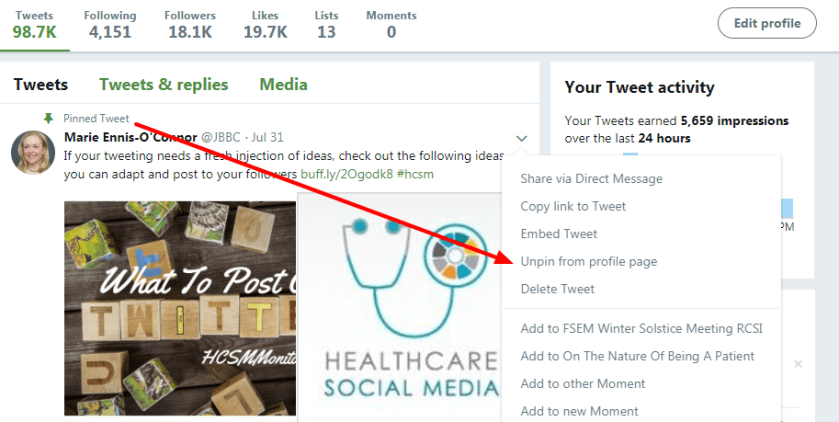
4. To remove a pinned tweet, simply click on the “unpin” option. 
download (85).png

It’s a good idea to review your pinned tweets regularly to make sure you are sharing up-to-date posts. Out-dated pins will make your profile look out-dated too.  To refresh your Twitter profile simply choose another tweet to pin. Twitter will ask you to confirm if you want to replace your current pinned tweet.

download (86).png

It couldn’t be easier to follow these steps and it’s something you should certainly do to highlight your accomplishments, share your latest news, and bring your viewers attention to the posts you want them to see first.

Here’s to your tweeting success!

Posted in #HCSM, Thursday Tip

#ThursdayTip: How To Access Your Twitter Data

Welcome to this week’s quick social media tip. Today I want to show you how to review your Twitter data.

Reviewing your Twitter data can give you insights into the type of information stored for your account.

What type of information is available to you?

Your Twitter data provides you with a snapshot of your Twitter information, including the following:

Account: Log into your Twitter account and go to More.

b01e52ad-8d5c-4607-8e33-0b73f624fafd

Click on Settings and Privacy. You will see information such as your username, email addresses or phone numbers associated with your account, etc.  You can update or correct most of this information at any time.

3f94d1cb-efe6-47df-ab6a-91a7de4da016

Account history: You’ll also be able to see your login history, as well as the places you’ve been while using Twitter.

download - 2020-03-26T101613.266


Apps and devices: You can also view the browsers and mobile devices associated with your account (if you are logged in) or current device (if logged out), and the apps you have connected to your Twitter account. If you see login activity from an app you don’t recognize or that looks suspicious, you can go to the Apps tab in your settings to revoke its access to your Twitter account. The IP location shown is the approximate location of the IP address you used to access Twitter, and it may be different from your physical location.

Account activity: You will be able to see the accounts you’ve blocked or muted.

Interests and Ads data: You can also see interests that Twitter and its partners have inferred about your account or current device.

download - 2020-03-26T101941.245

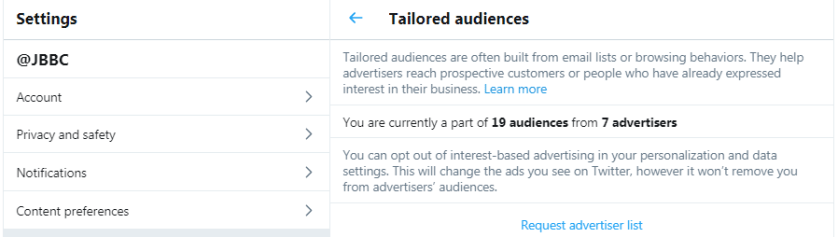
You can also view any Twitter advertisers who have included your account or current device in their tailored audiences. You can opt-out of interest-based advertising in your personalization and data settings. This will change the ads you see on Twitter, however, it won’t remove you from advertisers’ audiences.

70fd5d7f-6f80-4ca7-9104-5fedd0768035

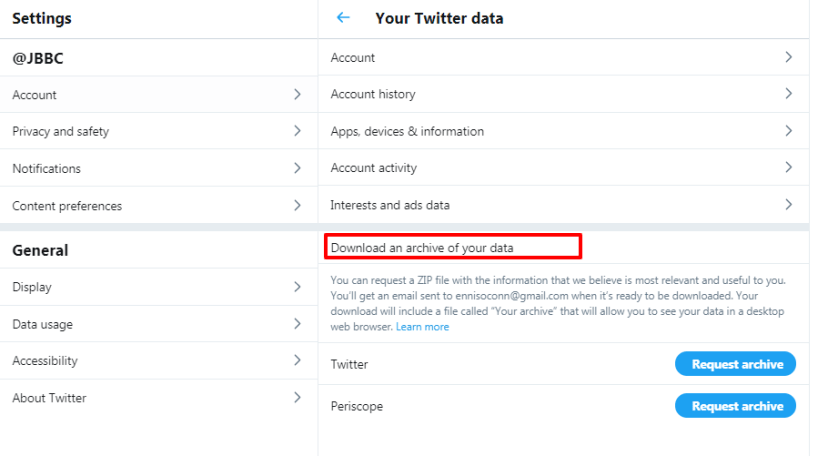
Download an archive of your data: You can also download a machine-readable archive of information associated with your account in HTML and JSON files.

4aa6fc91-98fd-4ddc-8473-9fb1ce979d89

Posted in Cool Tool

Monday Morning Cool Tool: Linktree


This week’s cool tool recommendation is Linktree – a landing page tool that houses links to your social sites.  

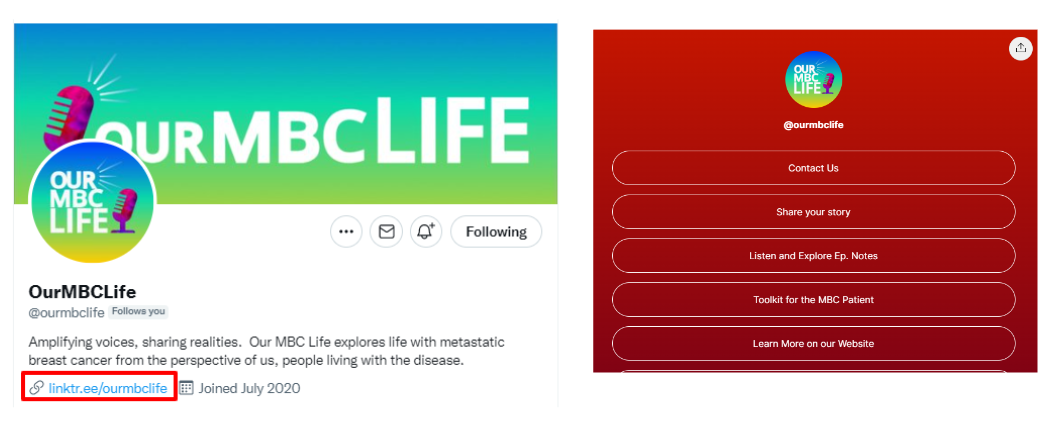
When you sign up, you receive a unique Linktree URL that you can add to your bio on any social media platform, in your email signature, etc., so your followers and visitors can choose which of your content they want to see.  

If you use Instagram, you already know that you can’t have more than one link on the website portion of your profile. This is where Linktree comes in. With Linktree, you can create a landing page with as many links as you like.   

See this example from podcasters, Our MBC Life, to see how it looks in practice.  

Pricing

You can sign up for free to get unlimited links and a customizable Linktree. For more customisation, there are paid plans.

Posted in Thursday Tip

#ThursdayTip: How To Mute Accounts, Keywords & Hashtags on Twitter

Welcome to this week’s social media quick tip.  This week I want to show you how to use the Mute feature on Twitter.

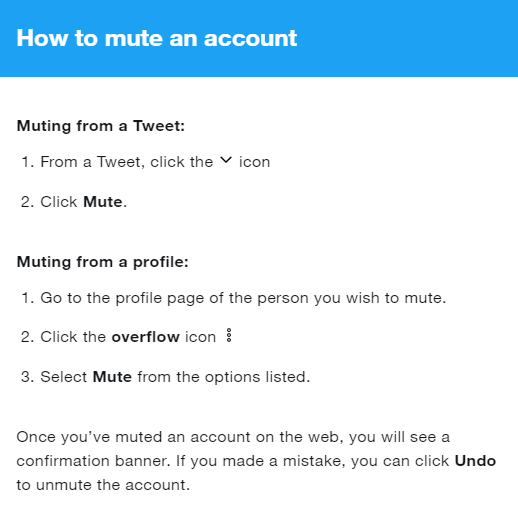
Mute is a handy feature on Twitter, which if you’re not familiar with, can be a real boon to your Twitter experience. It allows you to remove an account’s Tweets from your timeline without unfollowing or blocking that account. Muted accounts will not know that you’ve muted them and you can unmute them at any time.

How To Mute An Account 

download - 2019-07-25T080241.522

Some things to note about Mute:

  • Muted accounts can follow you and you can follow muted accounts. Muting an account will not cause you to unfollow them.
  • Muting an account does not impact the account’s ability to send you a Direct Message.
  • You will no longer receive push or SMS notifications from any muted account.
  • Replies and mentions by the muted account will still appear in your Notifications tab.
  • Tweets from a muted account – posted before the account was muted – will be removed from your Home timeline.
  • When you click or tap into a conversation, replies from muted accounts will be visible.

download - 2019-07-25T080821.338

How To  Mute Conversations, Keywords, and Hashtags

Twitter also gives you the option to mute Tweets that contain particular words, phrases, usernames, emojis, or hashtags. Muting will remove these Tweets from your Notifications tab, push notifications, SMS, email notifications, Home timeline, and from replies to Tweets.

If you would like to stop receiving notifications for a particular conversation, you can choose to mute it. When you mute a conversation, you won’t get any new notifications about that conversation. You will, however, still see Tweets from the conversation in your timeline and when you click into the original Tweet.

For more on how to use this feature, visit advanced muting options on Twitter.

Here’s to your Twitter success!

Posted in Cool Tool

Monday Morning Cool Tool: Loom

I love learning about new tools to make social media marketing more creative and effective, so I’ve decided to share some of my favourite tools with you at the start of each week.

This week’s cool tool recommendation is video app –  Loom.

Combining face and screen video recording with audio, Loom makes it easy to create quick, personal videos ready for sharing via email, social media, YouTube, or as an embedded video on your website.

Check out this video which walks you through the desktop version (you can also use it as a Chrome extension or download iOS app). 

The basic version is free and allows you to record up to 25 videos.

Posted in Cool Tool

Monday Morning Cool Tool: Pexels

pexels-photo-573238.jpeg

This week’s cool tool recommendation is stock image site Pexels.

Pexels provides over 3,800 high-resolution photos, collated from other free image sites — making it one of the largest free image directories. Pexels has also added a large library of stock videos to its site also under the CC0 license. Use the site’s list of popular searches to find the most in-demand stock video.

Posted in #HCSM, Thursday Tip

#ThursdayTip: How To Create Twitter Threads

Welcome to this week’s quick social media tip. Today I want you to show you how to create Twitter threads. 

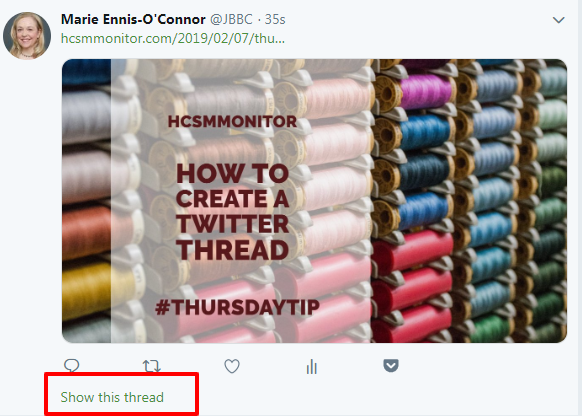
Not sure what a Twitter thread looks like?

If you spend any time on Twitter you’ve probably already come across a Twitter thread, but perhaps not know that it was a thread.  Threads are a series of related tweets shared in succession by one person.

With a thread, you can provide additional context, an update, or an extended point by connecting multiple tweets together. When used well, threads are a powerful way to illustrate a larger point.

Before threads, users would have to just continue replying to their own Tweets in order to link them together. This was a  way to work around the old 140 character limit.

How To Create A Twitter Thread

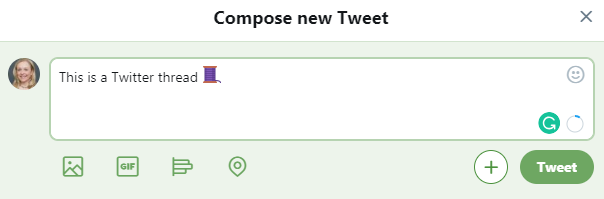
1. Click the “Tweet” button to compose a new Tweet.

download

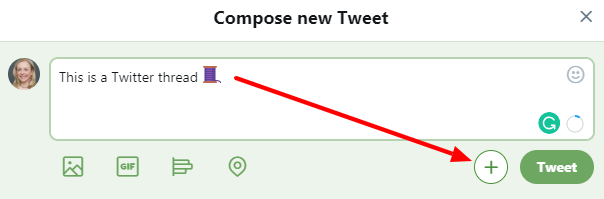
2. Click the new “Add another Tweet” button.

download

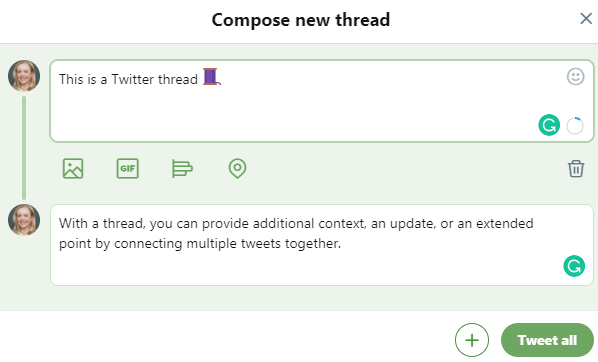
3. This brings up a second Tweet window.

download

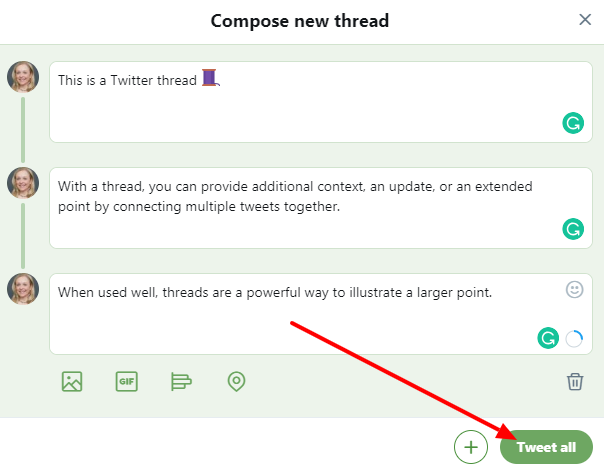
4. Continue in this way adding threads until you’ve said all you want to say.  You can either publish the entire thread by hitting “Tweet All”….

download

Or you can hit post each tweet in succession, which allows you to build momentum, perfect for a live event or an ongoing train of thought.

Publishing the entire thread gives your followers a fully-formed story — a better choice for a message you want to control a bit more, like a nuanced company announcement.

Here’s how your published displays on Twitter when complete.

download

Want to learn more?

Check out this guide to Twitter threads on Twitter’s business blog.

Here’s to your social media success!

Posted in Cool Tool

Monday Morning Cool Tool:  Dr. Link Check

This week I’m recommending  Dr. Link Check– a tool to help you identify broken links on your website and fix them.

Did you know that broken links on your website are sending signals to Google that your website is old and outdated and perhaps even untrustworthy?

Broken links or dead links are hyperlinks on a webpage that are no longer functional. They can negatively impact your SEO by impacting bounce rate (the percentage of visitors that navigate away from a particular site after viewing only one page) and time on site, two factors that directly affect SEO.

Finding broken links is the first step to fixing them. This can be done in a number of ways. One is to use a tool like Dr. Link Checker.

It’s very simple to use. Simply type in the url of your site and let the link checker go to work.

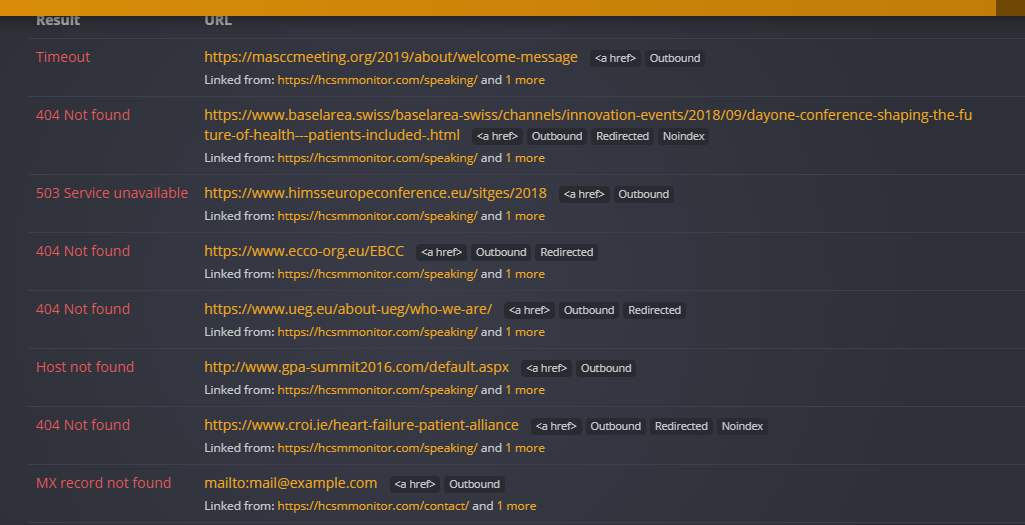
This shows me a list of the broken links on my own website that I need to fix. A majority of these link to dead external sites. This makes sense since I originally linked out to speaking engagements and the conference and meeting sites have been taken down.  In this case, I have no choice but to delete the hyperlink since I have no control over external links.  

When it comes to internal links, I have control over them, and it’s good SEO practice to review content and correct broken links immediately.   

T

Content Ideas

Posted in #HCSM, Thursday Tip

#ThursdayTip: How To Generate Fresh Content Ideas In 30 Seconds.. Or Less

Welcome to this week’s quick social media tip.

Today I want to share a tip with you for generating content ideas in under a minute using two similar tools. Use these tools as inspiration for topics you could write about.

1.  HubSpot’s Blog Topic Generator tool lets you input up to three different nouns and returns five blog topic ideas for you

download - 2019-02-28T150439.059

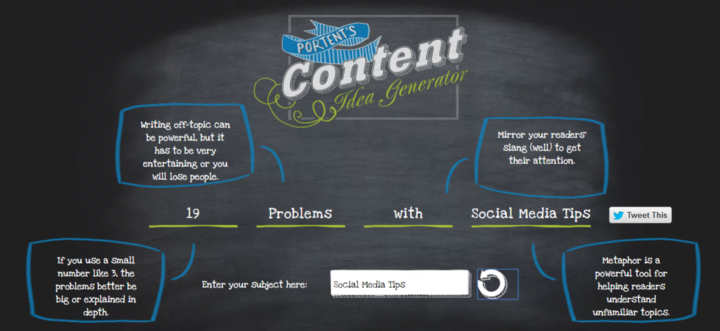
2. Portent’s Content Idea Generator allows you to generate content ideas with just one keyword. Be prepared that the tool can throw up some quirky suggestions, but don’t let that put you off. Keep playing around with it until you find one you can work with. I also really like how it shows you best practice tips, such as using metaphors in your writing.

Sometimes all you need is a little spark to get your creativity flowing again, and these tools may just the thing to get your creative juices flowing again.

Here’s to your social media success!

Posted in Cool Tool

Monday Morning Cool Tool: Refind

Find quality articles from around the net that will spark your interest and make you smarter every day with this week’s cool tool recommendation.

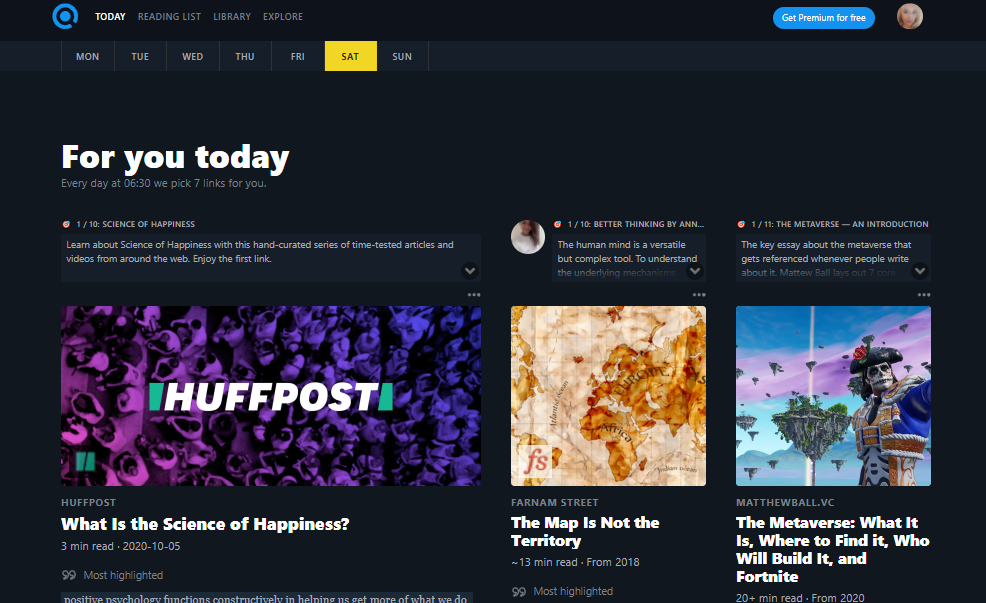
Refind – a daily curated list of quality reading from around the web designed to spark your interest and make you smarter.

Sign up to get 7 (or more) new links every day tailored to your interests, curated from 10k+ sources.

Here’s how to get started

1. Create an account at Refind.com

2. Choose 3 topics of interest

3. Rate links to tailor your experience to your interests

4. Choose a Deep Dive or Thought Leader to subscribe to.

5. Choose how many links you wish to receive each day, the time of it day you wish to receive them, and the email address to deliver them to.

6. And now you’re all set to dive into your curated reading list.

Refind is also available for download on the App Store and Google Play.