Posted in #HCSM

#ThursdayTip: How to Embed a YouTube Video into WordPress

Welcome to this week’s quick social media tip!

Feeling stuck when it comes to blogging? 

Here’s an idea.

Find a relevant video on YouTube and post it on your site. You could add your comments on the post or just let the video speak for itself.

This is a super simple way to keep your blog updated and it is very straightforward to add a YouTube video to your website. 

Here’s how.

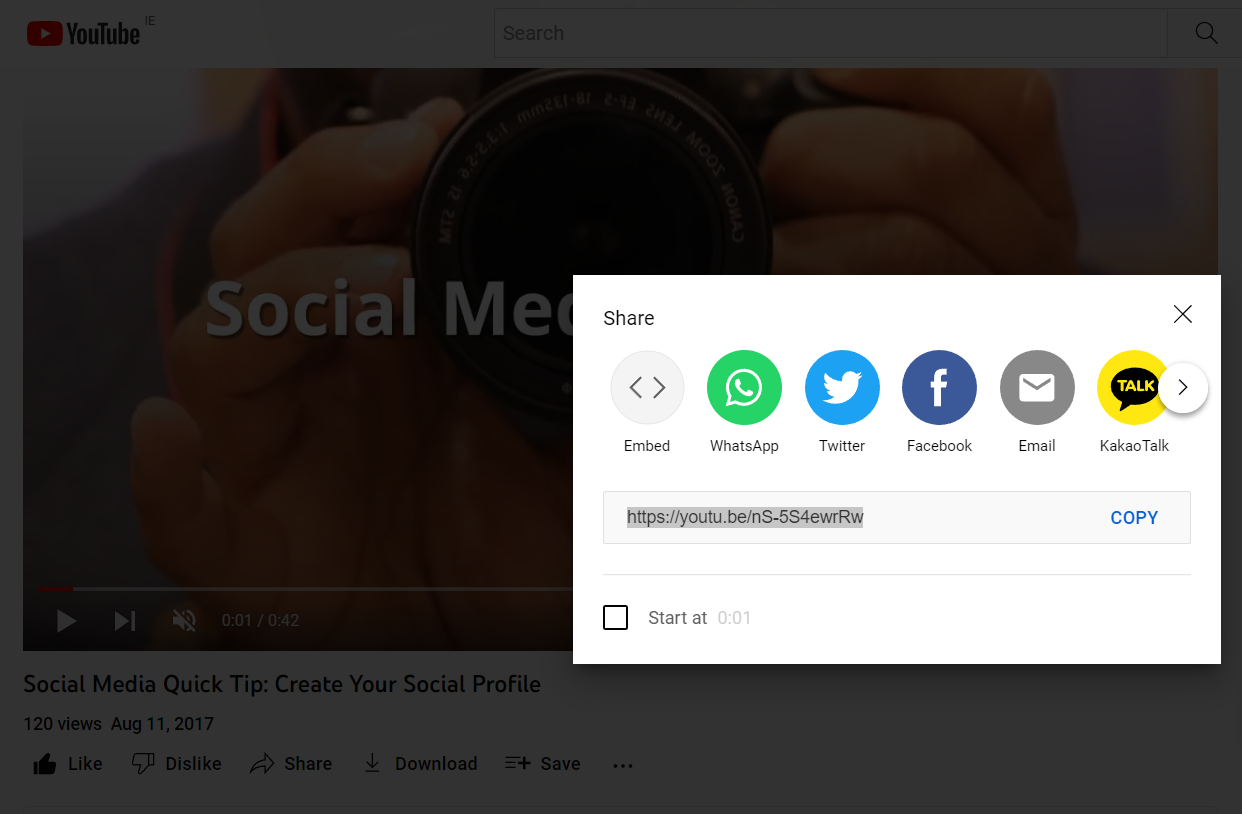
Click on “SHARE” right below the video you’ve chosen on YouTube

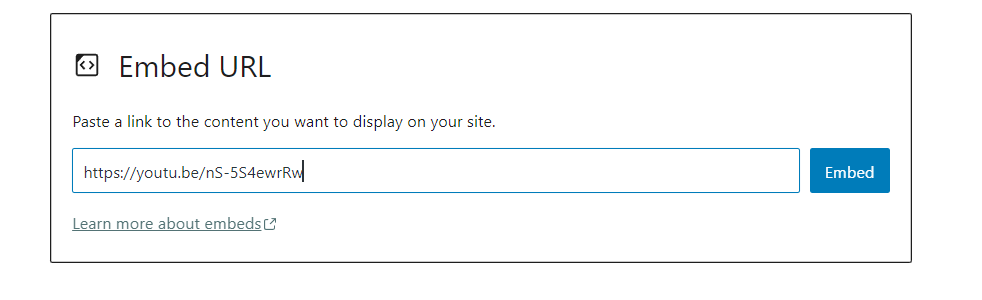
Simply copy the video URL.

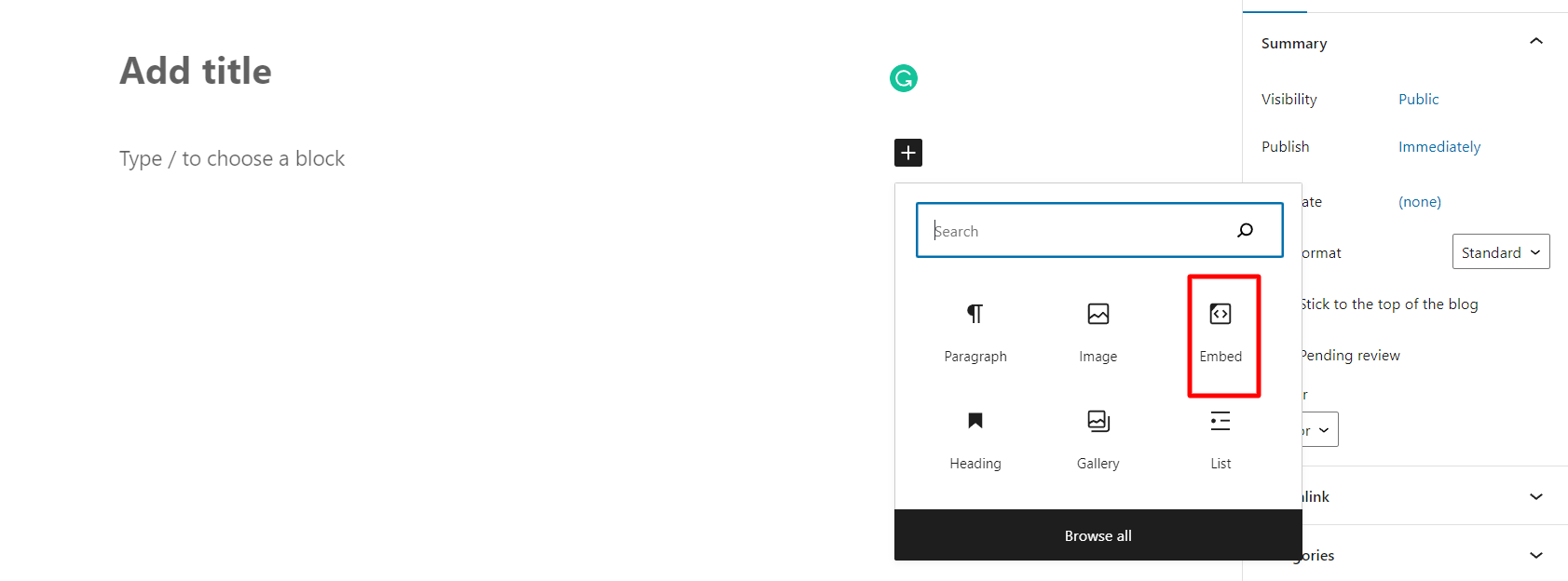
Now go to your website page or post editor where you want to embed the video and follow the prompts to insert the embed code.

And you’re all set!

Posted in #HCSM

#ThursdayTip: How To “Unmention” Yourself From A Twitter Discussion

Take control of your mentions and leave a conversation with this week’s quick Twitter Tip.

Twitter is rolling out to all users across the platform the ability to leave a conversation and it couldn’t be simpler to do. 

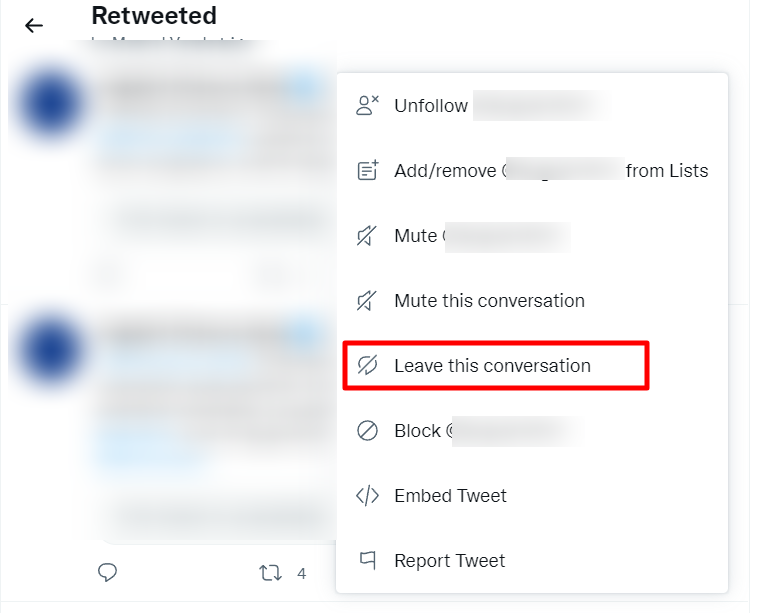
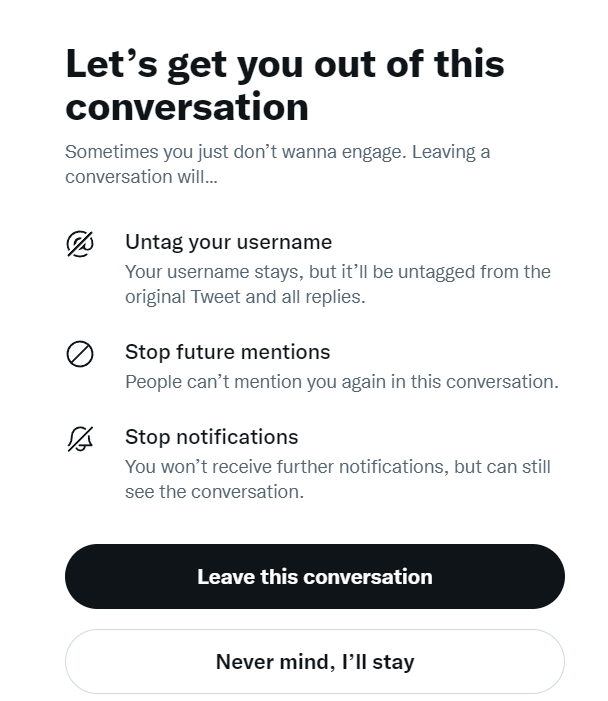
Simply click on the ellipses (three dots) beside the Twitter conversation you wish to leave.

Choose leave this conversation and you will be untagged from the original Tweet and all replies.  You can also see from the screenshot below, you have other options too – stop future mentions (people can’t mention you again in this conversation) and stop notifications (you won’t receive further notifications but will still see the conversation).

You might also like to read How To Mute Accounts, Keywords & Hashtags on Twitter

Posted in #HCSM

#ThursdayTip: How To Pin A Tweet

Welcome to this week’s social media tip.

Pinning a Tweet allows you to showcase your best content at the top of your profile page for as long as you’d like.

In the past Twitter typically only allowed viewers to see posts in a sequential timeline which meant that your most important or relevant content quickly got lost in the fast-moving Twitter stream.

To solve this issue Twitter now allows you to pin a tweet or keep it placed at the top of the newsfeed giving you more editorial control as to what a viewer will see first when visiting your page.

How To Pin A Tweet

It’s super quick and easy to do. Follow the steps below to pin your first tweet.

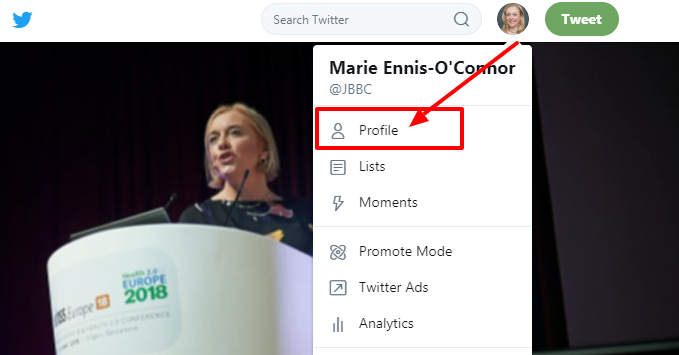
1. Open up your Twitter Profile Page.

download (82).png

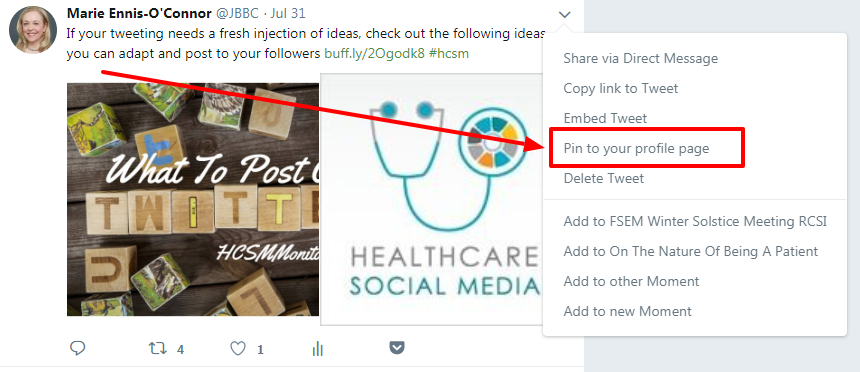
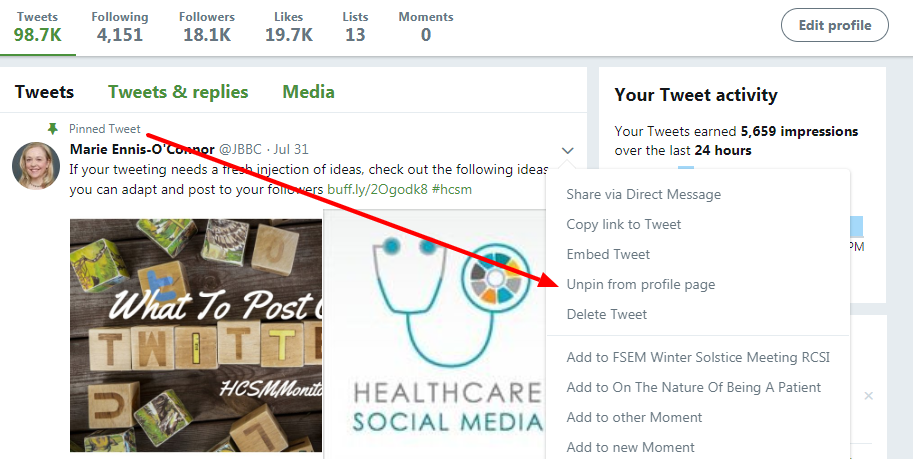
2. Choose a Tweet you would like to Pin. Select “Pin to your profile page”.

download (83).png
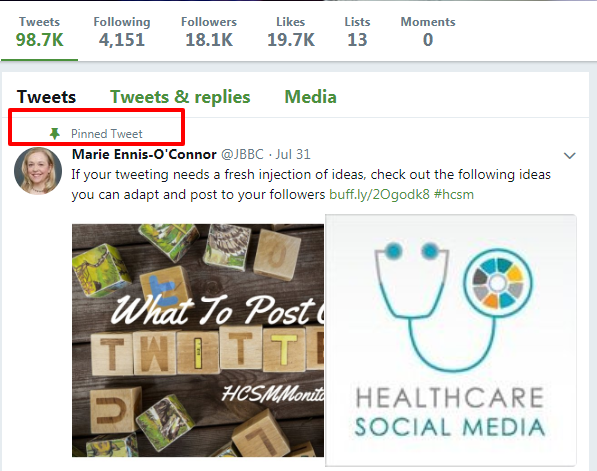
3. The Tweet will now automatically appear at the top of Page.

download (84).png

4. To remove a pinned tweet, simply click on the “unpin” option. 

download (85).png

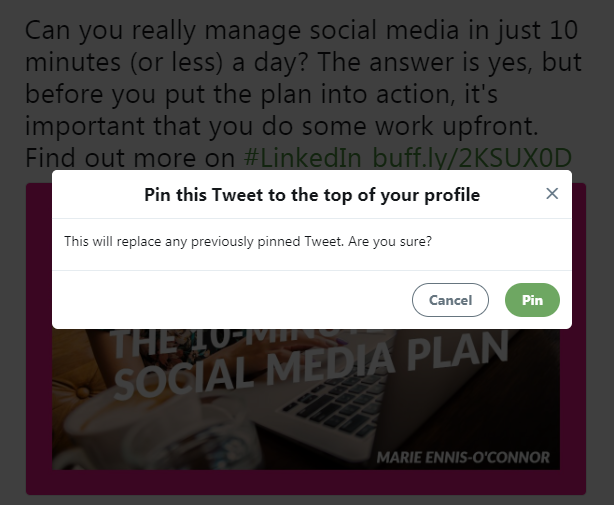
It’s a good idea to review your pinned tweets regularly to make sure you are sharing up-to-date posts. Out-dated pins will make your profile look out-dated too.  To refresh your Twitter profile simply choose another tweet to pin. Twitter will ask you to confirm if you want to replace your current pinned tweet.

download (86).png

It couldn’t be easier to follow these steps and it’s something you should certainly do to highlight your accomplishments, share your latest news, and bring your viewers attention to the posts you want them to see first.

Here’s to your tweeting success!

Posted in #HCSM, Thursday Tip

#ThursdayTip: How To Access Your Twitter Data

Welcome to this week’s quick social media tip. Today I want to show you how to review your Twitter data.

Reviewing your Twitter data can give you insights into the type of information stored for your account.

What type of information is available to you?

Your Twitter data provides you with a snapshot of your Twitter information, including the following:

Account: Log into your Twitter account and go to More.

b01e52ad-8d5c-4607-8e33-0b73f624fafd

Click on Settings and Privacy. You will see information such as your username, email addresses or phone numbers associated with your account, etc.  You can update or correct most of this information at any time.

3f94d1cb-efe6-47df-ab6a-91a7de4da016

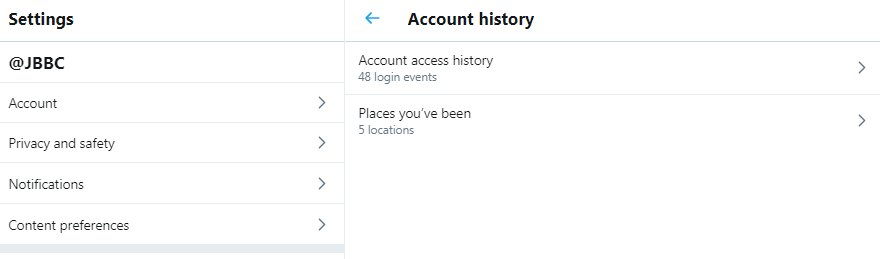
Account history: You’ll also be able to see your login history, as well as the places you’ve been while using Twitter.

download - 2020-03-26T101613.266


Apps and devices: You can also view the browsers and mobile devices associated with your account (if you are logged in) or current device (if logged out), and the apps you have connected to your Twitter account. If you see login activity from an app you don’t recognize or that looks suspicious, you can go to the Apps tab in your settings to revoke its access to your Twitter account. The IP location shown is the approximate location of the IP address you used to access Twitter, and it may be different from your physical location.

Account activity: You will be able to see the accounts you’ve blocked or muted.

Interests and Ads data: You can also see interests that Twitter and its partners have inferred about your account or current device.

download - 2020-03-26T101941.245

You can also view any Twitter advertisers who have included your account or current device in their tailored audiences. You can opt-out of interest-based advertising in your personalization and data settings. This will change the ads you see on Twitter, however, it won’t remove you from advertisers’ audiences.

70fd5d7f-6f80-4ca7-9104-5fedd0768035

Download an archive of your data: You can also download a machine-readable archive of information associated with your account in HTML and JSON files.

4aa6fc91-98fd-4ddc-8473-9fb1ce979d89

Posted in #HCSM, Thursday Tip

#ThursdayTip: How To Create Twitter Threads

Welcome to this week’s quick social media tip. Today I want you to show you how to create Twitter threads. 

Not sure what a Twitter thread looks like?

If you spend any time on Twitter you’ve probably already come across a Twitter thread, but perhaps not know that it was a thread.  Threads are a series of related tweets shared in succession by one person.

With a thread, you can provide additional context, an update, or an extended point by connecting multiple tweets together. When used well, threads are a powerful way to illustrate a larger point.

Before threads, users would have to just continue replying to their own Tweets in order to link them together. This was a  way to work around the old 140 character limit.

How To Create A Twitter Thread

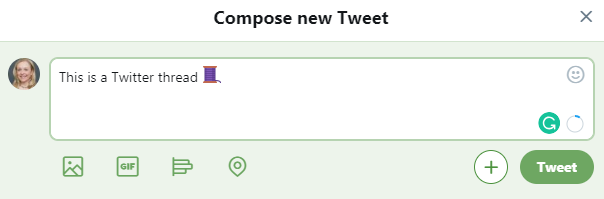
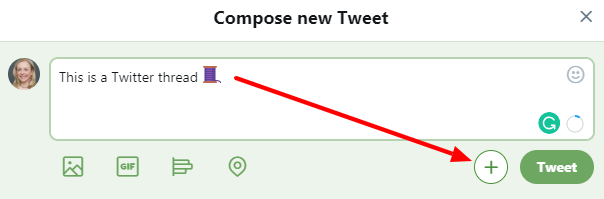
1. Click the “Tweet” button to compose a new Tweet.

download

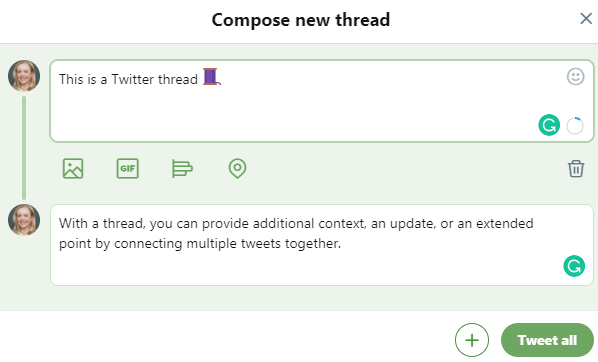
2. Click the new “Add another Tweet” button.

download

3. This brings up a second Tweet window.

download

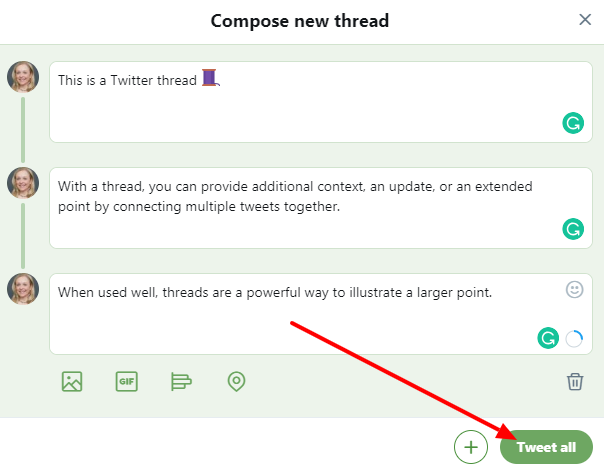
4. Continue in this way adding threads until you’ve said all you want to say.  You can either publish the entire thread by hitting “Tweet All”….

download

Or you can hit post each tweet in succession, which allows you to build momentum, perfect for a live event or an ongoing train of thought.

Publishing the entire thread gives your followers a fully-formed story — a better choice for a message you want to control a bit more, like a nuanced company announcement.

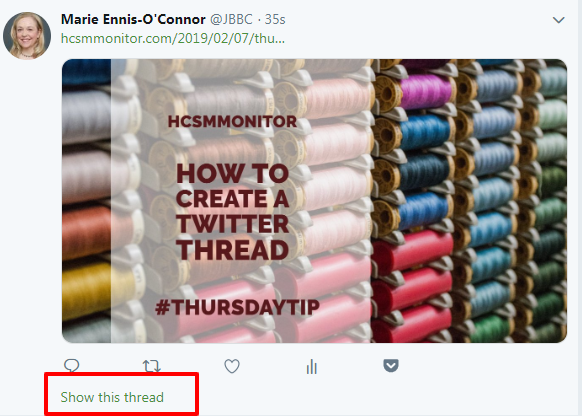
Here’s how your published displays on Twitter when complete.

download

Want to learn more?

Check out this guide to Twitter threads on Twitter’s business blog.

Here’s to your social media success!

Posted in #HCSM, Thursday Tip

#ThursdayTip: How To Generate Fresh Content Ideas In 30 Seconds.. Or Less

Welcome to this week’s quick social media tip.

Today I want to share a tip with you for generating content ideas in under a minute using two similar tools. Use these tools as inspiration for topics you could write about.

1.  HubSpot’s Blog Topic Generator tool lets you input up to three different nouns and returns five blog topic ideas for you

download - 2019-02-28T150439.059

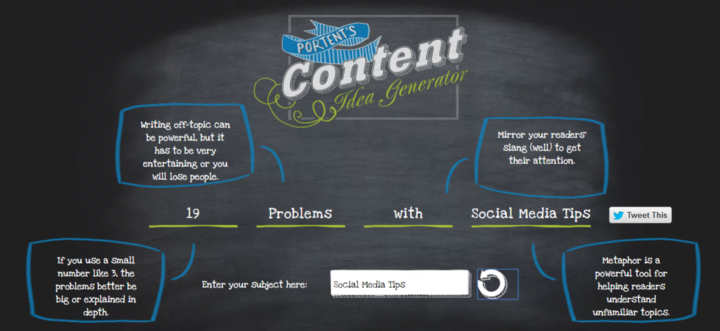
2. Portent’s Content Idea Generator allows you to generate content ideas with just one keyword. Be prepared that the tool can throw up some quirky suggestions, but don’t let that put you off. Keep playing around with it until you find one you can work with. I also really like how it shows you best practice tips, such as using metaphors in your writing.

Sometimes all you need is a little spark to get your creativity flowing again, and these tools may just the thing to get your creative juices flowing again.

Here’s to your social media success!

Posted in #HCSM

Social Media Image Sizes: A 2022 Cheat Guide

It probably isn’t necessary for me to tell you that compelling visuals make effective marketing.

It is a very powerful marketing tool that increases message association, brand awareness, and engagement.

In order to share high-quality visuals across platforms, make sure each image is the right size before sharing. A pixelated or cropped image can seem unprofessional to the viewer if it is not sized correctly.

To make the job of determining the right size and resolution of an image easier, there are several handy charts available from different sources.

Let’s start with this infographic from Hootsuite which covers the four main social platforms.

Now head on over to my Medium platform to find specific dimensions for each social platform.

Posted in #HCSM

How to Create a Winning Healthcare Content Strategy

To ensure that your healthcare content performs well on social media, you must be strategic about what you publish and when you publish it.

You can create a winning content strategy by following these 10 steps. 

Step #1 Define Your Purpose

Having a clear purpose in mind is the first step to creating great content. What do you hope to achieve with your content?

  • Attract more patients to your practice
  • Improve the quality of health information online
  • Drive traffic to your  website
  • Run a disease awareness campaign
  • Establish online authority and credibility

Take Action: Set SMART goals for your social media marketing. For a goal to become a reality, it needs to be specific, measurable, attainable, and realistic, as well as time-specific, these are often called SMART goals.

Step #2 Identify Your Audience’s Needs

Once you have a clear why your next step is to identify exactly who is going to consume the content you create.

Every piece of content that you create should have an intended audience. As you think about creating content focus your strategy around your audience’s needs and interests.

What kind of information is your audience looking for? What problems can you solve for them? Will they be wiser for having read your content?

Focusing more clearly on your audience will help you to create tailored content as well as help you structure your writing for the people you are trying to help. You can then tailor your content more specifically to match their needs. There is no one-size-fits-all solution to attract and engage different members of your audience. The key here is to really know your audience and their pain points and write content that specifically answers their particular needs.

Take Action: Check out these suggestions for places to help you discover the content your audience is looking for so you can create that content for them.

Step #3 Determine Your Content Format

This is a two-part strategy. Firstly, you need to go where your audience is consuming content (many social media platforms lend themselves more naturally to specific types of content). Identify how, when, and where they like to engage with content, and then start to create content on your audience’s preferred platform and preferred way of consuming content.

Secondly, you need to take stock of your own resources. What internal and external resources will you need to run your content marketing engine? Do you have time to write regularly for a blog? Would it be better for you to create video blogs (vlogs) for your website or communicate through a live stream broadcast? What assets do you already have that you can leverage for your content strategy? For example, do you have access to a graphic designer who can create infographics? Use your in-house talent to create unique content and publish it in a format that will attract and retain your audience’s attention.

Step #4 Keep Content Ideas Flowing

Whether it’s an excel spreadsheet, Google Docs, or another note-taking system, create a place to add links to interesting articles, studies or ideas for content to share.

Take Action: Evernote is my go-to tool to store notes and ideas. You can add tags and create folders for easy retrieval. Evernote’s in-browser Web clipping tool allows you to save the full text of PDFs, Web content, and other materials. It will also alert you if you’ve already clipped an item or show content that’s related to what you’re saving. You can also email notes to your account and the content will be automatically stored and organized for you, allowing you to quickly reference it in the future.

Step #5 Write Captivating Headlines

If content is king, then the headline is queen. Your headline is the first impression you make on a prospective reader. No matter how awesome your content is, few people are going to click through to read it if they’re not immediately captivated by your headline.

According to CoSchedule how-to, list, and question headlines tend to get the most engagement.

  1. How To {Do Something} That Will {Help You Experience Desired Result}
  2. {#} Ways To {Do Something} To {Produce Desired Result}
  3. What Is The Best {Topic} That Will {Do Something Desirable}?

Take Action: Read Write Better Headlines With These 9 Winning Formulas for tips on creating headlines that attract attention.

Step #6 Add Images To Your Content

People connect more emotionally with images than text, and in an increasingly crowded digital landscape, when our minds are attracted more readily to content that draws our eye, images can break through the online content clutter to quickly communicate your marketing messages.

Take Action: Check out this list of tools to help you create professional graphics.

Step #7 Add A Sizzling Call-To-Action

Each time you write a new piece of content, go back to Step#1 to clarify your purpose. Whether that goal is for a reader to share or comment on your latest blog, call your office or buy a product or service, adding a call to action increases the likelihood the reader will take the desired action and engage with you further.

Take Action: Don’t assume that readers will know what to do next. Make it clear and unambiguous what the next step is after reading your content.

Step #8 Use Keywords Strategically

It’s important to include keywords in your content if you want to rank higher for particular search terms.

Take Action: Brainstorm a list of important, relevant topics related to your business. Read How To Find The Best Keywords For Your Website for some more tips.

Step #9 Promote Your Content

Content has no value unless it’s shared. You need to determine how you will connect your content with the right audience at the right time. Instead of treating content amplification as something you only do after the content is created and published, you should incorporate promotion strategies into the content planning and creation process.

Take Action: Leverage hashtags, create high-quality, relevant content that people will want to share, maintain a consistent posting schedule, post when your audience is online, write better headlines, add more images, and boost your best-performing posts with a paid promotion strategy.

Step #10 Measure Results

How do you know if all the time you’re investing in social media marketing is paying off? You don’t know unless you put a system in place to measure and analyze your efforts.

  • Traffic. How many blog or website visitors did you receive from social media?
  • Engagement. How many likes, clicks, and shares are your posts receiving?
  • Conversions. How many blog or website visitors are completing conversion steps?

Take Action: Use built-in tools such as Facebook Insights and Twitter Analytics, third-party tools, and measurement of social traffic and conversion with Google Analytics to track and measure your progress.

As always thanks for reading. I hope you learned something new today!

Posted in #HCSM

Social Media Usage By Age

Are you curious about which social media sites people use according to an age demographic?  

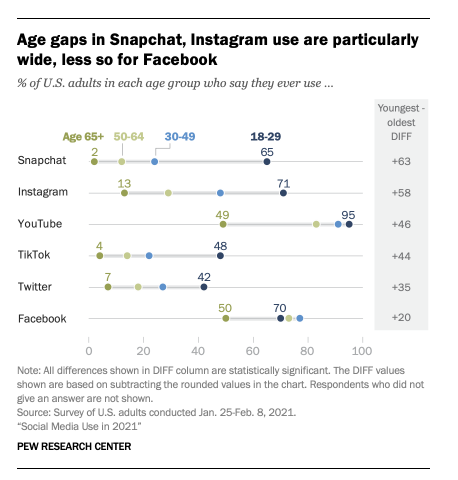
Pew Research Center has provided the breakdown by age for American adults in 2021.

YouTube and Facebook are the most popular online platforms, and their user bases are most representative of the population as a whole.   

Even though other platforms don’t match the overall reach of YouTube or Facebook, there are certain sites or apps, such as Instagram, Snapchat, and TikTok, that have a particularly strong following among young adults. A majority of 18- to 29-year-olds use Instagram (71%) or Snapchat (65%), while roughly half use TikTok. They stand in stark contrast to those of older age groups. While 65% of adults ages 18 to 29 report using Snapchat, just 2% of those 65 and older do so – a difference of 63 percentage points.

Visit Pew Research Center to read the data in full

Posted in #HCSM

What Healthcare Marketers Should Know About Instagram in 2022

Are you using Instagram for your healthcare communication?

Instagram (IG) enables healthcare providers the opportunity to connect in an immediate way with their patients. It is particularly good for community outreach activities and patient education.  Healthcare providers can also use IG to show users a behind-the-scenes view of their practice.

Dermatologists, cosmetic dentists, and plastic surgeons can benefit from Instagram by using photos or video to illustrate their services. Practices can showcase before and after photos of patients, as well as videos or illustrations that educate patients on procedures and treatments.

A recent report by SproutSocial shows some of the latest facts and figures about Instagram, which it believes will reinforce your decision to use Instagram as a marketing channel.

Instagram users/usage at a glance

  • Over 2 billion monthly active users
  • Most downloaded app in Q4 2021
  • More than half of global IG users are aged 34 years or younger
  • 17.9% of global IG users are men between the ages of 18–24
  • 59% of users log in daily — 38% will do so several times a day

Instagram content statistics

The average engagement rate per post is 0.98%. RivalIQ’s benchmark report in 2021 notes that Instagram engagement rates dropped by 25%. The median across all industries is now 0.98%. For influencers, though, the engagement rate per post is much higher at 1.42%.

To put this into context, this rate far surpasses the ones on Facebook (0.19%) and Twitter (0.04%).

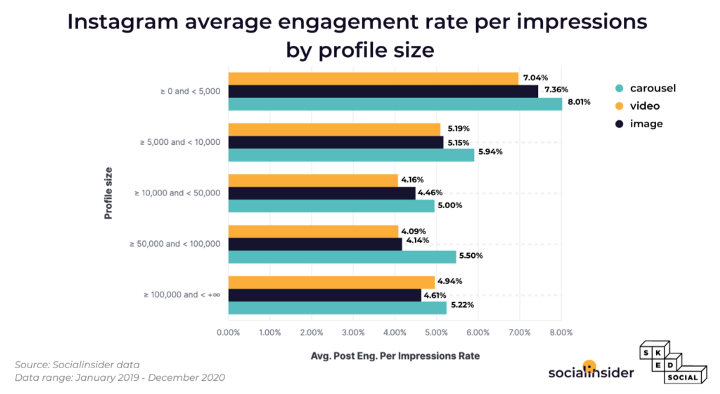
If you’re looking to increase your engagement rate, consider carousel posts which have the highest engagement rate per impression.

Take action: Check out these free templates to create carousel images 

Stories also increase the engagement rate. You should post up to five stories a day, according to the report. Doing so ensures that you have a retention rate of over 70%. 

Which type of Story works best?

In Stories, you have the option of posting images or video content. For accounts with fewer than 100k followers, SproutSocial recommends image content, which beats out video content for story reach. 

However, those are just Story stats. If you’re looking at videos in general, 91% of active users watch videos on IG weekly so having a video marketing strategy is crucial.

What’s the best day to post on Instagram?

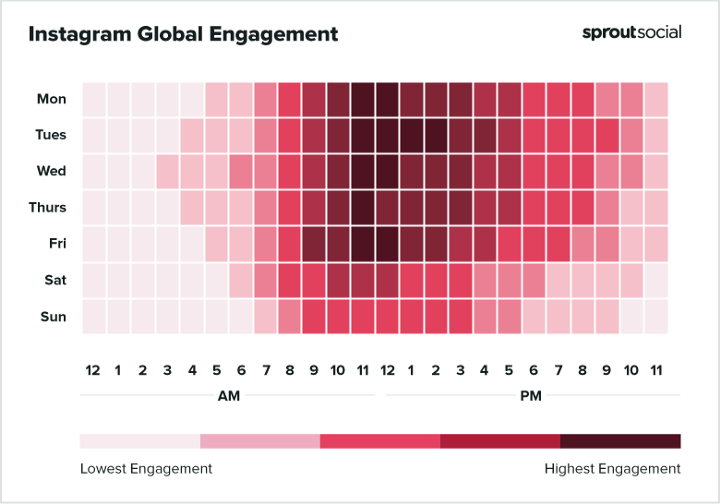
According to Sprout’s analysis, the best times to post on Instagram are Tuesday 11 a.m.–2 p.m. and Monday through Friday 11 a.m. The worst day to post is Sunday.

Take Action: Schedule your content for maximum engagement at optimal times.

Is this the best place for you to engage your audience?

The largest age group is 18–34 years old, consisting of 62.2% of all users, so if your target audience falls into this bracket, then Instagram is definitely the place for you to communicate.

Want to learn more?

Check out the full report here.