Posted in Cool Tool

Monday Morning Cool Tool: Unpaywall

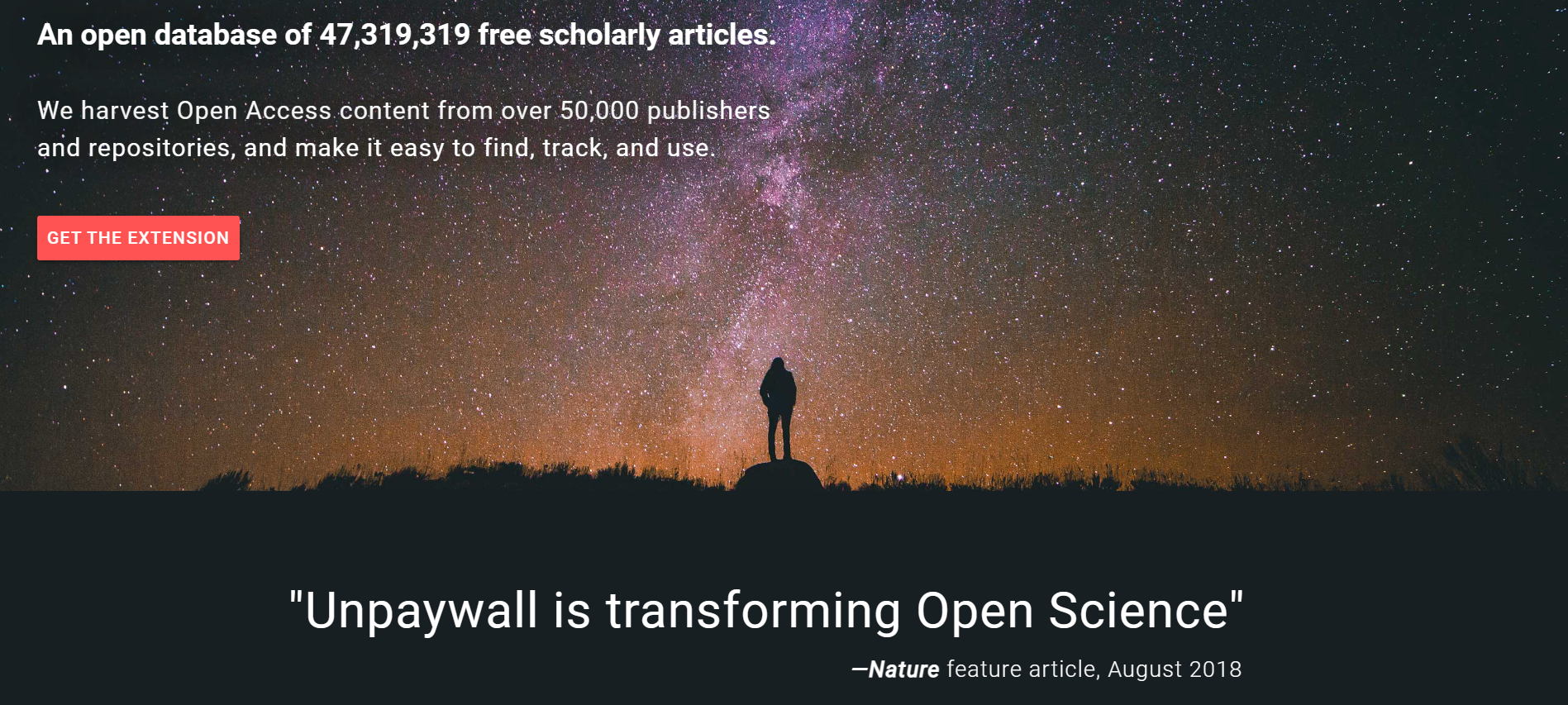
This week’s cool tool recommendation is Unpaywall – an open database of 49,950,472 free scholarly articles.

Access to research articles in academia can be costly, as many scholarly publications hide behind paywalls, limiting their availability to a select few. Unpaywall, however, is dedicated to breaking down barriers and increasing access to scholarly knowledge.

Unpaywall locates open-access versions of research articles that would otherwise be locked away using data from multiple sources, including institutional repositories, preprint servers, and partnerships with publishers. By installing the Unpaywall browser extension or visiting the website, users can access an ever-expanding collection of scholarly articles.

Note: It is important to note that Unpaywall serves as a guide to open access resources, ensuring their accuracy and legitimacy. It strives to make as many scholarly articles available as possible, but some restrictions may still exist

Posted in Cool Tool

Monday Morning Cool Tool: Image Color Picker

This week’s cool tool recommendation is Image Color Picker – an online tool that allows you to pick colors from an image or create color palettes.

Have you ever wondered how to identify the perfect shade of a color from an image? This tool provides a simple and user-friendly interface where you can upload an image or specify an image URL. Once the image is loaded, you can click on any pixel within the image to extract the color information, including the hexadecimal (hex) code, RGB values, and HSL values.

By using the color picker, you can accurately capture the colors used in an image and use them in your own projects. Additionally, the website often provides additional features like generating color palettes based on the image, allowing you to explore and save multiple colors at once.

Posted in Cool Tool

Monday Morning Cool Tool: BeFunky

I love learning about new tools to make social media marketing more creative and effective, so I’ve decided to share some of my favourite tools with you at the start of each week. This week’s cool tool recommendation is photo-editing tool BeFunky.

There is so much you can do with this tool to enhance your visual marketing assets, including creating collages, adding “one-click” photo effects (there are over 300 photo effects and filters to choose from) and an array of graphics (eg speech bubbles). The basic account is free to use and provides users with access to a library of 125 digital effects.

Try it out for yourself at www.befunky.com

Posted in Cool Tool

Monday Morning Cool Tool: Fotor

This week I’m recommending Fotor, a free image editing tool and design maker for PC and mobile.

You can use it to create a variety of images, including photo collages for social media, making as many edits as you need from an extensive menu of edits. Fotor even provides an area where you can experiment to the side of your canvas. It includes ready-to-go graphics, icons, and studio-quality video templates.   One of my favorite Fotor features is the  LinkedIn banner design and the logo maker. 

A paid version is available that contains more features and is ad-free. 

Visit www.Fotor.com and try it for yourself.

Posted in Cool Tool, Visual Marketing

Monday Morning Cool Tool: WordArt

This week’s cool tool recommendation is WordArt –  a tool for creating eye-catching graphics out of word clouds or tag clouds.

Word clouds are a visual representation of text data, where the size of each word in the cloud is proportional to its frequency in the original text.

How to use it: 

  1. Visit  https://wordart.com and click “Create”
  2. Click “Input words” and either copy and paste text from, add your own, or enter a URL to generate a word cloud.
  3. Now for my favorite bit. Choose from dozens of shapes, fonts, layout; then hit “Visualize” to see your word cloud.

Here’s a quick visual I created using social media marketing-related words.

download.png
Posted in Cool Tool

Monday Morning Cool Tool: Fonts Ninja

This week’s cool tool recommendation is Fonts Ninja – a browser extension and design tool that allows users to identify, preview, and download fonts from any website.

By using the browser extension, users can hover over text elements on a webpage to instantly identify the font being used. It provides details such as the font name, size, line spacing, and color.

How to use the tool

Fonts Ninja enables users to preview how various fonts would appear on their websites or design projects. Users can modify the font properties such as size, weight, and style, and immediately see the changes. Furthermore, the extension offers a library of fonts that can be downloaded and used for both personal and commercial projects.

For comparable tools, try Google Fonts and Visual Search for Fonts by Google, which allows you to conduct a reverse image search for fonts and typefaces.

Posted in Cool Tool

Monday Morning Cool Tool: The Noun Project

This week’s cool tool recommendation is The Noun Project – an online platform that hosts an expansive library of icons and symbols.

One of the key strengths of The Noun Project lies in its accessibility. The platform allows users to effortlessly search, preview, and download icons. Its intuitive search function enables you to find icons based on keywords, categories, or specific tags.

The site doesn’t limit users to just downloading icons. You can also find a selection of themed photos too.

Free and Paid Subscriptions

The Noun Project offers both free and paid subscription plans. The free plan provides access to a substantial collection of icons; however, for those seeking unlimited access to the full library, a paid subscription is available.

Posted in Cool Tool, Infographics, Visual Marketing

Monday Morning Cool Tool: Visme

This week’s cool tool recommendation is Visme – a browser-based design tool that allows you to create interactive presentations, infographics, banner ads, animations, and more.

Want to create a quick presentation? Visme makes it easy. Log in and click Presentations.  Choose the template that you like and start creating your presentation right away.

download (11).png

Insert text using Visme’s shapes and icons, images as well as widgets to visualize your data into graphs and tables. You can even add video or record audio.

unnamed (1).jpg

Similarly, you can use Visme to create infographics, reports, social graphics, and even e-books. You can search through hundreds of custom templates and fully customize each of them to fit your specific needs.

Useful Links

Presentations:
https://www.visme.co/presentation-software/

Infographics
https://www.visme.co/make-infographics/

Charts and Graphs
https://www.visme.co/graph-maker/

Flyers for Print
www.visme.co/flyer-maker

Pricing

Visme offers three types of accounts, one of which is free. You don’t get everything with a free account, but you get more than enough to start creating content. A Basic account is also a great way to test drive the solution before you buy.

Go to http://www.visme.co to get creating. 

Posted in Cool Tool

Monday Morning Cool Tool: Infogram

index

This week I’m recommending Infogram, a free infographic and data visualization tool.

index

Infogram allows users to create interactive charts, maps, infographics, and other types of data visualizations using a simple drag-and-drop interface.

Those who are familiar with Excel can easily create charts with this feature. Infogram’s infographics are also mobile-friendly, making them easier to view and interact with on smaller screens.

Pricing

The Basic plan from Infogram is intended only for non-commercial use, and certain restrictions apply. Basic plan users have access to 37 chart templates and can create up to 10 three-page projects. The Basic plan does not allow users to remove Infogram’s branding.

Infogram’s Business plan is intended for commercial use and includes additional features, such as the ability to remove Infogram’s branding and add your own. Users of the Business plan also have access to a wider range of chart templates and can create unlimited projects.

Nonprofits and educational organizations are offered a discounted price, making Infogram a cost-effective solution for communicating data and messages through visuals.

Related

Posted in Cool Tool

Monday Morning Cool Tool: Hemingway Editor

This week’s cool tool recommendation is Hemingway Editor, an online writing tool that helps writers improve the clarity and readability of their writing.

The app is named after the famous American writer Ernest Hemingway, who was known for his simple and direct writing style. It works by highlighting common issues in writing such as long and complex sentences, passive voice, adverbs, and excessive use of adjectives.

How to use Hemingway App

To use the tool, either copy and paste your text or write directly into the app. The app then analyzes the text and highlights any issues that need to be addressed. The highlights are color-coded to indicate the type of issue, such as yellow for long and complex sentences and blue for passive voice.

In addition to highlighting issues, Hemingway App also offers suggestions for improvement. For example, if a sentence is too long and complex, the app may suggest breaking it up into smaller sentences. If the writer has used a passive voice, the app may suggest using an active voice instead.

download (18).png

With its user-friendly interface and suggestions for improvement, Hemingway App is a useful tool to enhance your writing quality, efficiency, and professionalism.