Posted in #HCSM

How to Create a Custom GPT in Under One Hour

Step-by-step instructions to build your own AI assistant for healthcare writing, communication, and education.

If you’ve ever tried ChatGPT and felt frustrated by inconsistent results—or found yourself rewriting prompts over and over—you’re not alone. For healthcare professionals, researchers, and advocates, reliability matters: you need outputs that are accurate, professional, and aligned with ethical standards.

That’s where Custom GPTs come in. These are personalised versions of ChatGPT that you can design for very specific, repeatable healthcare tasks—such as drafting plain-language patient leaflets, summarising journal articles, preparing LinkedIn updates for your department, or turning a webinar transcript into teaching slides.

The benefit? Once you set one up, you no longer waste time tinkering with prompts. Your GPT already knows your requirements—style, structure, disclaimers, and audience—and produces consistent, trustworthy results every time. Best of all, you can build one in under an hour.

Here’s how.

Step 1 — Choose one narrow task (5 minutes)

Custom GPTs are most effective when they do one job well. Instead of trying to make a “digital assistant for everything,” pick a single use case you repeat often.

Healthcare examples:

  • Summarise clinical guidelines into a 1-page plain-language handout for patients.
  • Convert academic abstracts into accessible summaries for social media.
  • Draft CPD or teaching materials from journal articles.
  • Turn a conference session transcript into a structured LinkedIn post.

Step 2 — Gather your “source of truth” (5–10 minutes)

Collect the resources your GPT should follow, such as:

  • Your organisation’s style guide.
  • Examples of plain-language explanations you like.
  • Compliance or privacy guidelines (e.g., including “this information is not medical advice” disclaimers).
  • Evergreen references (like terminology guides or advocacy frameworks).

Step 3 — Create the shell (2 minutes)

In ChatGPT, go to Explore GPTs → Create. Use the Create tab to describe your assistant in plain language (the one-sentence task from Step 1). Then switch to the Configure tab to fine-tune the details.

Step 4 — Write clear instructions (10–15 minutes)

This step makes or breaks your Custom GPT. Spell out exactly what you want it to do, who it’s for, and how the outputs should look.

Include:

  • Role: Define what the GPT is (“You are a health communication assistant who creates plain-language resources from research papers”).
  • Goals: The outcomes you expect (“Summarise in one paragraph, extract three key points, add a disclaimer”).
  • Inputs: What the GPT will usually receive (transcripts, journal articles, policy notes).
  • Process: The steps to follow (extract → summarise → format).
  • Voice & Tone: Audience (patients, clinicians, policymakers) and reading level (plain English, no jargon).
  • Output Format: Be precise (“1-paragraph summary + 3 bullet points + disclaimer”).
  • Boundaries: Clarify what not to do (e.g., “Do not give medical advice or fabricate references”).

Continue reading this article on Substack for free

Posted in AI, Cool Tool

Monday Morning Cool Tool: OpenArt.ai

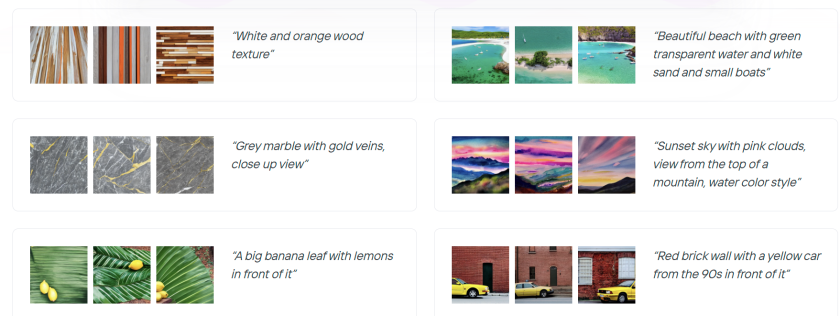
This week I’m recommending OpenArt.ai – an AI-powered art platform that allows users to create, edit, and enhance images using artificial intelligence.

Key Features

AI Image Generation
Create images from text prompts using a range of advanced models, including DALL·E 3 and Stable Diffusion. You can also generate visuals without prompts, offering boundary-free creative exploration.

Advanced Image Editing Tools
OpenArt includes a robust suite of AI editing capabilities to refine your work, such as:

  • Inpainting & Outpainting – Add, remove, or expand elements in your image beyond its original frame.
  • Upscaling – Improve image resolution to produce crisp, detailed artwork.
  • Background Removal & Replacement – Effortlessly swap or eliminate image backgrounds.
  • Find & Replace – Replace specific objects using simple text prompts.
  • Consistent Characters – Generate the same character in multiple poses, styles, and scenes—ideal for storytelling or brand consistency.
  • Facial Editing – Adjust expressions, eye color, or hairstyles for fine-tuned control.

Customization & Creative Control
You can train custom models to reflect your unique style and use “Image Guidance” to steer outputs based on reference images (pose, style, composition, etc.).

Community & Learning Resources
Access a vibrant community feed, Discord support, tutorials, and prompt books to help you get the most from the platform.

Image to Video Tool
Transform static images into dynamic videos in just a few clicks.

Pricing

OpenArt offers a free trial with limited credits for new users. For ongoing or professional use, there are several paid plans—Essential, Advanced, Infinite, and Team—each offering increasing credits, features, and simultaneous generations. Costs vary based on the tools and AI models you use.

Posted in Cool Tool

Monday Morning Cool Tool: DiffusionArt

This week’s cool tool recommendation is DiffusionArt – a user-friendly, AI art generator

DiffusionArt is a browser-based platform that makes it easy to generate AI art from simple text prompts. It houses a curated library of open-source AI art models specializing in creating various types of images, including art pieces, anime characters, and photorealistic images. It also provides tools like a Prompt Generator, Conceptualizer, and even Anime Video Generators.

Pricing

DiffusionArt is free to use with a generous daily limit, making it perfect for casual creators. Paid tiers offer expanded limits, priority processing, and access to premium models for those who want to take their AI art to the next level.

Posted in Cool Tool

Monday Morning Cool Tool: Flux AI

This week’s cool tool recommendation is Flux AI, a web-based image and video tool.

Key Features and Capabilities

  • Flux AI Image Generator
    • This tool allows users to generate images from textual descriptions. Users can input a prompt, and the AI will produce corresponding visuals, offering a powerful way to bring creative ideas to life.  
    • It also supports image-to-image generation, enabling users to modify and transform existing images.
  • Flux AI Video Generator
    • Moving beyond static images, Flux AI extends its capabilities to video creation. Users can generate dynamic videos from text prompts or images, opening up new possibilities for video content production.  
  • Free Tools
    • Flux AI provides a suite of free tools that enhance the content creation process:
      • Image-to-Prompt Generator: This tool helps users refine their prompts by analyzing existing images and suggesting relevant keywords.
      • Image Upscaler: Users can improve the resolution and quality of their images with the upscaler tool.
      • Image Converter: The platform facilitates seamless image format conversions.

Free: New users get 40 credits, and daily check-ins provide 20 credits. This plan includes 5 daily prompt generations and 5 daily image-to-prompt conversions.


Posted in Cool Tool

Monday Morning Cool Tool: Picsart

This week’s cool tool recommendation is Photoroom – an AI background generator that transforms your images with ease.

Photoroom is a mobile and web application that uses artificial intelligence to effortlessly remove, replace, and generate backgrounds. Users can either remove existing backgrounds or generate entirely new ones using text prompts or image inputs.

Unlike traditional image editing software, Photoroom prioritizes simplicity and speed, making complex background changes accessible to anyone without requiring extensive technical skills.

Pricing

Photoroom offers a free tier that provides core background removal and basic editing functionalities, suitable for everyday users. A subscription unlocks premium features like high-resolution exports, batch editing, and access to a wider range of AI-generated backgrounds.

Posted in Cool Tool

Monday Morning Cool Tool: Picsart

This week’s cool tool recommendation is Picsart – a free AI image generator.

PicsArt is a mobile and desktop editing platform that combines powerful AI-driven tools with an intuitive interface. It allows users to edit photos, create digital art, design marketing materials, and even edit videos—all from their smartphones. Unlike traditional editing software, PicsArt is built for speed and ease of use, making it a great choice for those who want professional-looking visuals without the learning curve of tools like Photoshop.

One of PicsArt’s biggest advantages is its AI-driven tools. Features like background removal, smart selection, and AI-powered filters allow users to transform images with a single tap. Features like blending modes, layers, and masking—tools typically found in professional software—are simplified for everyday users. Whether you’re creating a logo, designing a social media post, or experimenting with artistic edits, the interface is intuitive and beginner-friendly.

PicsArt isn’t just for photos—it also offers robust video editing features. Users can trim clips, add effects, overlay text, and apply filters to enhance their videos for platforms like TikTok and Instagram.

Pricing

Picsart’s free tier provides a robust set of tools, from filters to ready-made templates, and editing tools for the everyday user, while a subscription unlocks advanced features.

So, if you haven’t tried PicsArt yet, why not explore its features and see what you can create?

Posted in #HCSM

Essential AI Terminology for Healthcare Professionals

Artificial intelligence (AI) is rapidly transforming the healthcare landscape, offering the potential to revolutionize diagnosis, treatment, and patient care. From AI-powered diagnostic tools to personalized treatment plans, the applications of this technology in healthcare are vast and promising.

However, the complex terminology surrounding AI can be a barrier for healthcare professionals seeking to understand and embrace these advancements. This glossary is designed to provide a clear and concise introduction to key AI terms. By familiarizing yourself with these essential concepts, you can gain a deeper understanding of the AI landscape and its implications for your practice.

  • Algorithm: A set of instructions or rules followed by a computer to perform a specific task or solve a problem.
  • Artificial Intelligence (AI): A broad field encompassing the development of computer systems capable of performing tasks that typically require human intelligence, such as learning, problem-solving, decision-making, and language understanding.  
  • AI Bias: Systematic errors in AI models that lead to unfair or inaccurate predictions, often due to biased training data or algorithmic design.
  • Clinical Decision Support (CDS): AI tools that assist healthcare professionals in making informed decisions about patient care by providing relevant information and recommendations.
  • Data Privacy and Security: The protection of sensitive patient information from unauthorized access or misuse, crucial in the context of AI applications in healthcare.
  • Deep Learning: A type of ML that utilizes artificial neural networks with multiple layers to analyze complex patterns in large datasets, often used for image and speech recognition.
  • Ethical Considerations: The responsible and ethical development and deployment of AI in healthcare, ensuring patient safety, privacy, and fairness.
  • Explainable AI (XAI): The ability to understand and interpret the reasoning behind an AI model’s decisions, crucial for building trust and ensuring transparency in healthcare.
  • Machine Learning (ML): A subset of AI that focuses on algorithms enabling systems to learn from data and improve their performance on specific tasks without being explicitly programmed.
  • Model: An AI system trained on data to perform a specific task, such as diagnosing diseases or predicting patient outcomes.
  • Natural Language Processing (NLP): A field focusing on the interaction between computers and human language, enabling tasks like text analysis, translation, and chatbots.
  • Neural Network: A computing model inspired by the human brain, composed of interconnected nodes (neurons) that process and transmit information, enabling pattern recognition and learning.
  • Precision Medicine: The tailoring of medical treatment to individual patients based on their genetic, environmental, and lifestyle factors, often aided by AI analysis of large datasets.
  • Predictive Analytics: The use of AI to analyze patient data and predict future events, such as disease progression or readmission risk.
  • Training Data: The dataset used to teach an AI model to recognize patterns and make predictions.
  • AI-Enabled Medical Devices: Devices that incorporate AI algorithms to enhance their functionality, such as diagnostic imaging equipment or wearable health monitors.

You may also be interested in reading this publication which I co-authored.

Charting the future of patient care: A strategic leadership guide to harnessing the potential of artificial intelligence

Posted in Cool Tool

Monday Morning Cool Tool: Page Analytics

I love learning about new tools to make social media marketing more creative and effective, so I’ve decided to share some of my favorite tools with you at the start of each week. This week’s cool tool recommendation is Page Analytics  a Google Chrome Extension.

download (2).png

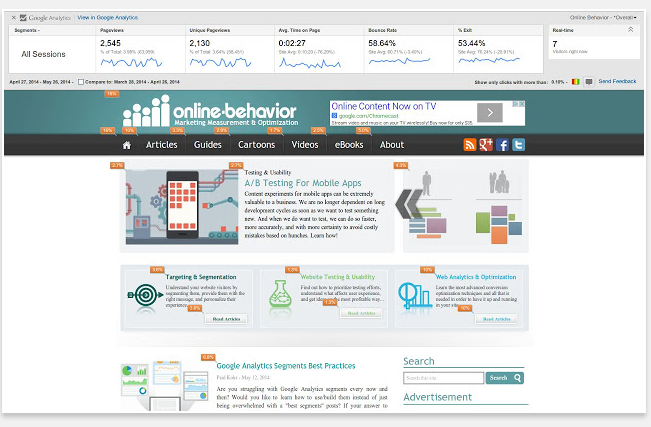
The Page Analytics Chrome Extension allows you to see how vistors interact with your web pages, including what they click and don’t click. You can use these insights to optimize your website layout, improve user experience, and increase conversions.

Click here to download the app.

Posted in Cool Tool

Monday Morning Cool Tool: Page Analytics

I love learning about new tools to make social media marketing more creative and effective, so I’ve decided to share some of my favorite tools with you at the start of each week. This week’s cool tool recommendation is Page Analytics  a Google Chrome Extension.

download (2).png

The Page Analytics Chrome Extension allows you to see how vistors interact with your web pages, including what they click and don’t click. You can use these insights to optimize your website layout, improve user experience, and increase conversions.

Click here to download the app.