Posted in Thursday Tip

#ThursdayTip: How To Create Recurring Content

Welcome to this week’s social media quick tip.  This week I want to show you how to create a recurring content feature. 

What is recurring blog content?

Recurring content is consistent content published on a regular schedule using a defined structure. This content has the ability to form hooks that keep readers interested in coming back to your site for more of the same.

I’ve experimented over the years with many different types of regular recurring columns on various blogs, for example the Cool Tool feature which I post each Monday morning.

Why create recurring content?

Marketer Heidi Cohen outlines the following three advantages to creating consistent content.
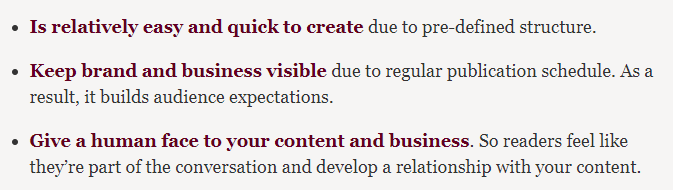
f16688d2-76bc-4f2f-a1b6-f2f4b728b507

She goes on to outline the business value
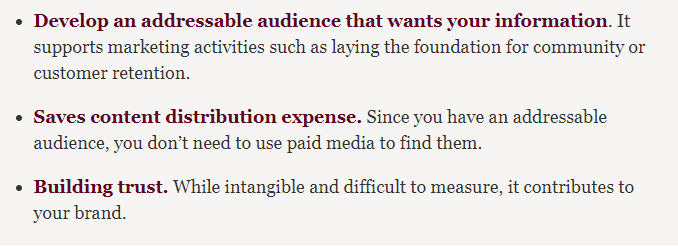
2a8ac089-2685-4c49-9296-ec750e4eee42

Before you introduce a regular feature to readers, it’s important to take some time to choose a topic that matches your content strategy and crucially won’t have you running out of ideas after a few weeks.  Ideally, your topic should be associated with your keyword phrases to support your organic search efforts.

Once you’ve decided on your topic, decide on the elements you will use to maintain consistency in the design and format of your content.  Choose the same day and time to publish so readers know to expect it at that time each week – this helps build an audience for your content.  To quote Cohen, “as the digital version of appointment media your audience depends on receiving your information at the same time every week. Over time, this builds share of audience attention.”

Finally, keep the format and design elements consistent.

Here are three types of recurring features to add to your content marketing.

1. Advice Column

Set aside one day a week to provide step-by-step instructions, or answer readers’ questions.

2. Interview Series

I ran an interview series, Social Spotlight, last year with healthcare thought leaders.  It followed a consistent question format, with some tailoring to the interviewee, and was a popular addition to my content calendar.

3. Weekly Round-Up Post

I run several weekly round-up style posts for client blogs focussed on their niche. I curate the most helpful, interesting and topical news from their industry and publish them in a blog post, usually on a Friday.  It’s always the most read content when I check the weekly blog stats.

Of course, your recurring content can live outside the written word. With the popularity of video, consider adding a regular vlog or even more popular, a Facebook Live recurring feature.

To sum up

Recurring posts of high value keeps your audience interested and coming back for more. By adding a regular recurring feature to your content marketing you give your audience something to look forward, while at the same time building a unique and recognisable element into your brand.

Here’s to your social media success!

Posted in Thursday Tip

#ThursdayTip: How To Find Your Old Tweets

Welcome to this week’s social media quick tip.  This week I want to show you how to find old tweets in your Twitter archive. 

Have you ever wanted to search your Twitter archive to locate an old tweet?

Twitter shows your most recent 3,200 tweets in your timeline, which sounds like a lot, but if you’ve been using Twitter for quite a while and tweet a lot, you may find it hard to search for old tweets.

The solution lies in Twitter’s Advanced Search function.  Here’s how to perform a search for your old tweets.

1.  Go to https://twitter.com/search-advanced

2. Enter your username into the “From these accounts” field under “People.”

download - 2019-07-18T092448.723

3. Select a date range from the pop-up calendar to view your tweets (or tweets from any profile you wish to see) within a specific time frame.

download - 2019-07-18T092839.263

4. click the “Latest” tab to see all your tweets from this data range.

download - 2019-07-18T093757.268

Bonus Tip!

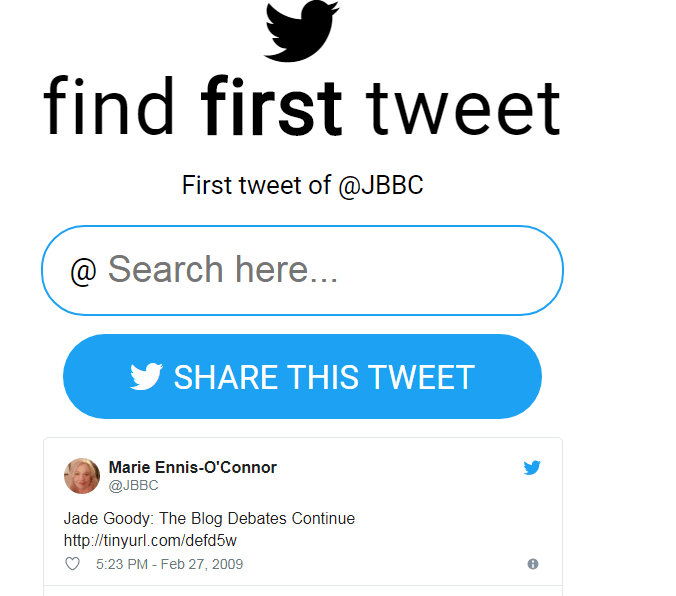
Want to see the first-ever tweet you sent?  Head over to www.findfirsttweet.com. Authenticate with your twitter account to unlock the search bar.

Here’s mine. Wow, I’ve been on Twitter for over ten years!

download - 2019-07-18T094115.782

Try it for yourself. Take a trip down Twitter memory lane and see how far you’ve come.

Here’s to your Twitter success!

Posted in Thursday Tip

How To Create Twitter Lists

Twitter Lists are essentially filtered timelines and it’s one of the most effective and simple ways to get a handle on your Twitter engagement.

Here’s how it works:

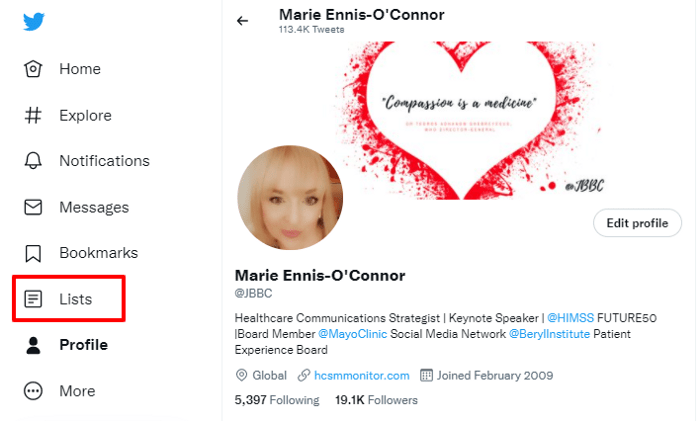
1. Click on Lists on your profile page

2. Click the icon to create New List


3. Name the List and provide a description

download.png

4. Designate the List as Public or Private & then hit Save List

download.png

5. To add or remove people from your Lists:

  1. Use the person icon drop-down menu on somebody’s profile
  2. Choose add or remove from Lists
  3. Choose the List you would like to add the person to or uncheck the List the person was already a member of

It’s so easy to build a Twitter List and it is such an effective and simple way to get a handle on your Twitter engagement. Each time you follow someone new on Twitter, get into the habit of adding them straight to one of your lists.  If you haven’t already started with your lists, start building them today!


Related Reading 

Visit Twitter’s Help Center for more information on:

  • seeing Lists you’re a member of
  • viewing tweets from a List
  • subscribing to a List
  • editing or deleting a List
  • sharing a List URL
Posted in #HCSM, Thursday Tip

#ThursdayTip: How To Add SlideShare To Your Healthcare Marketing Strategy

Welcome to this week’s quick social media tip. Today I want you to think about how you can add SlideShare to your content marketing strategy.

Owned by LinkedIn and with over 18 million uploads and 80 million users, SlideShare is the world’s largest professional content sharing community.

Surprisingly, given how the platform is optimized for social sharing, including the ability to embed presentations (as I’ve done below), it’s often overlooked and underused in healthcare marketing.

How To Use SlideShare

1. Use SlideShare for research.

Get up to speed on any topic. Instead of scrolling through pages of text, you can flip through a SlideShare deck and absorb the same information in a fraction of the time.

2. Share your insights and get noticed

Show what you know through a presentation, infographic, document or videos. When you upload to SlideShare, you reach an audience that’s interested in your content – over 80% of SlideShare’s 80 million visitors come through targeted search. This can help you build your reputation with the right audience and cultivate more professional opportunities.

Top Tip: The good news is that you don’t even have to create original content to do this. Simply find some content you have already written and get ready to breathe new life into it.

Here’s to your social media success!

Posted in #HCSM, Thursday Tip

#ThursdayTip: How to Follow Topics on Twitter

Welcome to this week’s quick social media tip. This week I want to show you how to follow topics on Twitter. Following a Topic allows you to stay informed on what’s happening and see more relevant content about that topic.

Here’s how to follow topics on Twitter

From your Home timeline

  1. While scrolling through your Home timeline, you may notice that Twitter will suggest a Topic for you to follow.
  2. Simply Tap the Follow button next to the suggested Topic to follow.

download - 2020-06-11T070703.315

From your Topics menu

Tap Topics in your profile icon menu.

download - 2020-01-30T105328.820

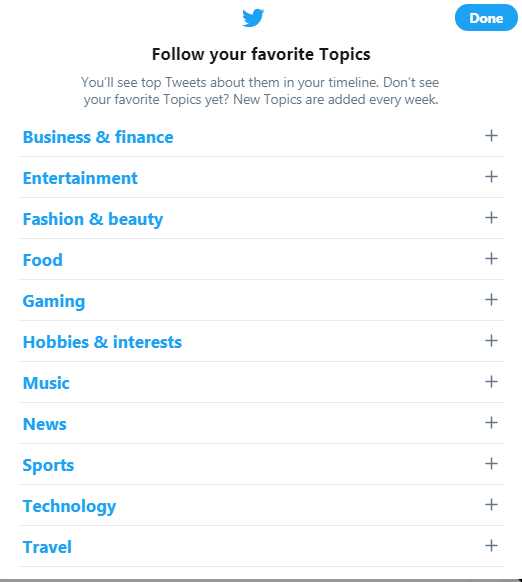
Tap Follow some Topics to browse by category type.

cd83f2bb-78aa-45b1-9888-bae78a337f20

From within each category and sub-category type, tap the Follow button next to the Topics you’d like to follow.

When finished, tap Done.

Note:  Just like with accounts you follow, you can unfollow Topics at any time.

How to unfollow a Topic

From your Home timeline:

  1. In your Home timeline, navigate to a Tweet about a Topic you’re currently following.
  2.  Tap the  icon from the top of the Tweet and select Unfollow.

From your Topics: 

  1. Tap Topics in your profile icon menu.
  2. Tap Unfollow next to the topic.

Worth Noting

Topics you follow are public.

Anyone who can see your full profile can view the Topics you follow. If your Tweets are protected, only your followers will be able to see your Topics.

How to see the Topics someone follows

You have the option to see the Topics that someone else is following. You’re able to view their Topics if their Tweets are public, or if their Tweets are protected and you’ve been approved as a follower.

On the Twitter for iOS and Android app, and twitter.com:

  1. Go to their profile.
  2. Click or tap the more menu  at the top of their profile page.
  3. Select View Topics.

Here’s to your Twitter success!

Posted in Thursday Tip

#ThursdayTip: How To Brainstorm Fresh Content Ideas

Welcome to this week’s social media quick tip.  This week I want to show you how to generate content ideas when you are running out of inspiration.

Next time you’re stuck for something to write about,  try brainstorming using a tool like HubSpot’s Blog Topic Generator. It lets you input up to three different nouns and returns five blog topic ideas that will exercise your writing muscles again.

Here are the suggestions generated for me when I input the terms “social media” and “marketing” into the tool.

1_E-S7L4CmtyaE0zF1fTRqzA (2)

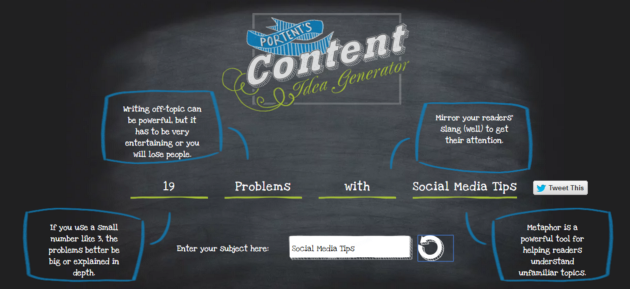
A similar tool to Hubspot, Portent’s Content Idea Generator allows you to generate ideas with just one keyword. Be prepared that the tool can throw up some quirky suggestions, but don’t let that put you off. Keep playing around with it until you find one you can work with. I also really like how it shows you best practice tips, such as using metaphors in your writing.

1_eNc_si2txKAEyzq83wicLQ


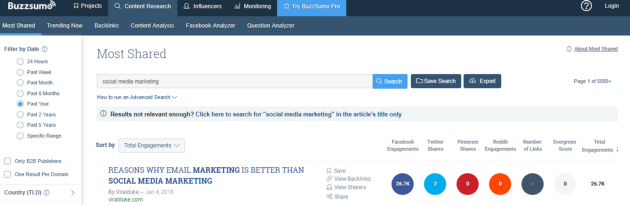
I also like to use Buzzsumo to find inspiration by searching which popular content is most shared right now on social media. These are the topics people want to read about so it’s worth brainstorming ideas around this content.

1_xV4T2-3JQQ_YEZa8EyOv4g (1)

Here’s to your socia media success!

Posted in #HCSM, Thursday Tip

#ThursdayTip: How to Add GIFS to Your Tweets

Welcome to this week’s quick social media tip. This week I want to show you how to add GIFS to your tweets. 

Want to add variety to your tweets and help them stand out? Try adding GIFs.

Here’s how

From the Tweet compose box, click the GIF icon to search for and select a GIF from the GIF library.

download - 2020-01-30T111013.236

When you choose a GIF, the image will attach to your Tweet in full size.

download - 2020-01-30T111604.973

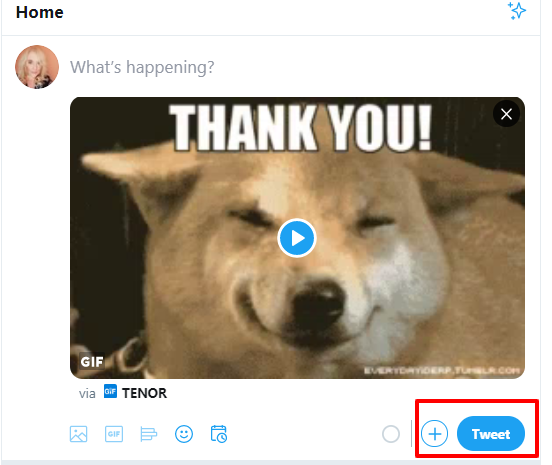
Click Tweet to post.

download - 2020-01-30T112155.623

Notes

  • GIF attachments do not count towards the character limit in a Tweet.
  • Animated GIFs can’t be included in Tweets with multiple images. You can send only one GIF in a Tweet.
  • Twitter supports looping GIFs. If your animated GIF doesn’t loop and plays a single time, it will display as a static image.
Posted in #HCSM, Thursday Tip

#ThursdayTip: How To Save Searches on Twitter

Welcome to this week’s social media tip. Today I want you to show you how to save searches on Twitter.

1. Go to the Search tab 

ddc52706-c12e-4721-a708-fd652e0a37cf

2. Enter your search into the search box.

558accce-98ef-4005-9ef2-8f22e7099242

3. At the top of your results page, tap the three dots icon  and then tap Save. 

download - 2019-11-22T094724.656

4.Next time you tap the search box, a pop-up menu will display your Saved searches.

1f59eec2-0fbb-4b07-a3a4-0dc264c85754

5. To remove a search: Tap on delete saved search.ad759305-df08-40b2-a190-eea658880b6b

 Note: You may have up to 25 saved searches per account.


Posted in #HCSM, Thursday Tip

#ThursdayTip: How To Optimise Your Social Media Profile

Welcome to this week’s quick social media tip. If you find yourself with some extra time on your hands, why not take the opportunity to review your social media profiles. 

Your social media profile is the first place people will find you online so it’s important you make a good first impression. Check out this video quick tip to make your social media profile shine.


Here’s to your social media success!

Posted in Thursday Tip

#ThursdayTip: How To Find The Best Keywords For Your Website

Welcome to this week’s social media tip. Today I want you to think about choosing the best keywords to rank higher on search engines. 

93% of online experiences begin with a search engine.

It makes search the second biggest online activity, after email.

If you want your website to rank higher in Google you have to make sure that you’re using the right keywords. Keyword research is vital because identifying the terms people are searching for will determine the kind of content you create and the way you will optimize it.

One of the biggest mistakes I come across is trying to rank for generic keywords with a high search volume.

Instead, try long tail keywords.  50% of search queries are four words or longer.

Long tail keywords are keywords or key phrases that are more specific — and usually longer — than more commonly searched for keywords. They get less search traffic, but will usually have a higher conversion value, as they are more specific.

Long tail keywords allow you gradually to get more traffic and to be found by new and motivated audiences.

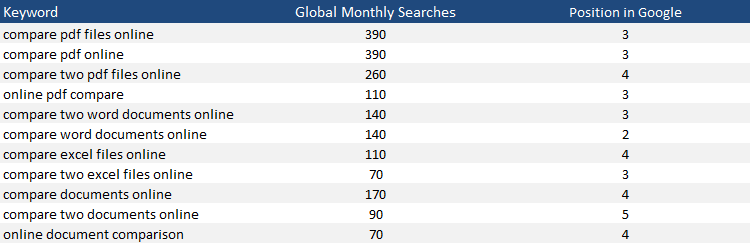
Here is an example of a list of long-tail keywords based on the keyword “pdf”

8bbaf7ba-5838-45c7-95a3-8781b7e1a915

How to figure out what your target keywords or phrases should be.


I’m borrowing this from PR consultant Gini Dietrich‘s playbook so you may need to adapt it to your own business.

  • Write down all of the questions you are asked in new business, or sales, meetings.
  • Write down all of the questions your customer service department is asked.
  • Go to your website or your internal server/Dropbox/Google Drive and grab your most recent frequently asked questions sheet.
  • Go into your sent mail and scroll through to see what kinds of questions your clients are asking you that you’re writing long answers to … everyday. Write those down.

Now you have a nice list of content as a starting point. If you are being asked these questions, this is what people are also searching. And, if you have the answers and you’re the best suited to provide the solutions, they should be finding you when they search these things.

I use the following tools to help me find long tail keywords.

1. Google Adwords Keyword Planner 

This is a free Google tool that gives you insight into the volume of monthly searches for a particular keyword, and how much competition there is, based on advertising spend for sponsored links. It also returns suggested terms you could use instead or alongside your original keyword.

You will need to sign up for an Adwords account with a Gmail account but you don’t have to add any credit card details or create any ads to use the tool.

Pro Tip! Use Google Related Searches

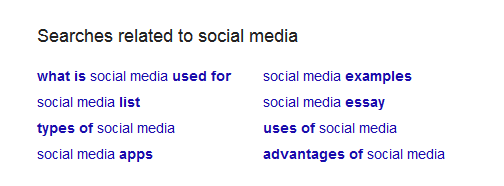
Google displays related search results at the bottom of the first page when you type in your Google search query. This is a super-helpful resource as it returns ideas that are relevant to your topic based on user interest and contextual words.

1_YI5j2PX1tlu9n8NKmlBK4w

2. Keywords Everywhere

I’ve installed this tool as a Chrome extension and I find it super helpful. It returns a host of long-tail phrases based on what people are searching for using specific keywords.

1___6h80M6bfqxk5SKeQ8u3A

There are other long-tail keyword tools out there which you also might like to try – including Keyword Clarity (a free keyword grouping tool that makes it easy to identify keyword clusters) Answer The Public (an automated autocomplete tool that will populate relevant topics based on your search), and KWFinder.

Further Reading  How to move from keyword research to intent research