Articles

Posted in #HCSM

7 Free Google Tools To Boost Your Healthcare Marketing

Over two decades ago, two Stanford Ph.D. students launched a new search engine with a bold mission to organize the world’s information and make it universally accessible and useful. 

Now two decades later, at the first sign of a symptom, patients instinctively turn first to “Dr. Google” to find answers to their health questions.

But Google is more than just a powerful search engine. 

Google also provides us with some really useful tools as online marketers and communicators.

In this post, I’m going to share some of my favorite go-to Google tools that I regularly turn to. Best of all these tools are completely free so you can enjoy trying them out without spending a cent.

1. Google Mobile Friendly Test

Use Google Mobile-Friendly Test to see how easily a visitor can use your page on a mobile device.

Just enter a page URL to see how your page scores.

Why this tool is useful

Having a mobile-responsive site (ie one that automatically changes its layout and placements of certain menus and buttons automatically) is important because firstly, not only are over half of patients searching online for health information on their smartphone, but secondly, Google now gives ranking priority to those sites that are mobile friendly.  In fact, Google has stated that it will penalize websites that aren’t mobile-responsive, so if your site isn’t optimized for mobile devices, you’ll likely lose out significantly in the organic search rankings. 

Use Google Mobile-Friendly Test to see how easily a visitor can use your page on a mobile device.

2. Google Page Speed Insights

PageSpeed Insights is a tool that indicates how well a page performs on the Chrome UX Report and suggests performance optimizations.

Why this tool is useful

Although speed has been used in Google ranking for some time, that signal was focused on desktop searches. Google announced that starting in July 2018, page speed will be a ranking factor for mobile searches too.  This marks an important shift in Google’s approach to measuring page speed while stressing the importance of mobile user experiences.

3. Google Alerts

Google Alerts are email updates of the latest relevant Google results (web, news, blogs) based on your choice of query –  for example, keeping updated on emerging healthcare trends. You can control how often you receive these alerts (daily or weekly), whether you wish to receive all mentions, or limit it to the most relevant, and you can add new alerts, or delete old ones at any point.

Why this tool is useful

Use Google Alerts to monitor who’s talking about your brand. This is important so you can respond to any criticism, complaints or thank someone for writing something positive about you.

4. Google My Business

Google My Business is a simple-to-use tool that allows small business owners  to increase their online visibility and promote their business information on Google Search.

GMB appears on the desktop – just to the right of the organic and paid search results. If you’re on mobile, it appears as a top result before the organic results. If you haven’t set up your GMB listing, it’s time to do so. Follow these step-by-step instructions to get started right away.

Why this tool is useful

According to Google “Providing and updating business information in Google My Business can help your business’s local ranking on Google and enhance your presence in Search and Maps.”

5. Google Analytics

Tracking the number of visitors to your website, where they came from, how they got there, and what they read can provide you with important marketing insight. The most comprehensive and free tool to do this is Google Analytics.

Why this tool is useful

Use Google Analytics to track top-performing content on your website, and the native analytics tools of each of the social networks you use to discover the type of posts that get the most engagement (shares, comments, likes, click-through rates, etc.)

6. Google AdWords

 Google Ads Keyword Planner gives you insight into the volume of monthly searches for a particular keyword, and how much and how much competition there is, based on advertising spend for sponsored links. It also returns suggested terms you could use instead or alongside your original keyword.

Why this tool is useful

If you want your website to rank higher in Google you have to make sure that you’re using the right keywords. Keyword research is vital because identifying the terms people are searching for will determine the kind of content you create and the way you will optimize it.

7. Google Trends

Google Trends analyzes a portion of Google web searches to compute how many searches have been done for the terms you enter relative to the total number of searches done on Google over time.

Why this tool is useful

You can use this tool to evaluate the popularity of certain terms, compare them against other keyword variations, analyze how their popularity varies over time and in different regions/languages, and show related keywords, which can be helpful in getting new keyword suggestions.

Do you use any of these Google tools? Do you have any other Google tools to add to this list?

Posted in Cool Tool

Monday Morning Cool Tool: Cliché Finder

This week’s cool tool recommendation is ClicheFinder – a tool to help you eliminate overused clichés from your writing. 

This free tool finds and highlights words, expressions, and phrases that are trite, stale, or overused to help you improve your copy. To use simply copy and paste your text and click the button marked ‘Find Clichés’.

Visit https://www.clichefinder.net to try for yourself.

Posted in Thursday Tip

#ThursdayTip: How To Repurpose Your Digital Content

Welcome to this week’s social media quick tip.  This week I want to show you how to repurpose your existing content.  

One key to maintaining a steady stream of quality content is to re-purpose what you already have. Repurposing content simply means taking one asset and reusing it somewhere else.

The first step is to identify your most popular content through your blog analytics tool and by using Google Analytics. Perhaps the content can be turned into an infographic or a slide-deck. By re-purposing content you have already written, you can extend and breathe new life into your current and past content.

1_97rO00W0PFXG7zL-5AiijQ
Source: TopRank Marketing

Pay special attention to the content you published some time ago. Is some of this content out of date? If so, update it, and simply republish it again as an updated post. It’s important to update older content to make sure it continues to be relevant to your readers.

Get into the habit of creating each new piece of content with repurposing in mind. Read How To Create Six Unique Social Shares From Just One Piece of Content for some ideas on how to do this.

By focusing on producing one piece of really great content for repurposing, rather than several lower-quality pieces, you will improve the quality of your marketing.

Here’s to your social media success!

Posted in #HCSM, Twitter

How To Use Twitter Analytics: A Simple Step-By-Step Guide For Healthcare Communicators

Twitter analytics is a simple but effective insights tool to help you analyse your Twitter activity.

It’s still surprising to me how many people who are using Twitter for marketing and communications have never checked this inbuilt analytics tool.

You can navigate to the platform either by visiting https://analytics.twitter.com/about or accessing it directly from your Twitter account under the More tab (on the desktop version).

From the Home tab, you get a summary of your account activity for the past 28 days. This includes your tweets, tweet impressions, profile visits, mentions, and follower count.

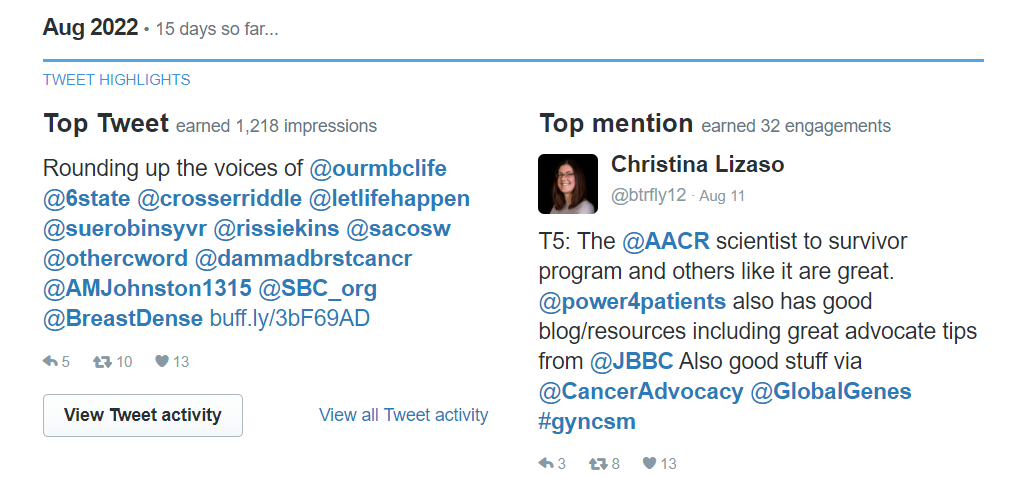
Scroll down on your account home page to view highlights of your account activity over the past few months, such as top tweets, top followers, and top mentions.

By clicking into Tweet Activity you can get a more granular view of how people engaged with a particular tweet.

Scroll back up to the Tweets tab at the top of the page to view your tweet activity. 

The first thing you will see is a snapshot of the number of Impressions your tweets got over the past 28 days.

Twitter Impressions are simply when a tweet appears on someone’s timeline. It’s important to note that this doesn’t necessarily mean a person engaged with your tweet, but it does give you a sense of how many people your tweets has the potential to reach.

From the screenshot above you will also see you have the option of changing the date range – the default is the last 28 days. You can choose to view the last 7 days or any of the previous 5 months. You also have an option to specify a specific date range.

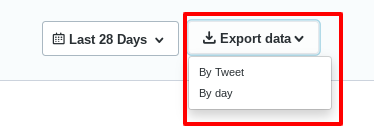
To the right of the date range selection, you’ll also see the option to Export Data. Clicking on this tab gives you the option to download “by tweet” or “by day” via a .csv file which can be imported to an excel spread sheet – great for reporting.

Now let’s take a closer look at the kind of data we can see on this page. Your tweets are analyzed according to Top Tweets, Tweets and Replies, Promoted Tweets (if you are advertising on Twitter), Impressions, Engagement and Engagement Rate.

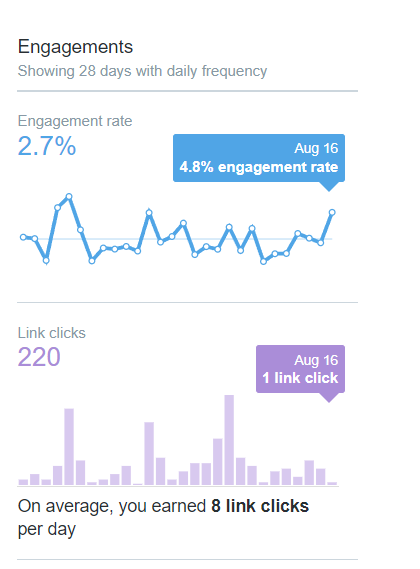
We’ve already look at Impressions earlier, so now let’s turn to Engagements. An engagement is an interaction with a tweet ( e.g. likes and retweets. The engagement rate of a tweet is the number of engagements it gets divided by its number of impressions. This is a key metric to track over time.

You can also get a graphic representation of your engagement rate as you can see in the image below.

Looking into your Twitter data in this way is useful to show you how your content is performing on the platform. It gives you insight into the best days to post and which types of content people most like to engage with. If you run a campaign, it’s essential that you track the campaign from the start right through to the end. Keeping a close eye on the data will allow you to adjust your campaign as you go.

Use the insights you gather from Twitter analytics to inform your social strategy, optimize your content, grow your following and boost your engagement.

To learn more visit the Twitter Analytics page.

You might also like to read the following articles:

Become a Social Media Ninja With These 25 Smart Twitter Hacks

Posted in Cool Tool

Monday Morning Cool Tool: Emotional Marketing Value Headline Analyzer

This week’s cool tool recommendation is the Emotional Marketing Value (EMV) Headline Analyzer.

This headline analyzer is a free tool from the Advanced Marketing Institute that you can use to calculate the EMV of your own headlines. It scores the EMV of your headline with a breakdown of why it scored that value. A perfect score would be 100%, but don’t despair if yours doesn’t match up. According to the Institute, “most professional copywriters’ headlines will have 30%-40% EMV Words in their headlines, while the most gifted copywriters will have 50%-75% EMV words in headlines.”

Here’s how it works. 

Enter your headline in the space provided and choose the industry you are targeting your message to.

download (51)

Click Submit. 

Here’s my score:

download

While the score is low on EMV, I am still happy with it, as it fulfills my aim of arousing curiosity in the reader.

Your headline carries words that predominantly appeal to most people’s intellectual sphere. Intellectual impact words are especially effective when your goal is to arouse curiosity.

For more headline tools like this, read: 7 Tools To Find Inspiration For Your Headlines

Posted in #HCSM

10 Smart Ways To Drive More Readers To Your Healthcare Blog

Blogs written by physicians, nurses, researchers, patients, and allied healthcare professionals add much to the richness and diversity of the online healthcare conversation.

But it’s not enough to write great content and hope that people will find it. You need to actively promote your blog to maximize opportunities for more people to find and learn from your content. In today’s post, I will share with you 10 tried and tested ways guaranteed to drive more traffic and increase engagement on your healthcare blog.

1. Tailor Your Content To Your Audience’s Needs

Firstly, every piece of content that you create should have an intended audience. What kind of healthcare information are your patients looking for? What problems can your content solve for them? Focusing more clearly on your audience will help you to create content that will draw more readers to your blog. The key here is to really know your audience and their pain points and write content that specifically answers their particular needs.

2. Hook Your Readers With An Irresistible Headline

If content is king, then the headline is queen. Your headline is the first impression you make on a prospective reader. A good headline frames your content. No matter how amazing your content is, few people are going to click through to read it if they’re not immediately captivated by your headline.

Recommended Reading: Write Better Headlines With These 9 Winning Formulas

3.  Use Keywords Strategically

If you want your website to rank higher on Google you have to make sure that you’re using the right keywords. Keyword research is vital because identifying the terms people are searching for will determine the kind of content you create and the way you will optimize it.

The Google Keyword Planner within Adwords is a useful tool to find ideas for content based on keyword search. Google also displays related search results at the bottom of the first page when you type in your Google search query. This is a super-helpful resource as it returns ideas that are relevant to your topic based on user interest and contextual words.

4. Create Evergreen Content

Evergreen content is the kind of content that is continually relevant and stays “fresh” for readers. A Moz case study defines evergreen posts as “content having a continued and sustained success” and also shows that evergreen posts can generate traffic years after their original publication. Some common evergreen formats include Lists, and How To’s.

5. Add Visual Appeal

Study after study confirms that how you create and share content matters
with visual content leading the way. When it comes to creating visual content, don’t be tempted to reach for the nearest stock image. These days there’s no excuse for using boring stock images. In this post, I share my best recommendations for sourcing images you can use for free to enhance your social media posts.

6. Maintain A Consistent Posting Schedule

To create and maintain interest with your audience you need to post consistently to stay in front of your audience’s eyes and keep growing. One of the best ways to do this is to create recurring content. Recurring content form hooks which keep readers interested in coming back to your site. Having specific days or times that you post content means followers will get into the habit of checking your social media to see if anything new has appeared. Examples could be creating a weekly round-up post on your blog.

7. Leverage Guest Blogging

Whether you invite a guest blogger to blog on your site, or you guest blog for someone else, guest blogging is one of the most effective ways to increase your blog’s traffic. Not only do you get the opportunity to build your authority and increase your visibility, but you can also leverage the social following of your guest blogger when you mention them on social media.

8.  Drive More Traffic With Social Shares

By making it easy for visitors to your site to share your content, you increase the likelihood that they will take this action. When more people share your content, you increase the chance of driving more visitors to your blog. Make sure your social sharing buttons are clearly visible. Check out this advice on the best position to place share icons on a web page.

9. Send an e-Newsletter to Subscribers

Newsletters can help keep your content top of mind with readers and drive more traffic to your website. Consider sending an email digest of your most recent blog posts, or send a targeted email each time you publish new content.

10. Repurpose Your Existing Content

Repurposing content simply means taking one asset and reusing it somewhere else. By re-purposing content you have already written, you can expand the reach of your content and attract new audiences.  Identify your most popular content through your blog analytics tool and by using Google Analytics. You should aim to repurpose any content that consistently performs well.

These are just some of the ways in which you can drive more traffic to your website. Can you add more suggestions to this list?
You might also like to read: 9 Tips to Help You Build a Better Healthcare Blog

Posted in #HCSM

#ThursdayTip: How to Embed a YouTube Video into WordPress

Welcome to this week’s quick social media tip!

Feeling stuck when it comes to blogging? 

Here’s an idea.

Find a relevant video on YouTube and post it on your site. You could add your comments on the post or just let the video speak for itself.

This is a super simple way to keep your blog updated and it is very straightforward to add a YouTube video to your website. 

Here’s how.

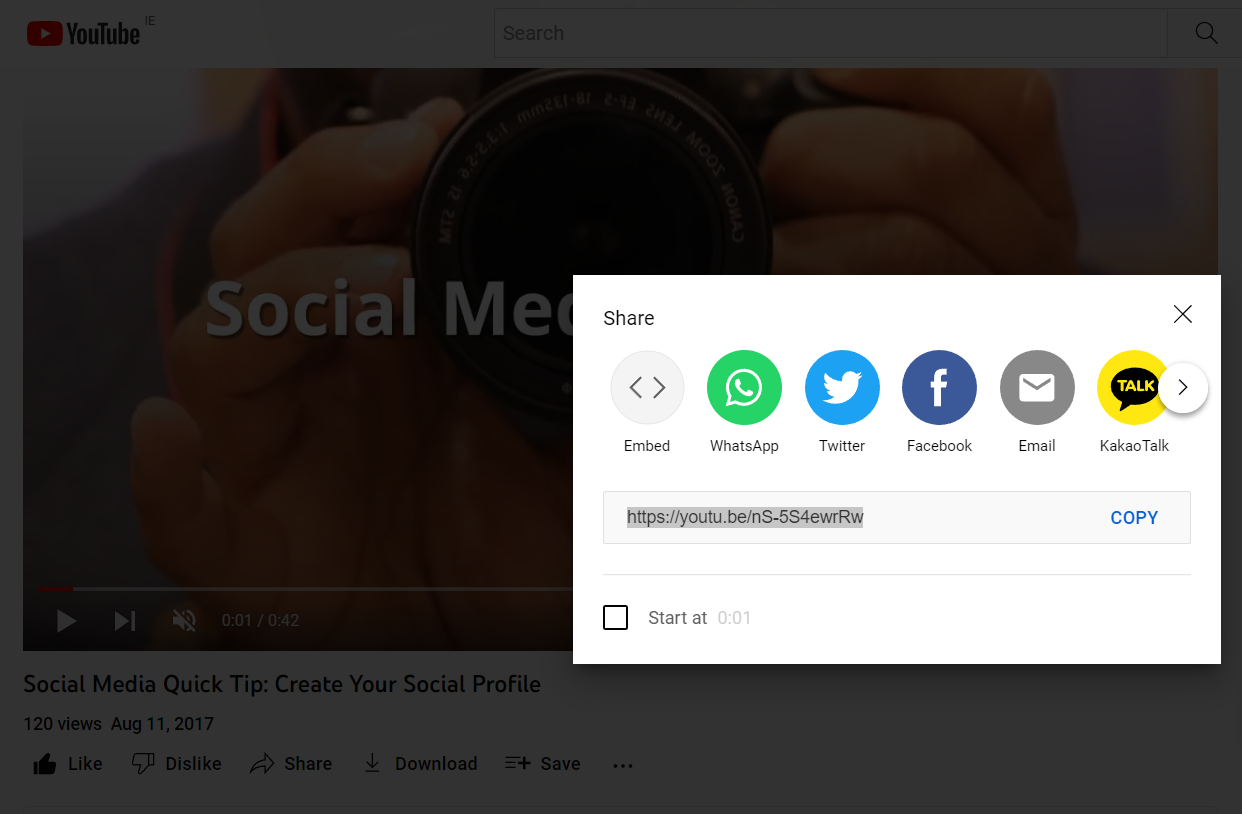
Click on “SHARE” right below the video you’ve chosen on YouTube

Simply copy the video URL.

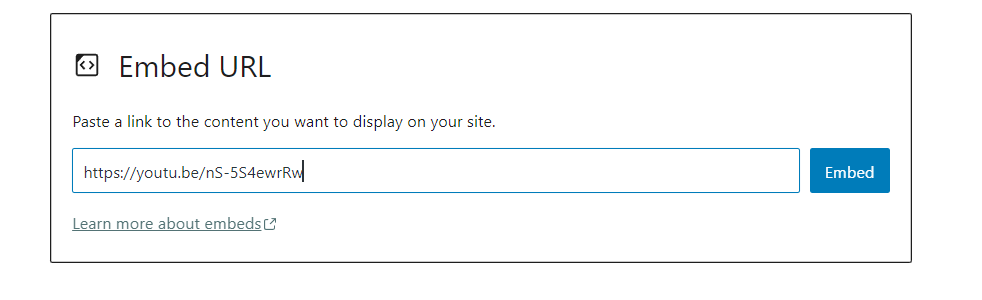
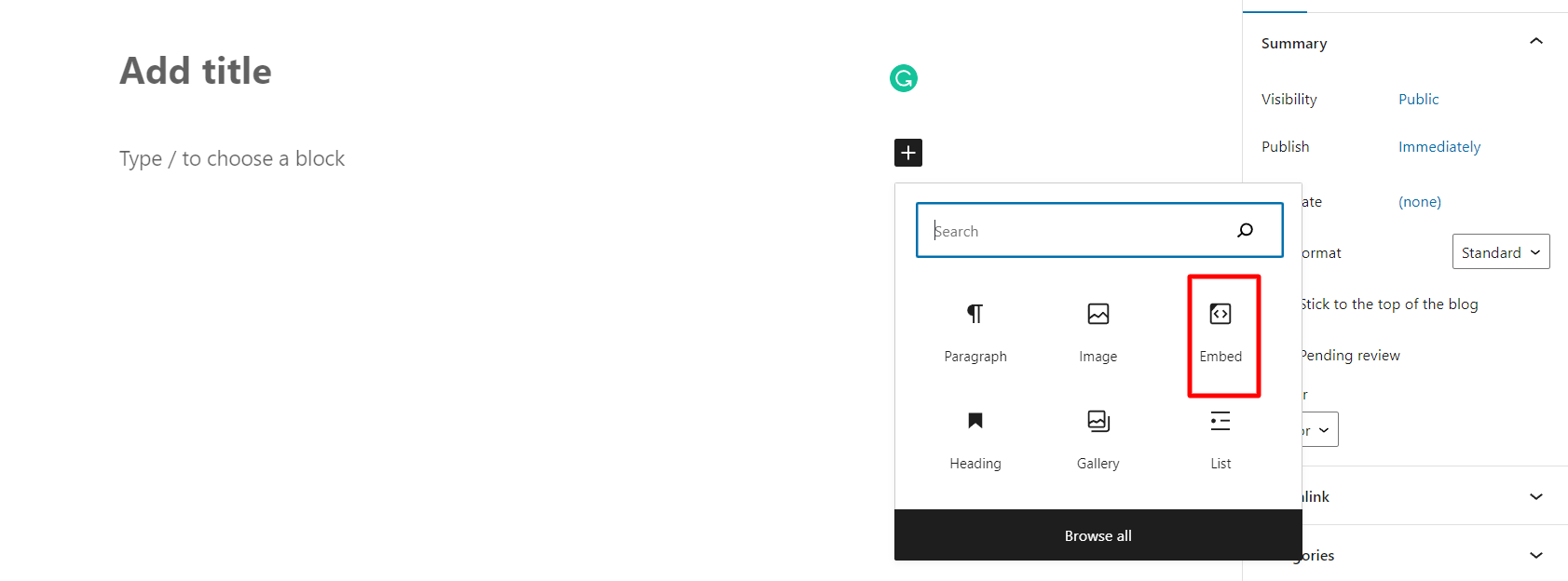
Now go to your website page or post editor where you want to embed the video and follow the prompts to insert the embed code.

And you’re all set!

Posted in Cool Tool

Monday Morning Cool Tool: Snappr Photo Analyzer

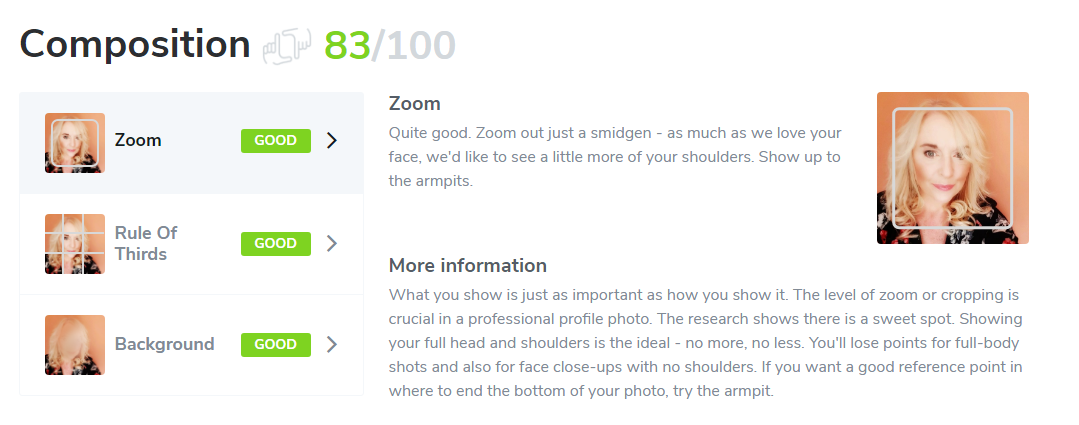
This week’s cool tool recommendation is Snappr’s Photo Analyzer – a tool that uses machine learning technologies to determine how well your photo will perform on LinkedIn.

08334d75-a1b4-449e-a35b-c273cea6e552

After it’s analyzed your LinkedIn profile picture, the tool gives you a score on parameters from composition to editing and gives you plenty of actionable tips to improve your score.


Check out my LinkedIn article How You Can Benefit from an Optimized Profile on LinkedIn for more tips on creating a stand-out profile on the platform. 

Posted in #HCSM

#ThursdayTip: How To “Unmention” Yourself From A Twitter Discussion

Take control of your mentions and leave a conversation with this week’s quick Twitter Tip.

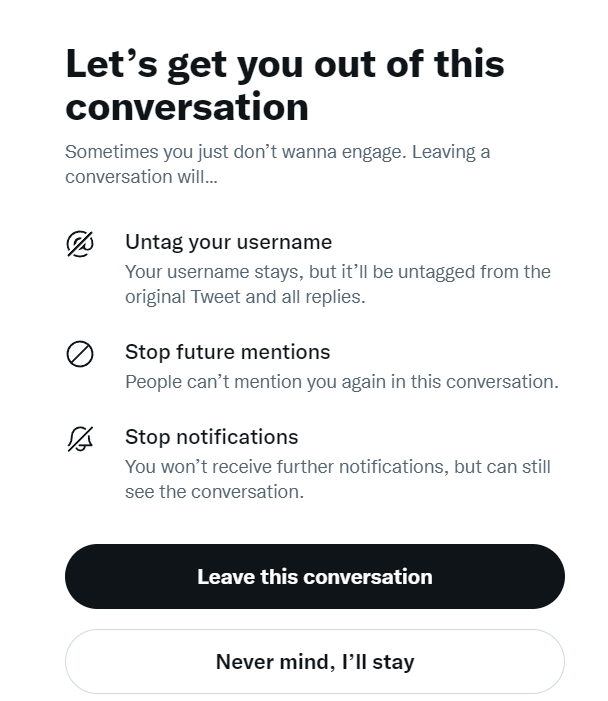
Twitter is rolling out to all users across the platform the ability to leave a conversation and it couldn’t be simpler to do. 

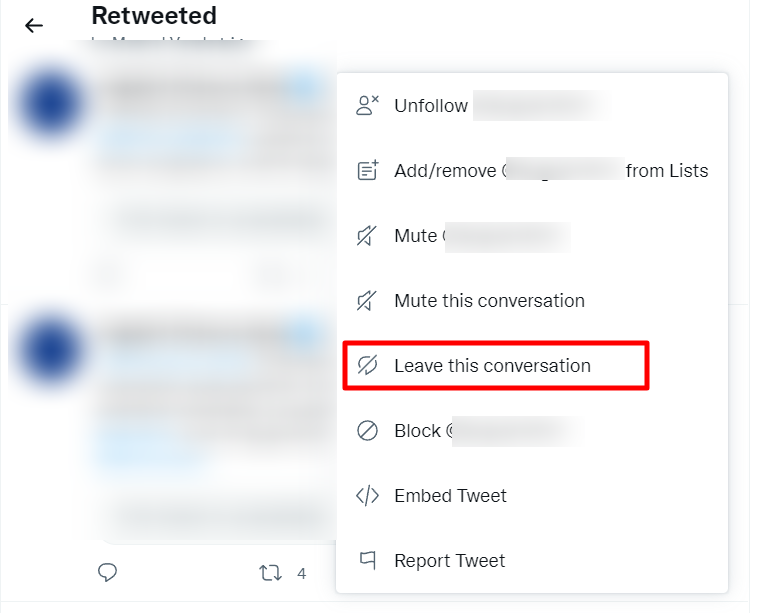
Simply click on the ellipses (three dots) beside the Twitter conversation you wish to leave.

Choose leave this conversation and you will be untagged from the original Tweet and all replies.  You can also see from the screenshot below, you have other options too – stop future mentions (people can’t mention you again in this conversation) and stop notifications (you won’t receive further notifications but will still see the conversation).

You might also like to read How To Mute Accounts, Keywords & Hashtags on Twitter