Articles

Posted in Cool Tool

Monday Morning Cool Tool: Mailmunch

This week’s cool tool recommendation is website lead generator tool – Mailmunch.

Looking to grow your email subscribers?

Mailmunch enables users to create a variety of pop-up email forms for their website, giving you a choice of popovers, covers, scroll boxes, top bars, and embedded forms.  Although they are often viewed as intrusive and annoying, website pop ups nonetheless have been been shown to work when it comes to increasing signups on websites.

Pricing

Start for free; upgrades from $13.99 per month

Posted in Cool Tool

Monday Morning Cool Tool: LastPass

This week’s cool tool recommendation is password saver – LastPass.

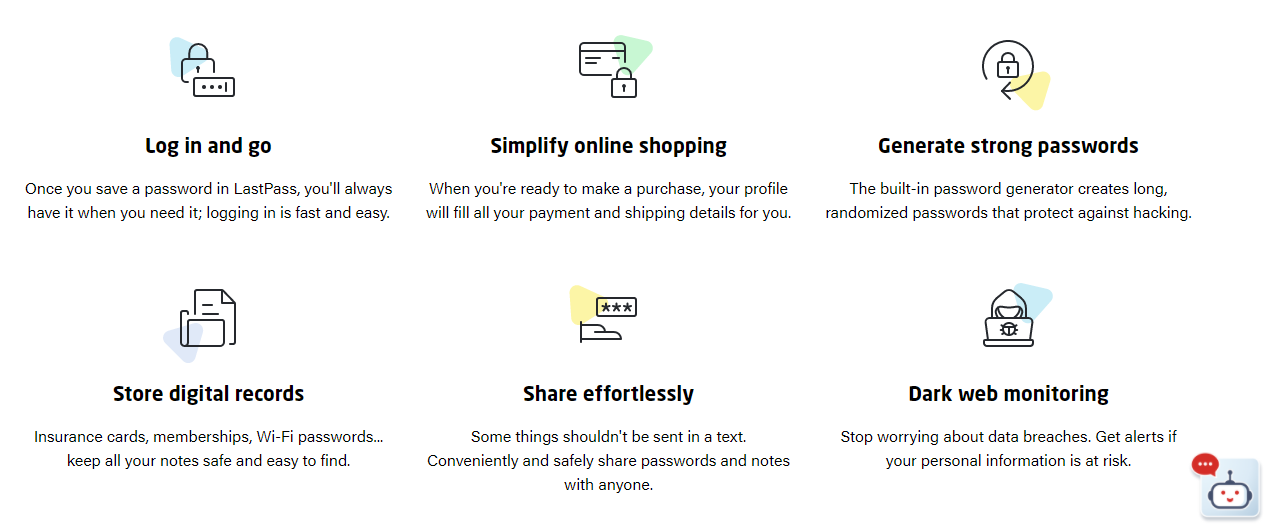
With so many logins and passwords, both personal and client-based, I couldn’t manage without this super-useful site. It allows you to create and save unique passwords for multiple websites thus enabling secure easy login and password management.

Another useful feature is that it allows you to safely share passwords without sending  via text or email.

The free account is perfectly adequate but if you require more features, you can upgrade for a small fee. 

Posted in #HCSM, Thursday Tip

#ThursdayTip: How to Follow Topics on Twitter

Welcome to this week’s quick social media tip. This week I want to show you how to follow topics on Twitter. Following a Topic allows you to stay informed on what’s happening and see more relevant content about that topic.

Here’s how to follow topics on Twitter

From your Home timeline

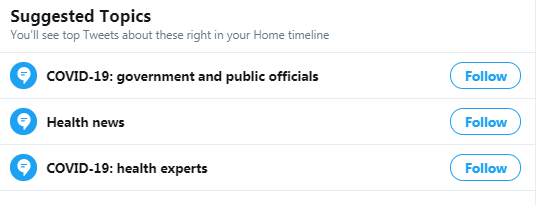
  1. While scrolling through your Home timeline, you may notice that Twitter will suggest a Topic for you to follow.
  2. Simply Tap the Follow button next to the suggested Topic to follow.
download - 2020-06-11T070703.315

From your Topics menu

Tap Topics in your profile icon menu.

download - 2020-01-30T105328.820

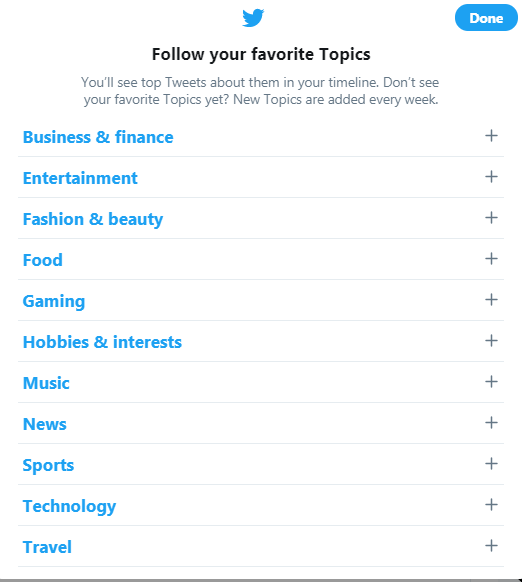
Tap Follow some Topics to browse by category type.
cd83f2bb-78aa-45b1-9888-bae78a337f20

From within each category and sub-category type, tap the Follow button next to the Topics you’d like to follow.

When finished, tap Done.

Note:  Just like with accounts you follow, you can unfollow Topics at any time.

How to unfollow a Topic

From your Home timeline:

  1. In your Home timeline, navigate to a Tweet about a Topic you’re currently following.
  2.  Tap the  icon from the top of the Tweet and select Unfollow.

From your Topics: 

  1. Tap Topics in your profile icon menu.
  2. Tap Unfollow next to the topic.

Worth Noting

Topics you follow are public.

Anyone who can see your full profile can view the Topics you follow. If your Tweets are protected, only your followers will be able to see your Topics.

How to see the Topics someone follows

You have the option to see the Topics that someone else is following. You’re able to view their Topics if their Tweets are public, or if their Tweets are protected and you’ve been approved as a follower.

On the Twitter for iOS and Android app, and twitter.com:

  1. Go to their profile.
  2. Click or tap the more menu  at the top of their profile page.
  3. Select View Topics.

Here’s to your Twitter success!

Posted in Cool Tool

Monday Morning Cool Tool: Savvy Time

This week’s cool tool recommendation is time zone converter tool Savvy Time.

With the clocks changing this past weekend here in Europe, this tool became super useful for me as I tried to calculate timing between three different time zones for a forthcoming webinar. Users can choose to compare between time zones or cities, and will find the current time in both locations.


Posted in #HCSM

Webinar: How Digital Health Empowers Cancer Patients To Become Active Partners In Their Care

Update: To view recording of this webinar go to: How digital health empowers cancer patients to become active partners in their care — YouTube

It’s increasingly acknowledged that engaging patients — and their caregivers — in digital health design is a necessary step in the development of digital technology that not only works but works for end-users in the everyday context of their lives.

Heretofore, too many developers assumed they understood what patients needed, but in reality, many appeared to be motivated more by the cleverness of new technology than actual improvements in health outcomes.

Despite the progress the healthcare industry has made in bringing patients closer to the design process, there still exists a gap between including patients and including patients in ways that are purposeful and meaningful

Clinicians may be experts in disease, developers in technology, but patients are the experts in their own lives. They know better than anyone what it takes to live with a condition day in and day out day. Ultimately, it is their insights that will help build better digital health solutions.

On Thursday 4th November I will be hosting a discussion on this topic via Zoom. Join me to discover how digital health can empower cancer patients and ways to enable shared decision-making with the co-creation of digital health solutions.

Register Here

You might also like to read: A Patient Engagement Manifesto: Guiding Principles For Digital Health Transformation

Posted in Thursday Tip

#ThursdayTip: How To Brainstorm Fresh Content Ideas

Welcome to this week’s social media quick tip.  This week I want to show you how to generate content ideas when you are running out of inspiration.

Next time you’re stuck for something to write about,  try brainstorming using a tool like HubSpot’s Blog Topic Generator. It lets you input up to three different nouns and returns five blog topic ideas that will exercise your writing muscles again.

Here are the suggestions generated for me when I input the terms “social media” and “marketing” into the tool.

1_E-S7L4CmtyaE0zF1fTRqzA (2)

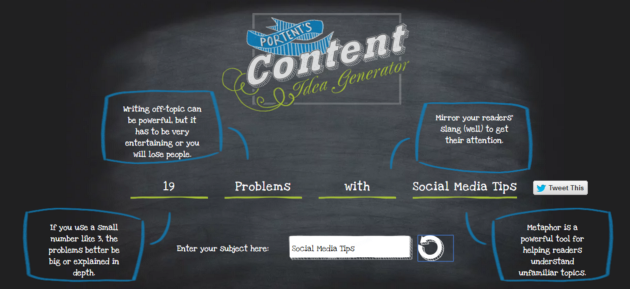
A similar tool to Hubspot, Portent’s Content Idea Generator allows you to generate ideas with just one keyword. Be prepared that the tool can throw up some quirky suggestions, but don’t let that put you off. Keep playing around with it until you find one you can work with. I also really like how it shows you best practice tips, such as using metaphors in your writing.

1_eNc_si2txKAEyzq83wicLQ


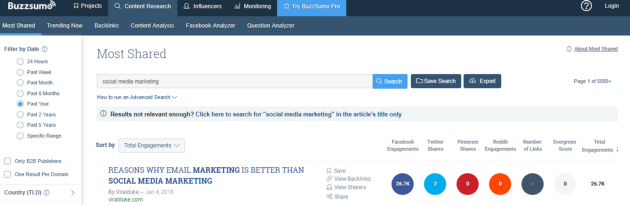
I also like to use Buzzsumo to find inspiration by searching which popular content is most shared right now on social media. These are the topics people want to read about so it’s worth brainstorming ideas around this content.

1_xV4T2-3JQQ_YEZa8EyOv4g (1)

Here’s to your socia media success!

Posted in #HCSM, Thursday Tip

#ThursdayTip: How to Add GIFS to Your Tweets

Welcome to this week’s quick social media tip. This week I want to show you how to add GIFS to your tweets. 

Want to add variety to your tweets and help them stand out? Try adding GIFs.

Here’s how

From the Tweet compose box, click the GIF icon to search for and select a GIF from the GIF library.

download - 2020-01-30T111013.236

When you choose a GIF, the image will attach to your Tweet in full size.

download - 2020-01-30T111604.973

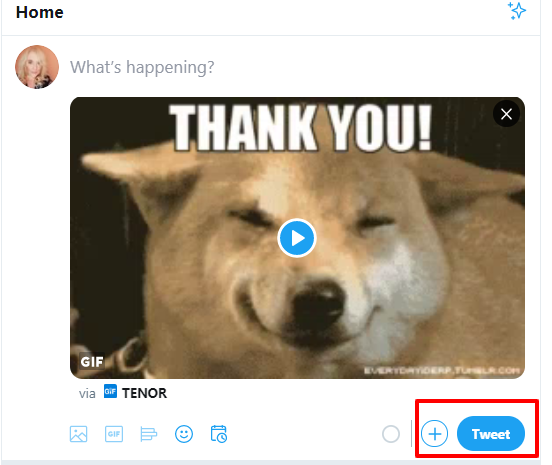
Click Tweet to post.

download - 2020-01-30T112155.623

Notes

  • GIF attachments do not count towards the character limit in a Tweet.
  • Animated GIFs can’t be included in Tweets with multiple images. You can send only one GIF in a Tweet.
  • Twitter supports looping GIFs. If your animated GIF doesn’t loop and plays a single time, it will display as a static image.
Posted in Cool Tool

Monday Morning Cool Tool: IFFTT

This week’s cool tool recommendation is automation tool IFTTT.

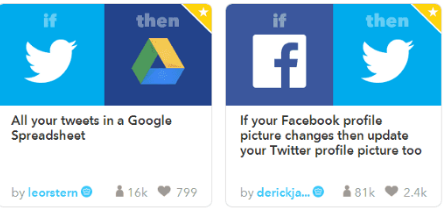
IFTTT (an acronym for If This, Then That) allows you to sync up multiple apps so that when a certain activity happens, it kicks off a separate activity in another app. There are lots of ways to use this tool, for example, I use IFTTT to add my tweets to a Google Spreadsheet to create a Twitter Bank of tweets to draw on.

1_WqWotO4oZY6Mo9b-6kZcJQ

I’m not a big fan of automating social media activity but used well, it is a boon to time-pressed social media marketers. The key to making it work is to spend time creating genuine, engaging content, and then maximizing its performance through the strategic use of automation tools.

For more time-saving tips like this, read Ten Tried and Tested Time-Saving Tips For Social Media

Posted in #HCSM, Thursday Tip

#ThursdayTip: How To Save Searches on Twitter

Welcome to this week’s social media tip. Today I want you to show you how to save searches on Twitter.

1. Go to the Search tab 

ddc52706-c12e-4721-a708-fd652e0a37cf

2. Enter your search into the search box.

558accce-98ef-4005-9ef2-8f22e7099242

3. At the top of your results page, tap the three dots icon  and then tap Save. 

download - 2019-11-22T094724.656

4.Next time you tap the search box, a pop-up menu will display your Saved searches.

1f59eec2-0fbb-4b07-a3a4-0dc264c85754

5. To remove a search: Tap on delete saved search.ad759305-df08-40b2-a190-eea658880b6b

 Note: You may have up to 25 saved searches per account.


Posted in Cool Tool

Monday Morning Cool Tool: Animoto

This week’s cool tool recommendation is free video-maker Animoto.

Make creating videos for social posts a breeze with this tool. 

Upload your own images and video clips or choose from a built-in library of millions of photos and videos from Getty Images.

Then drag and drop right into your project. Animoto provides you with plenty of customizable templates to make this super easy.

Then select a song to add to your video from a library of thousands of licensed tracks.

Now your video is good to go!