Articles

Posted in #HCSM

Data Never Sleeps: Here’s What Happens Every Minute Online [Infographic]

Data never sleeps and it shows no signs of slowing down. Domo


Last year I posted a mesmerizing graphic on just what happens every 60 seconds online.

I was curious to know how that has changed with the impact of the pandemic on our digital consumption. 

“Our 9th edition of Data Never Sleeps illustrates the impact of the coronavirus pandemic on the increasing digitization of daily life and how technology is helping re-imagine the future of work” – Domo

Stats at a Glance

Not surprisingly Zoom, Teams and Slack use increased for those of us working from home.

Shopping and Netflix streaming dominate the chart as we turned online in droves for shopping (6 million of us shop online every minute of the day!) and entertainment.

An incredible 5.7m searches are performed every 60 seconds.

Actionable Tip: If you want your website to rank higher in Google you have to make sure that you’re using the right keywords. Keyword research is vital because identifying the terms people are searching for will determine the kind of content you create and the way you will optimize it. Click here to learn more.

You can see there are plenty more insights to glean from this graphic. Use these stats to determine where to focus your social media marketing efforts this year. 

Posted in #HCSM

9 Tips to Help You Build a Better Healthcare Blog

Do you blog for your healthcare communications?

Whether you’re new to blogging, or you’ve been blogging for some time, these tips are designed to steer you in the right direction of building a better blog.

1.Perfect Your About Page

For new visitors to your blog, this will be one of the first pages they will visit, so it’s worth taking time to make it as professional as possible. Use this space to share the story of why you do what you do to advocate for disease awareness and educate and support your community.

2. Check Your Blog’s Load Speed

Does your blog load quickly? A good site will load in 2 seconds. If your blog is taking longer than that, consider that around 40% of people will leave a site if it doesn’t load in 3 seconds. You can check your blog’s loading speed with a tool like GTMetrix.com.

Insider Tip: If you like to add lots of images to your blog, be aware that large images can slow your blog down. Resizing your images can speed up the loading time. Upload your image to Picresize.com for quick and easy resizing.

3. Declutter Your Sidebar

Does your blog have a sidebar? Has it become crowded with widgets? Then it’s time to declutter Marie Kondo style. Get rid of anything that doesn’t add something valuable to the reader’s experience.

4. Showcase Popular Content

One thing that you should keep on your sidebar is a list of your most popular content. Use this space to showcase your best writing. And be sure to put hyperlinks in each of your posts that direct people to other popular posts on the same topic.

5. Make It Easy For Readers to Find Information on Your Site

Providing helpful information is great, but you also need to be sure that readers can find that information. By adding categories and tags to your posts, you make it easy for readers to find the information they need when they come to your blog. It also increases views on your other posts tagged with the same keywords.

6. Create An Email Sign-Up Form

Encourage readers to sign up to receive your latest posts. Nancy Stordahl, who blogs at NancysPoint.com, advises “anyone who wants to increase readership to her/his blog to consider sending out a monthly or weekly email with links to new posts and possibly one or two older ones. “I became very frustrated with Facebook’s algorithms because it seemed no one was seeing posts I shared. Having your own email list puts you and your readers in control.”

7. Add Social Sharing Buttons

By making it easy for visitors to your blog to share your content, you increase the likelihood that they will take this action. When more people share your content, you increase the chance of driving more visitors to your blog, and having your content seen by more people.

8. Choose Typography Carefully

Typography is made up of elements such as font type and size, kerning (white space between individual characters or letters), and tracking and spacing. It’s an important factor in making your content more readable for visitors to your site.

9. Backup Your Blog

Finally, you’ve put a lot of effort and time into your blog and you don’t want to risk losing all your great content. You never know when your blog might get hacked, and the best defense is scheduling regular backups using a plug-in like BackWPup.

You might also like to read: Need a topic for your healthcare blog? Here are 12 ideas to get you started

Posted in #HCSM, Thursday Tip

#ThursdayTip: How To Optimise Your Social Media Profile

Welcome to this week’s quick social media tip. If you find yourself with some extra time on your hands, why not take the opportunity to review your social media profiles. 

Your social media profile is the first place people will find you online so it’s important you make a good first impression. Check out this video quick tip to make your social media profile shine.


Here’s to your social media success!

Posted in Cool Tool

Monday Morning Cool Tool: RiteTag

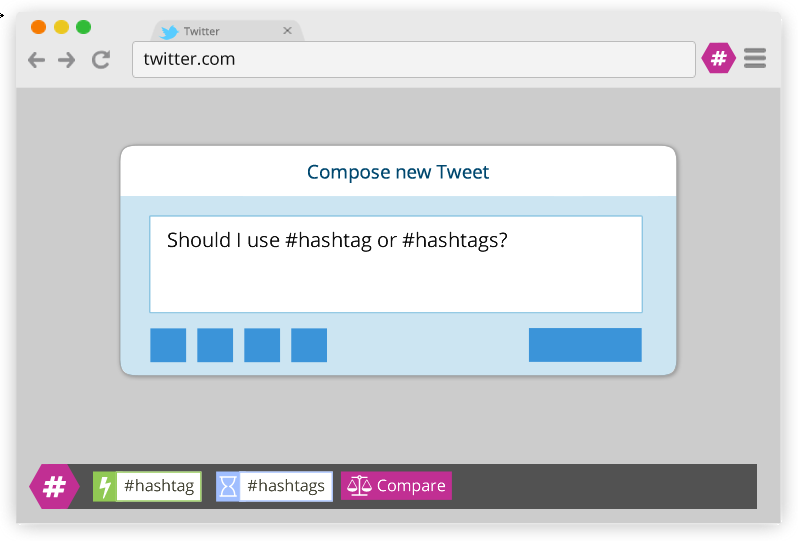
This week’s cool tool recommendation is RiteTag, a useful Chrome extension which gives you instant feedback on your hashtag choices as you type them.

ritetag-instant-feedback.png

How It Works 

RiteTag shows you how hashtags are performing on Twitter and Facebook before you post content. Once you log in to RiteTag using your Twitter or Facebook credentials, it checks the hashtags you begin typing in real time and color codes them:

  • If your hashtag is green, it means the hashtag will help your content be seen now.
  • If your hashtag is blue, it means the hashtag will help your content be seen over time.
  • If your hashtag is gray, you should select a new hashtag because it has low levels of engagement.
  • If your hashtag is red, you should select a new hashtag because it’s so popular, your content will disappear into the crowd.

RiteTag is available as a Chrome Extension. Download it here. 

Posted in #HCSM

A Step By Step Guide To Creating A YouTube Channel For Patient Education

As a form of patient education and health promotion, YouTube has great potential but currently, it’s not being used to its full potential.

Aside from patient education, YouTube is a significant addition to your marketing toolkit. Owned by Google, it’s the second largest search engine in the world with added SEO potential due to its Google connection.

YouTube At A Glance

download.png

If you don’t already have a YouTube channel for your practice, perhaps now is the time to consider it.

A Step By Step Guide To Creating Your YouTube Channel

Follow these simple steps and you will have your own YouTube channel up running and ready to reap rewards.

Step #1 You’ll need a Google account to sign-in to YouTube

index

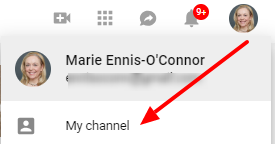
Step #2 Next click on “My Channel”

download (49)

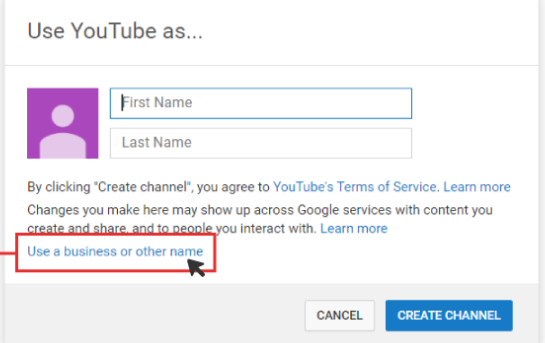
Step #3 Now add your business name or your own name 

download (50)

Step #4 Create a title for your channel

Your channel title should be descriptive and briefly tell viewers what your channel is about.

download (51)

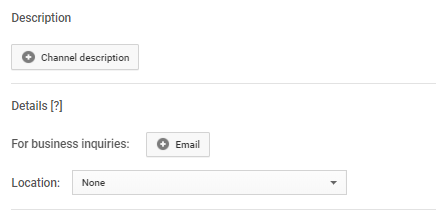
Step #5 Select Customize Channel to fill in more details 

Add a link to your website and a description of your practice.  Adding your location to your YouTube videos will make them geographically searchable,

download (52)

download (55)

Step #6 Add a thumbnail image (e.g your logo) and banner (channel art)

download (53)

I  recommend you use the same picture across all online media: Facebook, Twitter, website, YouTube, etc. Aligning your video branding with that of your business creates a consistent experience for your audience. When existing and potential customers visit your YouTube channel, they need to feel that it is part of a greater whole.

The recommended size for channel art is 2560 px by 1440 px.

Pro Tip: Canva can help you create correctly-sized thumbnail and channel art.

download (54)

Step #7 Connect your social media accounts

Add in your social media accounts.

download (56)

These can be overlayed on your banner image.

download (57)

As you can see it’s super simple to set up your own YouTube channel. In my next post, I’ll show you how to upload your first video and optimize it for viewing. 


Subscribe to my YouTube channel here

Posted in Thursday Tip

#ThursdayTip: How To Find The Best Keywords For Your Website

Welcome to this week’s social media tip. Today I want you to think about choosing the best keywords to rank higher on search engines. 

93% of online experiences begin with a search engine.

It makes search the second biggest online activity, after email.

If you want your website to rank higher in Google you have to make sure that you’re using the right keywords. Keyword research is vital because identifying the terms people are searching for will determine the kind of content you create and the way you will optimize it.

One of the biggest mistakes I come across is trying to rank for generic keywords with a high search volume.

Instead, try long tail keywords.  50% of search queries are four words or longer.

Long tail keywords are keywords or key phrases that are more specific — and usually longer — than more commonly searched for keywords. They get less search traffic, but will usually have a higher conversion value, as they are more specific.

Long tail keywords allow you gradually to get more traffic and to be found by new and motivated audiences.

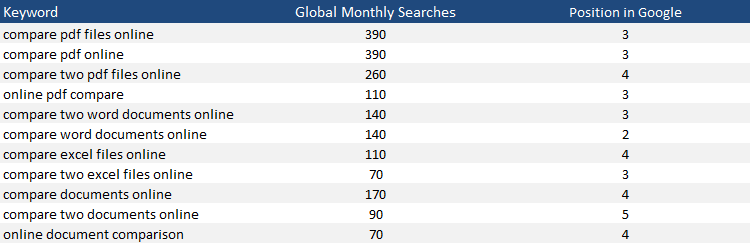
Here is an example of a list of long-tail keywords based on the keyword “pdf”

8bbaf7ba-5838-45c7-95a3-8781b7e1a915

How to figure out what your target keywords or phrases should be.


I’m borrowing this from PR consultant Gini Dietrich‘s playbook so you may need to adapt it to your own business.

  • Write down all of the questions you are asked in new business, or sales, meetings.
  • Write down all of the questions your customer service department is asked.
  • Go to your website or your internal server/Dropbox/Google Drive and grab your most recent frequently asked questions sheet.
  • Go into your sent mail and scroll through to see what kinds of questions your clients are asking you that you’re writing long answers to … everyday. Write those down.

Now you have a nice list of content as a starting point. If you are being asked these questions, this is what people are also searching. And, if you have the answers and you’re the best suited to provide the solutions, they should be finding you when they search these things.

I use the following tools to help me find long tail keywords.

1. Google Adwords Keyword Planner 

This is a free Google tool that gives you insight into the volume of monthly searches for a particular keyword, and how much competition there is, based on advertising spend for sponsored links. It also returns suggested terms you could use instead or alongside your original keyword.

You will need to sign up for an Adwords account with a Gmail account but you don’t have to add any credit card details or create any ads to use the tool.

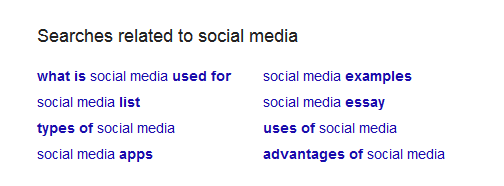
Pro Tip! Use Google Related Searches

Google displays related search results at the bottom of the first page when you type in your Google search query. This is a super-helpful resource as it returns ideas that are relevant to your topic based on user interest and contextual words.

1_YI5j2PX1tlu9n8NKmlBK4w

2. Keywords Everywhere

I’ve installed this tool as a Chrome extension and I find it super helpful. It returns a host of long-tail phrases based on what people are searching for using specific keywords.

1___6h80M6bfqxk5SKeQ8u3A

There are other long-tail keyword tools out there which you also might like to try – including Keyword Clarity (a free keyword grouping tool that makes it easy to identify keyword clusters) Answer The Public (an automated autocomplete tool that will populate relevant topics based on your search), and KWFinder.

Further Reading  How to move from keyword research to intent research


Posted in #HCSM, Twitter

12 Ways To Search For Health-Related Content On Twitter

Twitter’s statistics are mind-blowing. According to Internet Live Stats, every second, on average, around 6,000 tweets are tweeted on Twitter which corresponds to over 350,000 tweets sent per minute, 500 million tweets per day and around 200 billion tweets per year!

So, how do you keep up with all those tweets? Obviously it’s impossible to keep up, but you can handle the avalanche better through a combination of maintaining Twitter lists of the people you follow, health-related hashtags, etc., and using Twitter’s Advanced Search Engine.

While the easiest way to do a search on Twitter is to click the native search facility, did you know you can do so much more with Twitter’s advanced search capabilities?

Twitter’s advanced search capabilities allow you to narrow down your search using parameters such as specific keywords, language, people, location, and date range.

In today’s post, I will show you twelve ways you can use this powerful search engine to search for health-related content on Twitter.

1. Search for a phrase: for example “healthcare social media marketing strategy”.

2. Search for any of these words: for example “healthcare social media” or “healthcare marketing strategy”.

3. Exclude any word: for example “blog”.

4. Search for health related hashtags: for example #hcsm.

5. Search for any specific language.

6. Choose specific accounts to search within.

7. Or find tweets directed to a specified Twitter user or referencing a specific username.

Image

8. Search for tweets in a specific location or within a specified mile radius of a location.

9. Narrow down your tweets within a specific date range. This is useful if you want to catch up on tweets around a specific conference or event.

10. Discover sentiment around tweets – i.e. whether negative or positive.

11. Find health-related questions. This feature enables you to search for conversations happening locally that you might like to add your expertise to.

12. Choose to include re-tweets in your search. I usually exclude this search parameter, as I prefer to concentrate on original tweets; however it may be useful if you want to see how many times a tweet has been re-tweeted or who is re-tweeting specific tweets.

And here’s a snapshot of my final search results. As you can, I can zoom in on the most popular tweets, or those who are tweeting in real time. I cans also find photos and videos related to my search. I can even save this search, and embed it on my website.

Image

Considering its capabilities, it is surprising that Twitter’s advanced search engine is so underused. Try using it to create lists, curate content, and as a social media listening tool to find health-related conversations. Once you start, you are sure to find other ways to maximise this powerful search engine to advance your healthcare marketing.

Posted in #HCSM

How To Create A Social Media Mission Statement

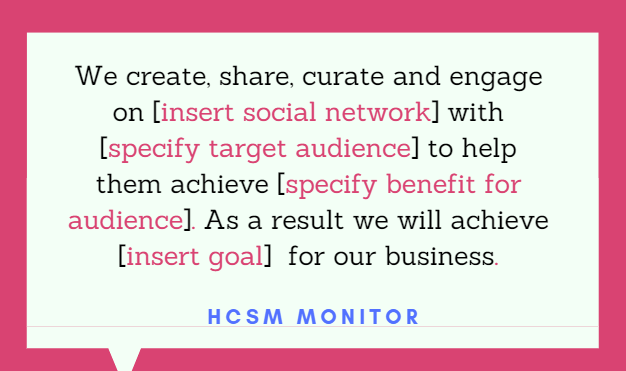
Following on from a previous post on the necessity to create a social media strategy for your healthcare marketing, today I want to show you how to turn that strategy into a focussed mission statement.

This statement should guide your social media activity and help you focus in on where you need to spend your time and efforts.  Here is a sample statement I use with my own clients.

Social Media Mission Statement

download (43)

Each time you create a new piece of content or make a decision to try a new social media tool or platform, see if it fits the mission statement. Doing so will help make your social media decisions more focused and effective.

Posted in #HCSM, Thursday Tip

#ThursdayTip: How To Use Twitter’s Conversation Settings

Welcome to this week’s quick social media tip.

Today I want to show you how to use Twitter’s Tweet Reply conversation setting. 

Last August Twitter rolled out this function to users to give people more control over the conversations they start.

Sometimes people are more comfortable talking about what’s happening when they can choose who can reply. Users in the test pool have said that they feel more comfortable tweeting, and more protected from spam and abuse, which has lead to them tweeting longer, more in-depth thoughts, particularly on sensitive subjects.

Here’s how it works

Before you Tweet, choose who can reply with three options:

  1. Everyone (the default, standard setting)
  2. Only people you follow
  3. Only people you mention


Tweets with the latter two settings will be labeled and the reply icon will be grayed out for people who can’t reply. People who can’t reply will still be able to view, Retweet, Retweet with Comment, share, and like these Tweets.

I admit I haven’t used the feature, but it’s interesting to see how some brands are utilising it here.

How about you? Do you think this is a useful feature?