I love learning about new tools to make social media marketing more creative and effective, so I’ve decided to share some of my favourite tools with you at the start of each week. This week’s cool tool recommendation is photo editing app TouchRetouch.
The app is designed to deal with unwanted content in photos, without having to resort to Photoshop. It allows you to remove small items from your photos by drawing over them with your finger.
Twitter reminded me last week that I’ve been on the platform for 13 years!
Even though I’ve seen Twitter change over the last decade, becoming less friendly and more confrontational, it’s still the social network I visit several times a day.
Over the years I’ve met so many incredible people on Twitter – some of whom have become friends in real life.
I’ve been invited to speak at conferences around the globe.
I’ve never been so strategically connected.
And all because of Twitter.
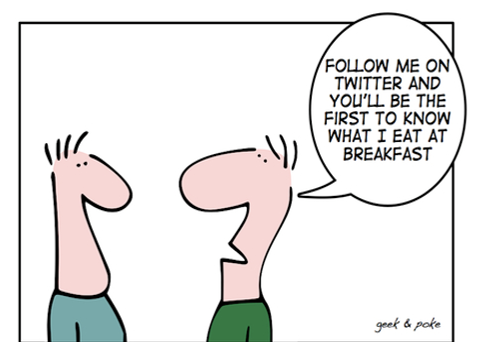
And yet I still meet people who tell me they just don’t get Twitter. They say it’s just a place to post what you ate for breakfast, or lunch, or.. well you get the picture.
But here’s the thing about Twitter that not everyone realizes, you build your own experience to suit your interests and needs.
Twitter is the frame, not the picture, what’s inside is largely up to you.
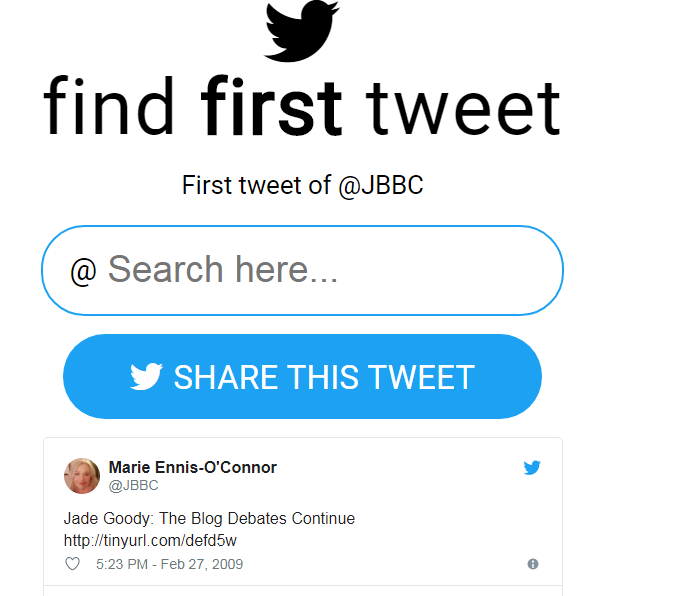
Welcome to this week’s social media quick tip. This week I want to show you how to find old tweets in your Twitter archive.
Have you ever wanted to search your Twitter archive to locate an old tweet?
Twitter shows your most recent 3,200 tweets in your timeline, which sounds like a lot, but if you’ve been using Twitter for quite a while and tweet a lot, you may find it hard to search for old tweets.
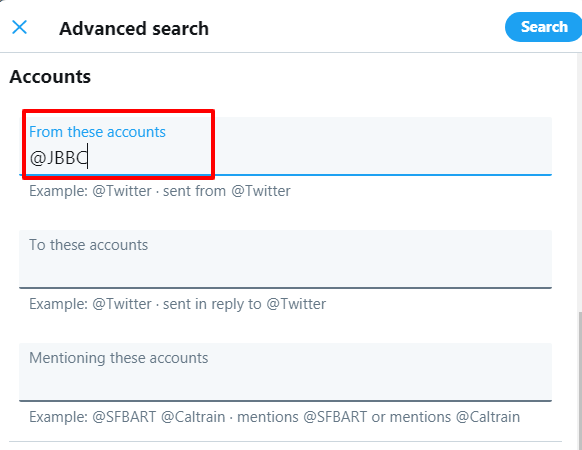
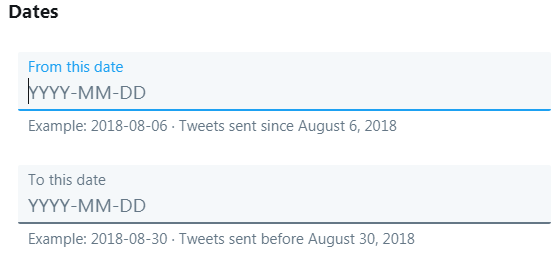
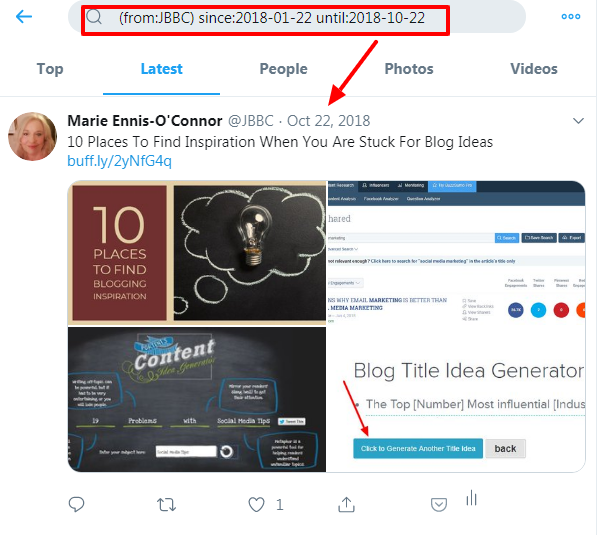
The solution lies in Twitter’s Advanced Search function. Here’s how to perform a search for your old tweets.
A new infographic from Oberlo caught my eye this week.
Whether you’re simply curious about the numbers behind the world’s most popular search engine, or you’re looking to optimize your website, these statistics are worth exploring.
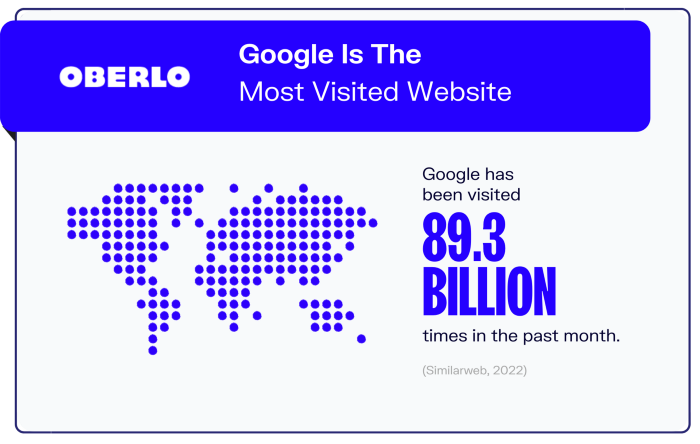
Let’s start with the fact that Google dominates the search engine market, holding close to 92% of the market share (GS Statcounter, 2022), and is THE most visited website, with almost 90 billion visits per month on average.
This number is based on the fact that Google is used by people daily not just for search but also for email (Gmail) and video and image searching.
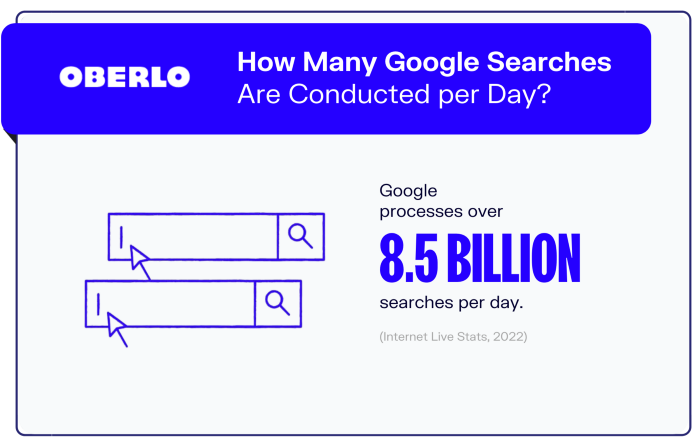
How Many Google Searches Are Conducted per Day?
The latest data shows that Google processes over 99,000 searches every single second (Internet Live Stats, 2022). This makes more than 8.5 billion searches a day (Internet Live Stats, 2022).
84 percent of us use Google 3+ times a day or more often (Moz, 2019).
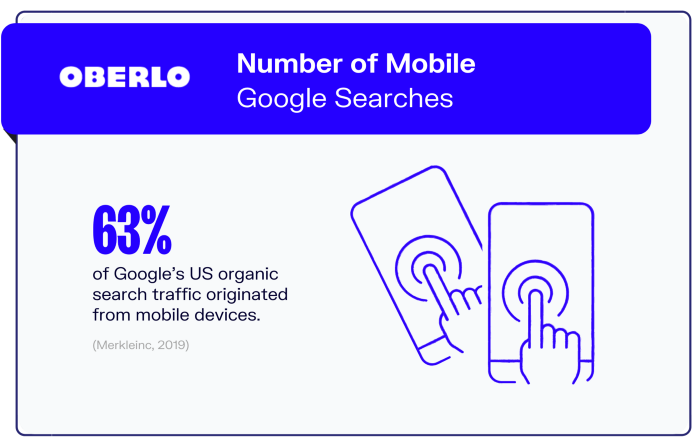
Most of these searches are conducted on mobile devices.
Here’s something worth mentioning, as Oberlo points out: “When comparing the types of searches on different devices, users on tablets or smartphones are more likely to conduct local searches, looking for answers to a particular query that is more likely to be location-based. Searches carried out using mobile devices are typically done with less complex results in mind, which could include fast facts, rather than learning complex subjects.”
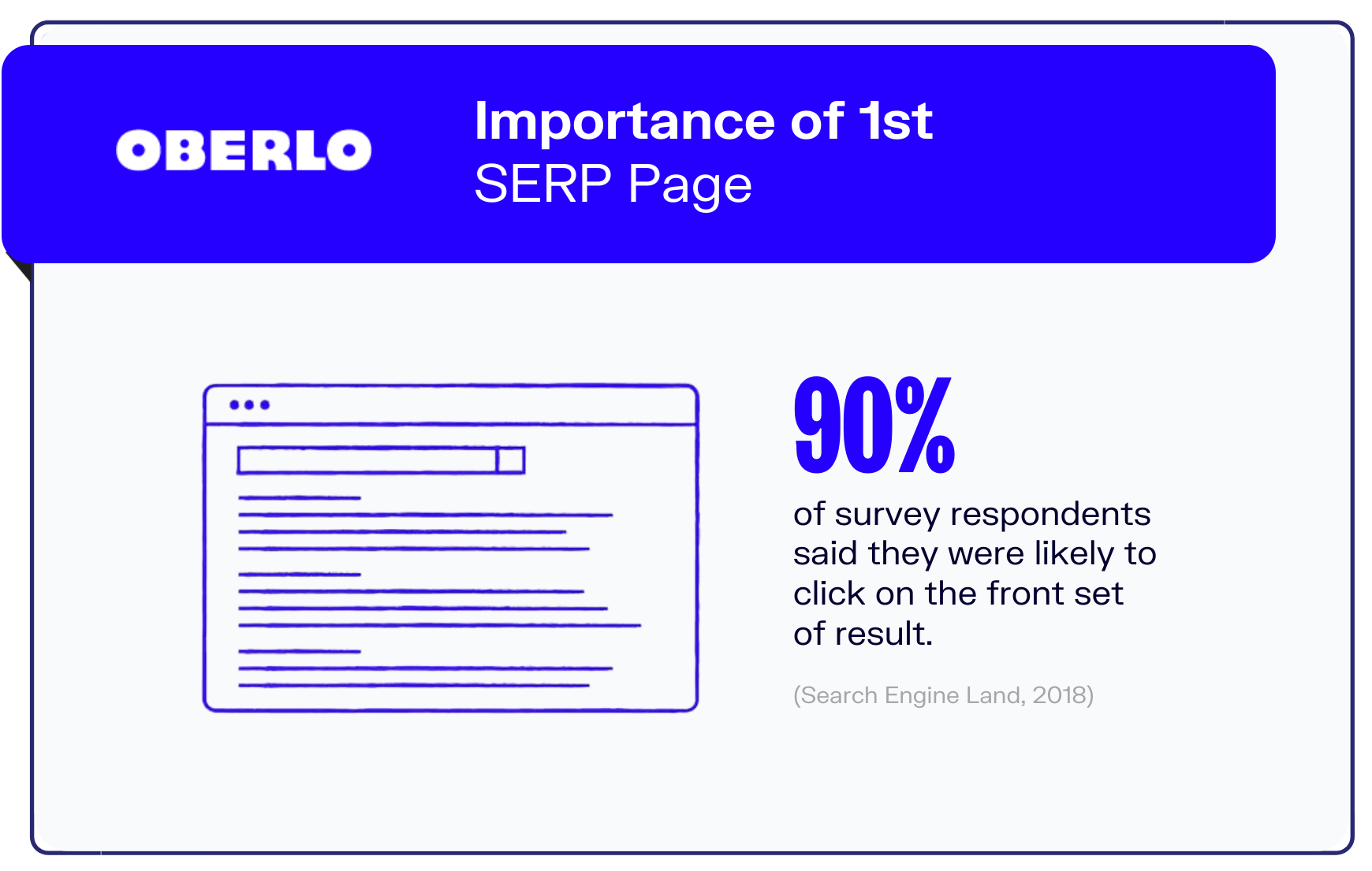
Finally, check out this statistic, the majority of us stay on the first page of Google results. In fact, 60 percent of mobile users were “very likely” to click on the first two or three search results they saw.
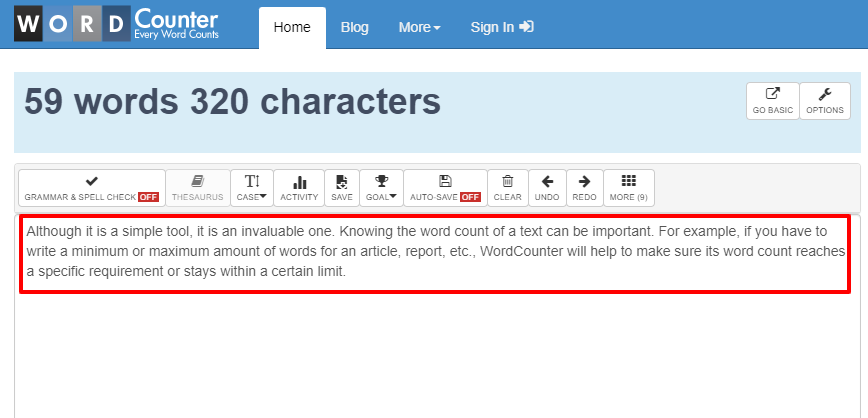
This week’s cool tool recommendation is WordCounter.
Although it is a simple tool, it is an invaluable one.
Knowing the word count of a text can be important. For example, if you have to write a minimum or maximum amount of words for an article, report, etc., WordCounter will help to make sure its word count reaches a specific requirement or stays within a certain limit.
Apart from counting words and characters, WordCounter can help you to improve word choice and writing style, and, optionally, help you to detect grammar mistakes and plagiarism.
You can also copy and paste text from another program over into the online editor above. The Auto-Save feature will make sure you won’t lose any changes while editing, even if you leave the site and come back later.
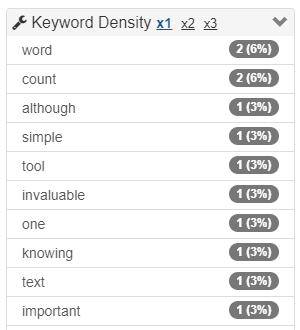
In addition, WordCounter shows you the top 10 keywords and keyword density of the article you’re writing. This allows you to know which keywords you use how often and at what percentages. This can prevent you from over-using certain words or word combinations and check for best distribution of keywords in your writing.
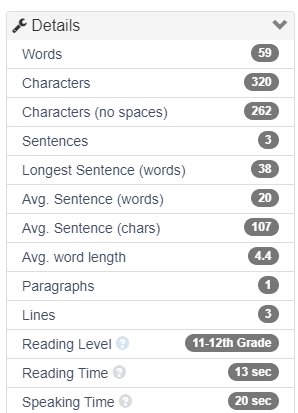
In the Details overview you can see the average speaking and reading time for your text, while Reading Level is an indicator of the education level a person would need in order to understand the words you’re using.
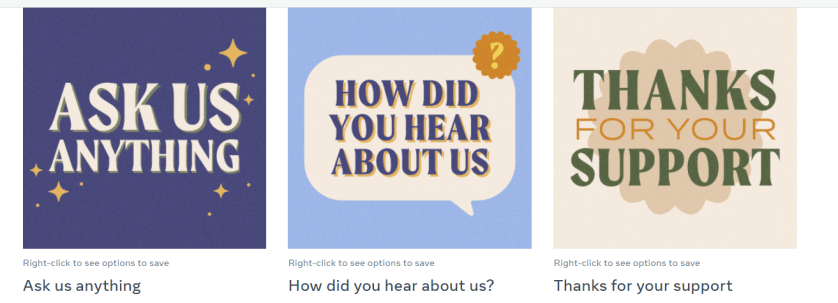
Did you know that you can download all kinds of templates on Facebook to make your posts more visually appealing?
Whether you want to welcome people to your Page, make an announcement about a new service or product, or run a competition, Facebook offers a host of templates to help you do so.
I’m preparing to go Live on LinkedIn this week to mark World Cancer Day on Feb 4. It is my first time going Live and I’m excited to do so. I’ll be using a third-party tool that I’ve used before for Facebook Live videos and it’s this week’s cool tool recommendation.
StreamYardis a live streaming studio which runs on your laptop or desktop. You can use it to stream directly to Facebook, YouTube, LinkedIn and other platforms. It’s great for live interviews. You can have 6 people in the stream. Up to 10 people can enter the broadcast studio (with a paid version of the tool) so you can swap people in and out if you’re doing a dynamic talk show.
Other cool features include the ability to show viewer comments on screen, add a call to action, upload your logo, images, GIFs, and even videos.
Another great feature is the ability to pre-record your “live” stream
This is a great option if you:
have a high stakes stream, and can’t afford mis-steps
are nervous about going live
can’t be online, or schedule a guest, at your normal show time.
StreamYard has both free and paid versions of the product. You can remove the StreamYard logo and upload your own. You can also add overlays and backgrounds, and use the restream integration. Full details are on the pricing page.
I love learning about new tools to make social media marketing more creative and effective, so I’ve decided to share some of my favourite tools with you at the start of each week. This week I’m recommending Twitter chat manager – Twchat.
For those who may be unfamiliar with Twitter chats, they are a public chat, moderated by a host that happens live on Twitter. To filter all the conversations a specific hashtag is used. This hashtag allows you to follow the discussion and participate in it. Most Twitter chats are recurring and focus on specific topics introduced by a moderator. The chats usually last one hour and a transcript of tweets is often made available after the chat has ended.
Twitter chats move fast, which is why using a third-party tool is useful. Twchat allows you to create real-time chat rooms based on Twitter hashtags. TwChat monitors the hashtag and creates a simple, clean interface similar to a chatroom. You can see new messages, send your own, and have total control over the content you see.
Do you use this tool or a similar one? Do you find it helpful?
Twitter Lists are essentially filtered timelines and it’s one of the most effective and simple ways to get a handle on your Twitter engagement.
Here’s how it works:
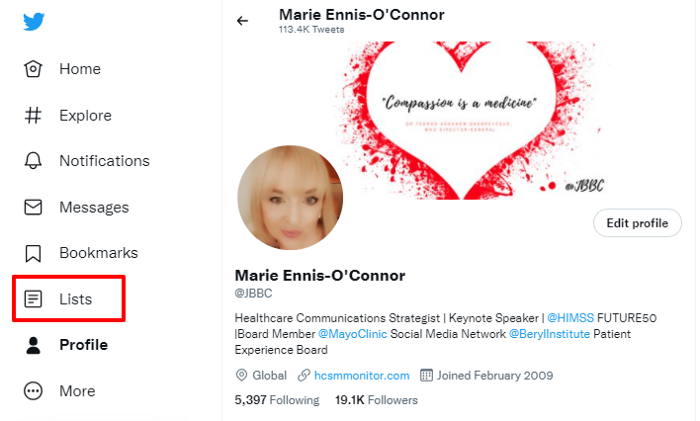
1. Click on Lists on your profile page
2. Click the icon to create New List
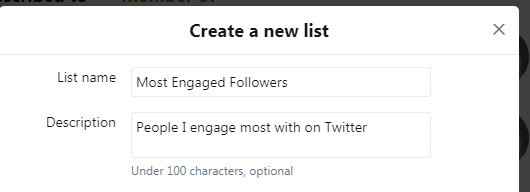
3. Name the List and provide a description
4. Designate the List as Public or Private & then hit Save List
5. To add or remove people from your Lists:
Use the person icon drop-down menu on somebody’s profile
Choose add or remove from Lists
Choose the List you would like to add the person to or uncheck the List the person was already a member of
It’s so easy to build a Twitter List and it is such an effective and simple way to get a handle on your Twitter engagement. Each time you follow someone new on Twitter, get into the habit of adding them straight to one of your lists. If you haven’t already started with your lists, start building them today!











 Health Care Social Media